
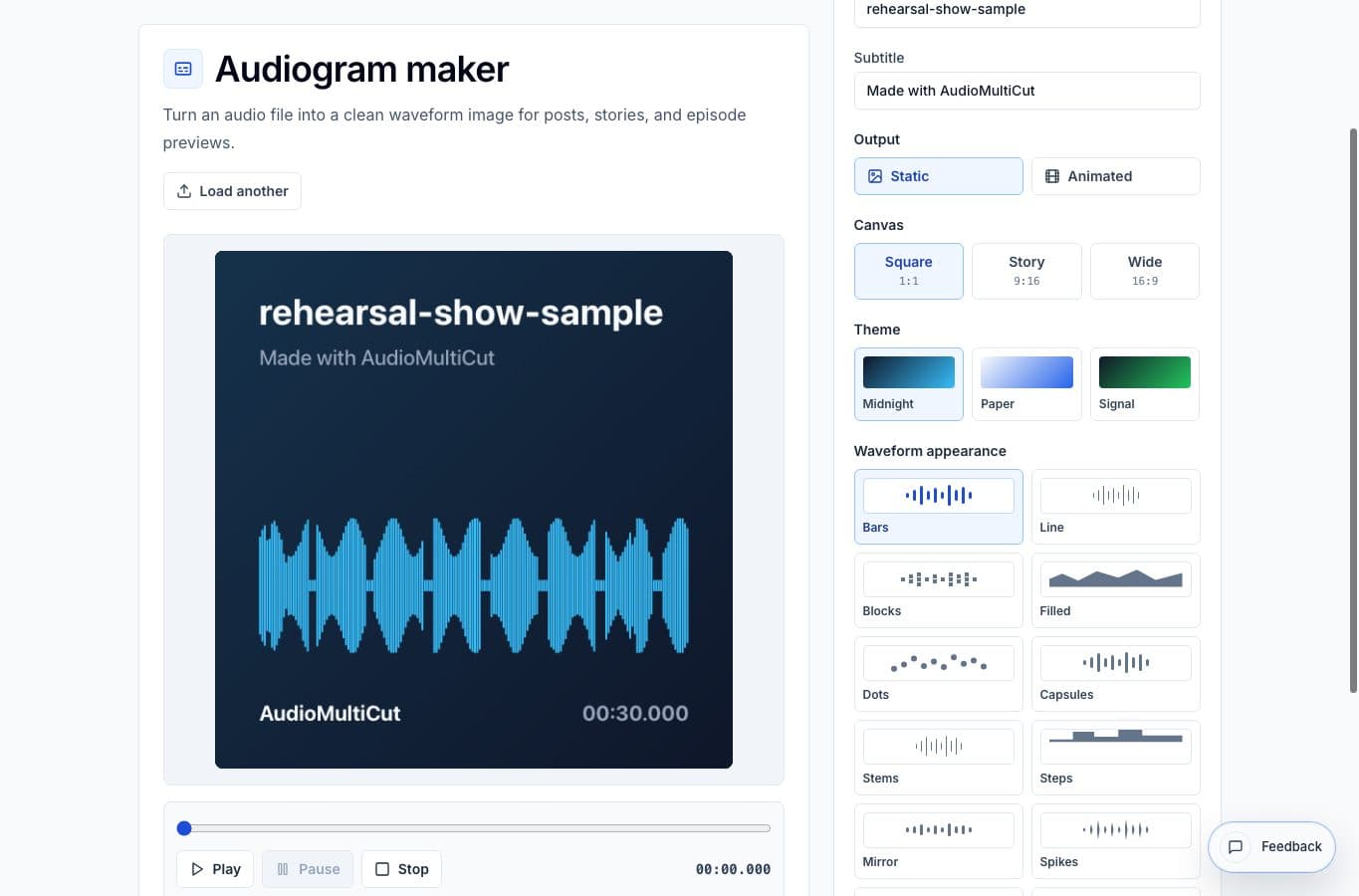
A good podcast audiogram starts before the design step. The quote has to work on its own, without five minutes of setup from the full episode.
Once the clip is tight, the visual part is straightforward: choose the format, write a clear title, pick a waveform style, and export.
Step 1: Prepare the clip
Cut the quote down to the smallest section that still makes sense. Remove dead air, trim the lead-in, and normalize the level if the speaker is quiet.
Most audiograms work best as short clips. A tight 25-second answer usually beats a two-minute excerpt with a better-looking graphic.
Step 2: Choose the layout
Use square for general feeds, story for vertical platforms, and wide for embeds or pages where horizontal media fits better. Do not use one layout for every channel just because it is quicker.
Write the title like a reader will see it without sound. It should explain why the clip is worth playing, not simply repeat the episode title.
Step 3: Export and check it
Export the audiogram and play it once before posting. Check that the title fits, the waveform is readable, and the clip starts cleanly.
If the platform compresses video or crops the preview, adjust the ratio and export again. It is a small step, but it keeps the post from looking slightly broken.
More audiogram guides
Turn the finished clip into something people can see
Best Use Cases for an Audiogram Maker
When to turn audio clips into waveform images or short videos for podcasts, interviews, lessons, newsletters, and social posts.
Waveform visual or full video project
Audiogram Maker vs Video Editor: Which Is Better for Audio Clips?
Compare a focused audiogram maker with a full video editor for podcast clips, voice notes, lesson excerpts, and social posts.
One quote should not become a full editing project
A Faster Podcast Clip Workflow: Split, Clean, Normalize, Audiogram
A practical order for making a podcast clip: pull the quote, clean only that clip, fix loudness, then make the audiogram.
Related pages and tools
Create a podcast audiogram
Load a finished clip, choose a social format, and export a waveform visual in the browser.