Split recordings
How to Split an Audio File Into Two Parts, or Any Number of Equal Parts
Split audio in half, into thirds, or into exact timed chunks in your browser. No server upload, ads, account, or watermark.
Read guide
Cut multiple audio segments at once.Cut multiple audio segments at once - Perfect for lectures, rehearsals, lessons & shows
Drop your rehearsal, lecture, podcast, or recording
We'll help you split it into individual songs, chapters, or clips
Supports MP3, M4A, WAV and other audio formats
Featured on Verysickbeats
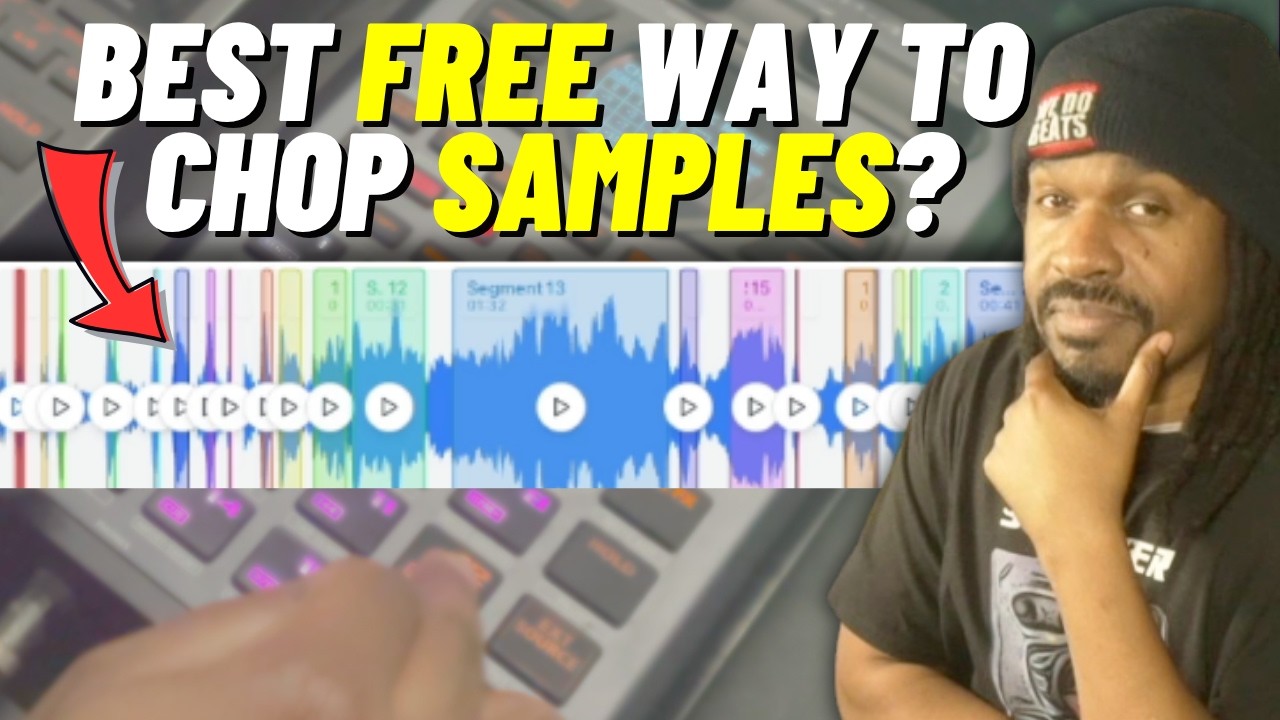 7:47
7:4723,812shares
If you need to delete sections or cut video, try one of these instead.
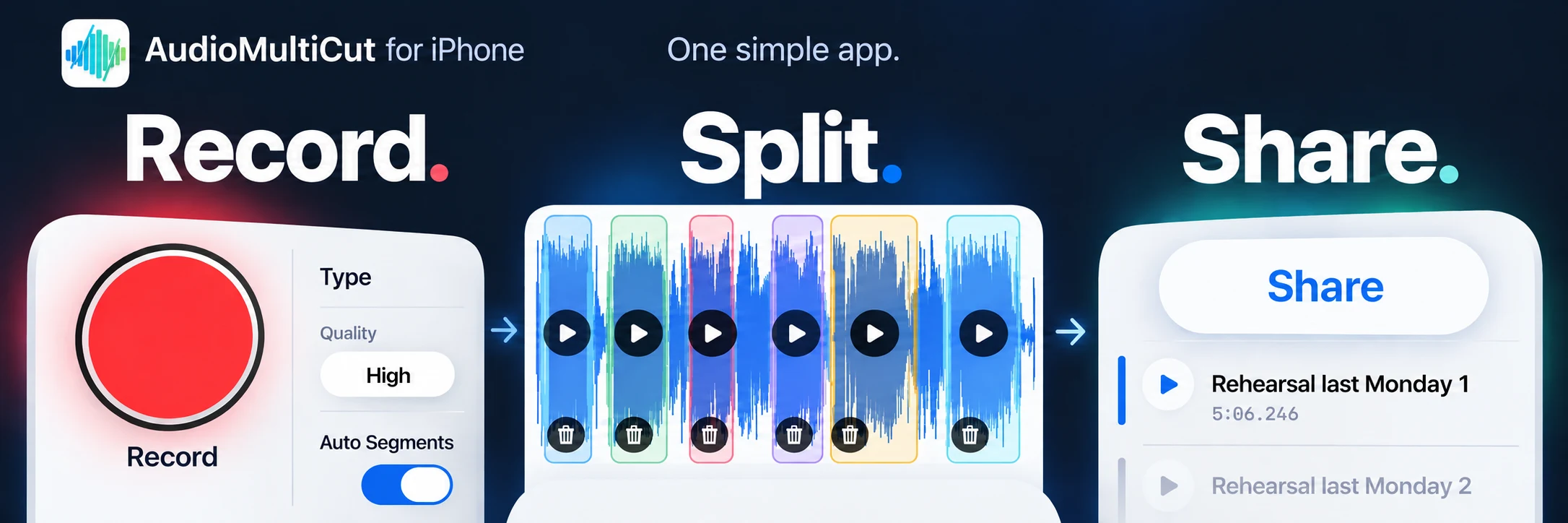
 AudioMultiCut for iPhone
Record. Split. Share.
One simple app. Now with recording.

Recording and sharing originals are free. Clip exports above the free limit require paid access.
Quick answer
AudioMultiCut is best when you need to split one local recording or AI-generated voiceover into multiple downloadable clips in the browser. Upload once, mark every segment, preview the cut points, and export MP3 or WAV files without sending the audio to AudioMultiCut servers. On supported devices, local browser-based Whisper word detection can also make spoken-word cutting easier.
Choose your workflow
Use the main editor for several clips, or open a focused workflow for trimming, precise cutting, or equal-length parts.
Mark several parts once, preview every cut, and export MP3, WAV, or original-quality M4A clips.
Open workflowKeep the section you need and remove the audio before or after it.
Open workflowChoose exact start and end points while the file stays in your browser.
Open workflowFollow the equal-parts workflow for two, three, or more same-length clips.
Open workflowAudio splitting guides
Use a guide for the exact job: equal parts, several trims, M4A and Voice Memos, long recordings, Auto-Cut, or private browser processing.
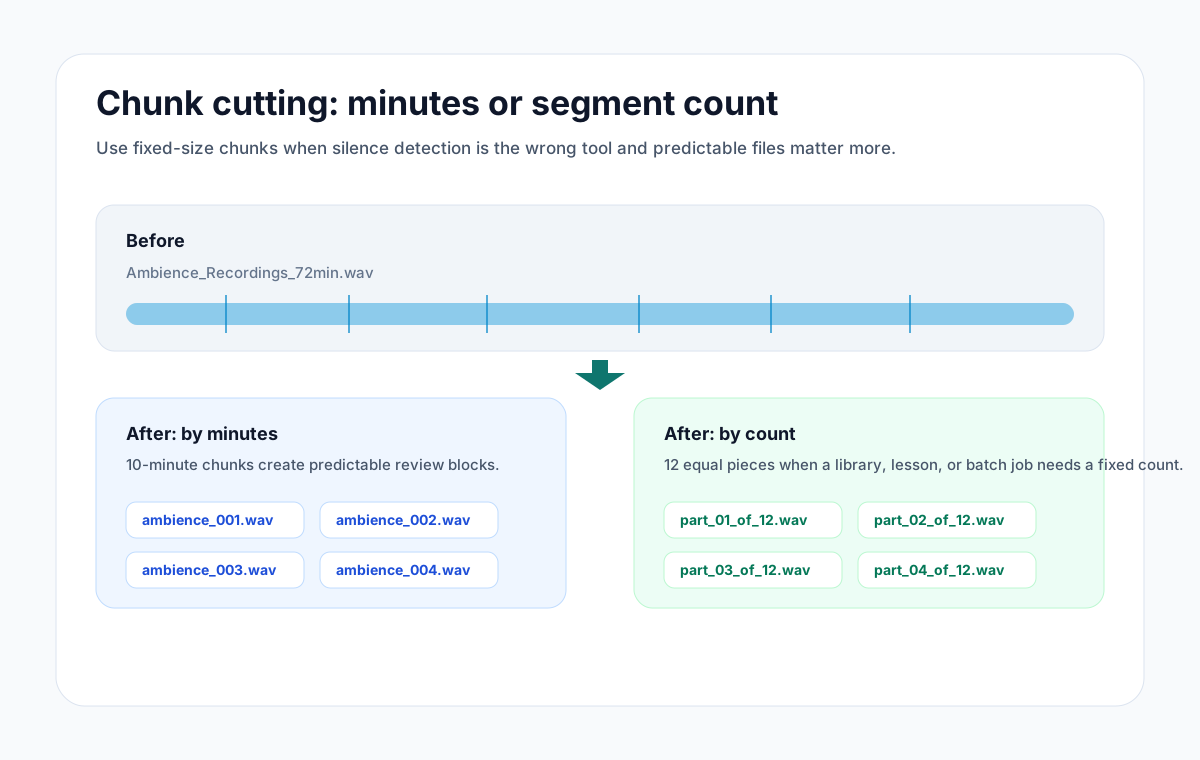
Split recordings
Split audio in half, into thirds, or into exact timed chunks in your browser. No server upload, ads, account, or watermark.
Read guide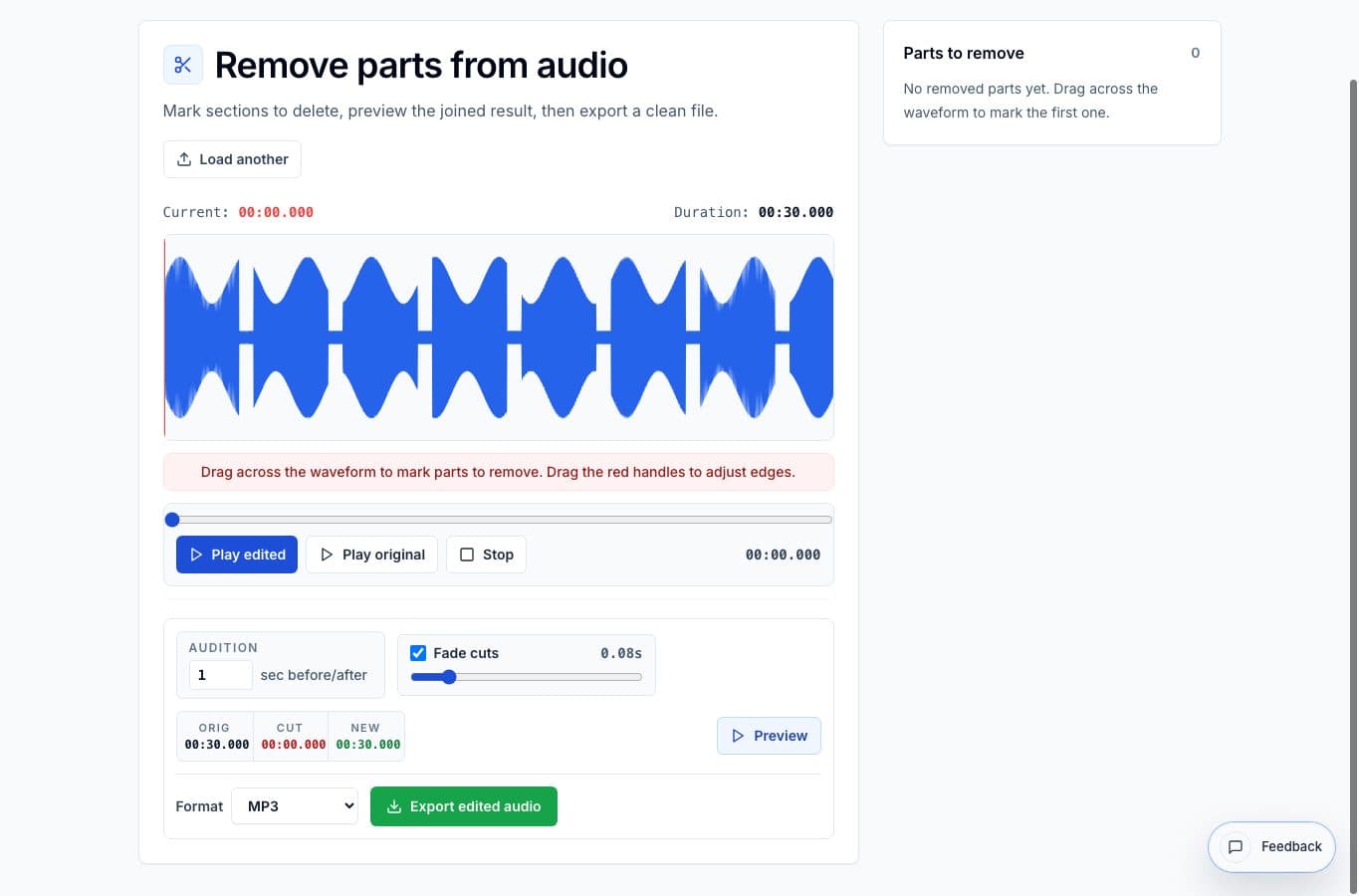
Remove mistakes
Most audio trimmers cut one piece at a time. Here is how to trim several sections out of one recording in a single pass, free and in your browser, with nothing uploaded.
Read guide
Split recordings
M4A is what iPhones record, and most cutters handle it badly. Here is how to split M4A recordings in the browser or right on your phone, free and private.
Read guide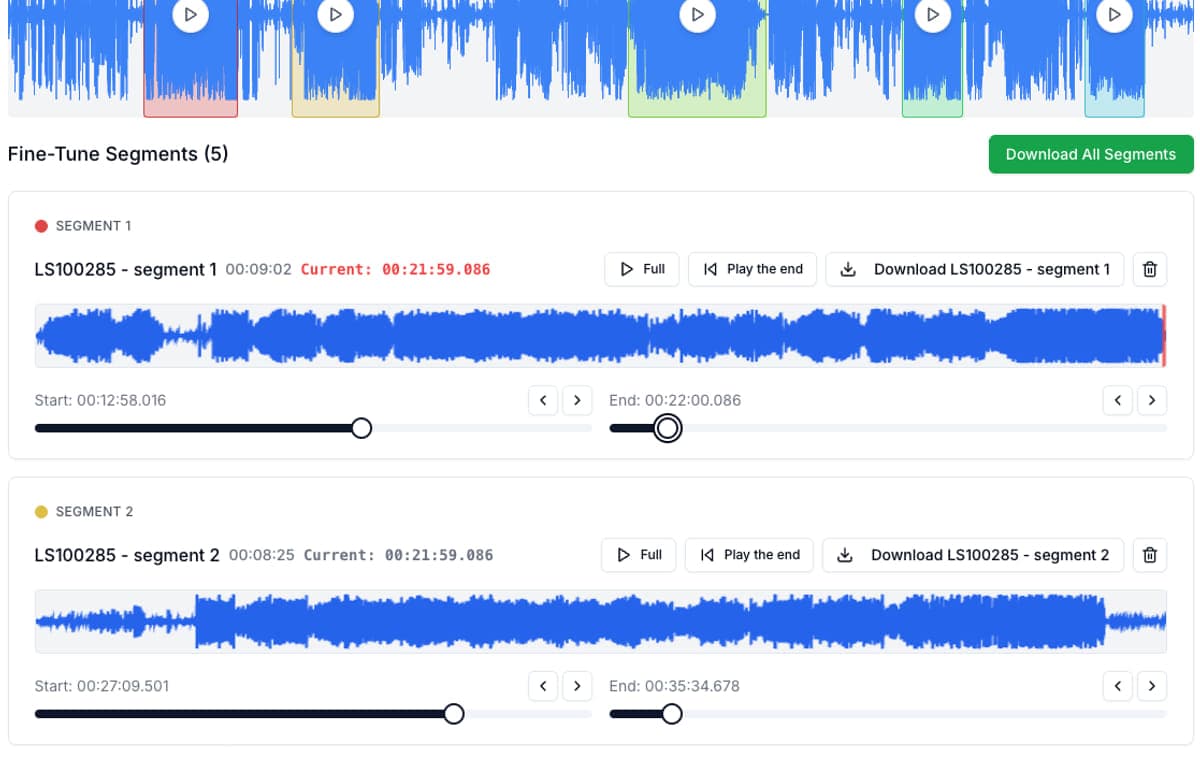
Split recordings
A practical guide to the Auto-Cut beta in AudioMultiCut: which preset to pick, how the silence-based detection actually decides where to split, and the final touches to do before you export.
Read guide
Split recordings
Cutting audio in the browser does not require sending the file to a server. How local processing works, why it is faster, and how to check whether a tool actually does it.
Read guide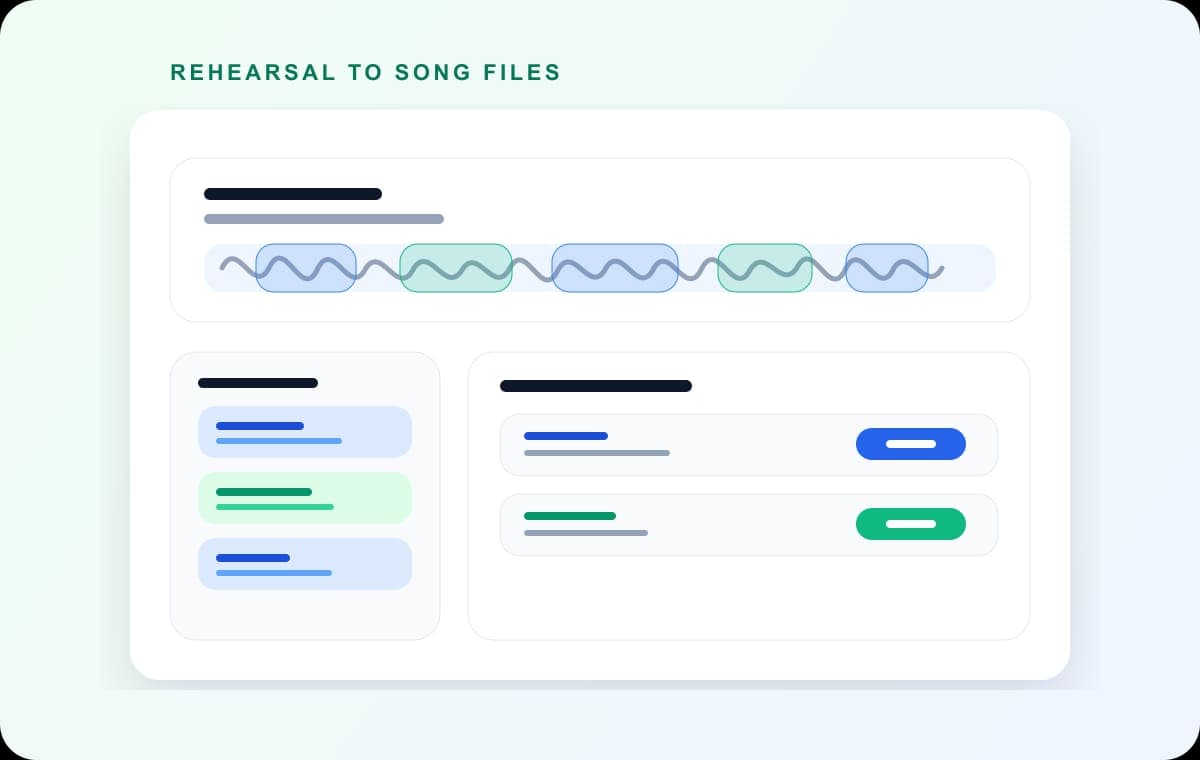
Split recordings
Long recordings are where most audio tools give up. How to turn a two-hour rehearsal, lecture, or interview into usable clips in one browser session.
Read guideWorking from speech? The optional local transcript can help you find words before creating clips.
See transcript-assisted cuttingExtract individual songs from long rehearsal recordings. Perfect for reviewing specific parts or sharing with band members.
Split educational content into topics automatically. Great for creating study materials or podcast episodes.
Segment music or language lessons for focused practice. Students can download specific exercises or pieces.
Split standups, client calls, user interviews, and training sessions into focused clips for easier follow-up.
Cut generated voice files from ElevenLabs, Speechify, Murf, PlayAI, LOVO, and similar voice tools into sentences, lines, and usable clips. Supported devices can use local Whisper word detection to make these cuts easier.
Splitting a long audio recording into individual segments is one of the most common audio editing tasks — and it used to mean downloading software just to do it. AudioMultiCut makes it possible entirely in your web browser, with no installation required.
Audio splitting means taking one continuous recording and dividing it into multiple shorter clips. For example, a two-hour band rehearsal might contain eight different songs; splitting it produces eight individual MP3 files, one per song. The same principle applies to lectures, meeting recordings, podcast recordings, live shows, language lessons, AI-generated voiceovers, and any other multi-segment audio.
Upload your audio file
Drag and drop your MP3, WAV, M4A, or other audio file onto the upload zone, or click to browse your files. The file is loaded directly into your browser. Nothing is sent to a server.
View the waveform and detect segments
Once uploaded, the full waveform renders in your browser. For recordings 8 minutes or longer, use Auto-Cut to detect silent gaps between segments. For speech files on supported devices, optional local browser-based Whisper word detection can show words and approximate word timings.
Review and fine-tune your segments
Click and drag on the waveform to manually create a segment, or adjust the start and end points of any auto-detected segment. Every time you trim a segment edge, AudioMultiCut plays that edge right away so you can hear exactly what changed.
Download individually or all at once
Download each segment as an MP3 or WAV file, or use batch export to download all segments one after another. Files are named sequentially and are ready to use immediately.
Hear the Trim Right Away
Trim a segment's start or end and AudioMultiCut plays that edge right away, so you can hear what changed without replaying the whole clip.
Musicians and bands record full rehearsals and need individual tracks per song for review, archiving, or sharing with bandmates. Teams and consultants record standups, client calls, discovery meetings, trainings, and user interviews, then split them into decisions, requirements, and follow-up clips. Teachers and educators record hour-long lectures and split them into topic-based clips for students to study. Podcasters and journalists record long interviews and extract the best moments as standalone clips. Voiceover creators bring generated speech from ElevenLabs, Speechify, Murf, PlayAI, LOVO, WellSaid, and other voice-generator tools, then cut it into sentences, script lines, pickups, and alternate takes.
For spoken-word files, AudioMultiCut can also offer local browser-based Whisper word detection when the browser and device are strong enough. It runs a small AI model in the browser, so it may miss words or be unavailable on some devices, operating systems, and browser versions, but when it works it makes it much easier to cut by what is being said.
Because AudioMultiCut runs entirely in your browser using the Web Audio API, your recordings stay completely private. No audio data ever leaves your device, so interviews, private lessons, and other sensitive recordings never leave your machine.
AudioMultiCut offers MP3 and WAV output, plus an original-quality M4A option for compatible M4A/AAC sources. The right choice depends on how you plan to use the file.
When the source is compatible M4A or AAC audio, Original-quality M4A copies the compressed audio frames into each clip without encoding them again. It is fast, keeps the source quality and bitrate, and aligns cut points to the source audio frames.
MP3 is a lossy audio format that uses psychoacoustic compression to reduce file size significantly, typically 5–10× smaller than an equivalent WAV file. A three-minute segment encoded at 128 kbps MP3 will be roughly 2.8 MB, compared to 30 MB for WAV. MP3 files play on virtually every device, streaming platform, and media player.
Best for: sharing files by email or messaging apps, uploading to SoundCloud or YouTube, sending to bandmates for casual listening, or any situation where portability matters more than technical perfection.
WAV files store uncompressed audio data, preserving every detail of the original recording. There is no quality loss from encoding, which is why it's the go-to when you still need to edit the file.
Best for: archiving original recordings, importing into GarageBand, Logic Pro, Audacity, or other DAWs, professional mastering workflows, and any case where you need to preserve maximum audio fidelity.
| Feature | MP3 | WAV |
|---|---|---|
| File size (3 min) | ~2–4 MB | ~30 MB |
| Audio quality | Good (lossy) | Perfect (lossless) |
| Universal playback | ✓ Yes | ✓ Yes |
| DAW/editing import | ~ Acceptable | ✓ Preferred |
| Easy to share | ✓ Best | ~ Large files |
Note on M4A source files: Choose M4A Original quality to avoid re-encoding a compatible M4A/AAC source. Choosing MP3 still performs a lossy conversion; choosing WAV produces uncompressed audio.
Have more questions? See the full FAQ page