
Auto-Cut is the AudioMultiCut feature that turns a long recording into a list of suggested clips with one tap. It is currently in beta and shows up below the waveform once a file of at least about eight minutes is loaded, since shorter recordings rarely need automatic splitting in the first place.
Auto-Cut is a strong starting point, not a finished export. The presets give you a clean first pass, and a few small adjustments before exporting are usually what makes the difference between clips that feel rough and clips that feel intentional.
What Auto-Cut actually does
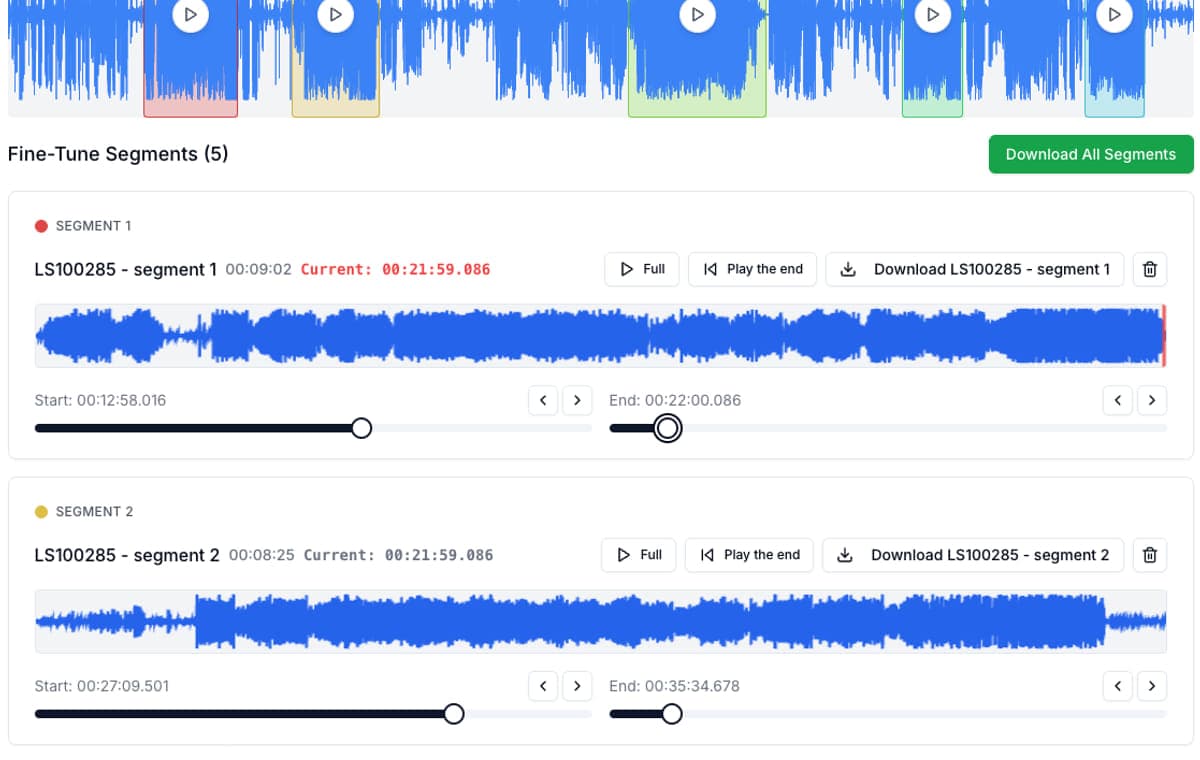
Auto-Cut analyzes the waveform locally in your browser and looks for quiet regions long enough to be treated as real breaks. It then groups the loud regions between those breaks into segments, applies a minimum clip length so it does not produce dozens of tiny snippets, and shows the results as segment cards under the waveform.
Three numbers do most of the work: how long a quiet region has to be before Auto-Cut treats it as a real split, how long a clip is allowed to be at minimum, and how much short silence is allowed to stay inside a clip without breaking it. Each preset is a different combination of those values tuned for a specific kind of recording.
Pick the preset that matches the recording
The preset row is the most important choice. Picking a matching preset usually gets you 80 to 90 percent of the way there before you adjust anything by hand.
Smart is a balanced default for mixed recordings. Rehearsal Songs is tuned for band practice where you want full songs but not count-ins. Live Show is more forgiving inside a track and stricter about what becomes a new song, so applause does not turn into its own clip. Lecture Chapters waits for a real section break and ignores normal speaking pauses. Podcast Clips aims for longer beats instead of every short pause. Lesson Clips keeps short explanation gaps inside the clip but breaks at longer teaching resets. Samples is the only preset built for very short repeated sounds with small gaps, like one-shots across keys.
- Band rehearsal or jam session: Rehearsal Songs
- Concert or live recording: Live Show
- Class, course, or long talk: Lecture Chapters
- Interview or podcast episode: Podcast Clips
- Private lesson or tutorial: Lesson Clips
- Sample pack, one-shots, single notes: Samples
- Anything mixed or unsure: Smart
When the manual override helps
If the preset is close but not quite right, open Manual override under the preset row. The four sliders map directly to the underlying detection parameters: Window controls the analysis resolution, Min clip is the minimum length any segment is allowed to be, Keep inside controls how much short silence can stay inside a clip without breaking it, and Split after is the silence length that finally counts as a real split.
The most useful slider in practice is Split after. If Auto-Cut is splitting too eagerly, increase it. If it is gluing two clips together that should be separate, reduce it. Move it in small steps and re-run. Min clip is the second most useful: raise it if you keep getting tiny fragments, lower it for sample-style recordings.
Final touches before exporting
Auto-Cut gets you to a starting list of clips, but a few small touches almost always make the export feel cleaner. The waveform preview, the focused playback per segment, and the boundary editor are designed for exactly this last pass.
Spending a minute on these touches turns a useful first pass into a set of clips you would actually send to someone else.
- Play the first and last second of each clip and nudge the boundaries if a word, count-in, or note is clipped.
- Delete obvious junk segments such as room noise, dead air, or accidental restarts before exporting.
- Merge clips that the detector split too aggressively, or split a clip further if Auto-Cut grouped two ideas together.
- Rename clips with short, useful labels like “Song 3 final take”, “Q&A”, or “C2 sustain” so the exported files are self-explanatory.
- If you turned on Detect keys automatically for sample work, double-check the suggested note names on a couple of clips before bulk-exporting.
- Pick the right export format last: MP3 for sharing, WAV for further editing or sample mapping.
Things Auto-Cut does not try to do
Auto-Cut is silence-based, not content-based. It does not transcribe speech, identify speakers, or detect chord changes inside a continuous performance. It also does not try to remove silence inside a clip. It only uses long silences as boundaries.
That is intentional. The job is to give you a fast, reliable first pass that runs entirely in the browser without uploading your audio anywhere. The detailed creative decisions about what each clip should be are still yours, which is the part you usually want to keep.
FAQ
Why does Auto-Cut only show up for longer recordings?
Auto-Cut appears under the waveform once a file is roughly eight minutes or longer. Shorter recordings are usually faster to split by hand, so the feature stays out of the way until it actually saves time.
Does Auto-Cut upload my audio anywhere?
No. Detection runs locally in the browser using the Web Audio API, the same as the rest of the editor. The recording never leaves your device.
Auto-Cut split a song into two clips. How do I fix it?
Either merge the two clips back together in the segment list, or open Manual override and increase the Split after slider so a longer silence is required before Auto-Cut treats it as a real break, then re-run.
Auto-Cut grouped two songs into one clip. How do I fix it?
Reduce Split after in Manual override and re-run, or split the clip manually at the right point in the waveform. Live Show and Rehearsal Songs are deliberately less eager to split, so a different preset can also help.
Should I always run Auto-Cut before exporting?
Only when the recording is long enough that hand-splitting is slower. For short clips or a single trim, selecting a region directly on the waveform is faster and gives you full control from the start.
More recording workflows
Turn one rehearsal file into useful song files without the usual cleanup pain
How to Split Band Rehearsal Recordings Into Individual Songs
A practical workflow for taking one long rehearsal recording and turning it into clean song files your band can actually review and share.
Chapter a lecture on your phone without turning it into a desktop project
How to Split Lecture Recordings Into Chapters on Your Phone
A phone-first workflow for turning one long lecture into topic-based chapters that are easier to review, study, and share.
A faster prep workflow for musicians building playable sample instruments
Preparing Sample-Library Audio for Kontakt, HALion, Falcon, Decent Sampler, and More
A practical workflow for cutting long sample-chain recordings into clean files before mapping them in Kontakt, HALion, Falcon, Decent Sampler, Logic Sampler, Ableton Sampler, SFZ tools, MPC keygroups, and other sampler ecosystems.
Related pages and tools
Try Auto-Cut on a real recording
Upload a long rehearsal, lecture, podcast, or sample session and let Auto-Cut suggest the splits. You can still adjust every clip before exporting.