
Lecture recordings become much more useful once they are broken into chapters. Students can review one topic without scrubbing through an hour, and teachers can share only the part that matters.
You do not always need a desktop for this. If the goal is clipping and chaptering rather than deep editing, AudioMultiCut is practical right on the phone because the experience stays focused and not frustrating. Upload the recording, split the topics, fine-tune the edges, and export the chapters without dragging the job into a heavier setup.
Mark the natural topic shifts
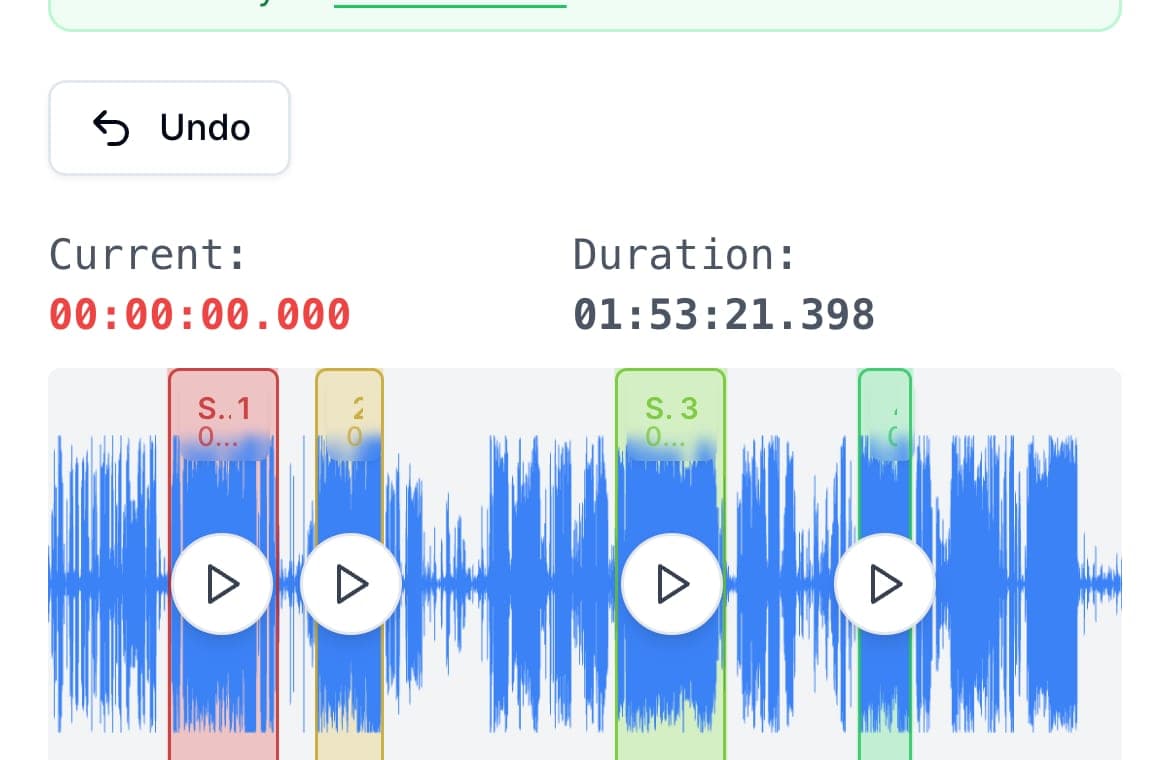
Upload the lecture recording and look for the moments where the topic changes, the teacher pauses, or a new section begins. Those are your chapter boundaries. If the lecture has strong pauses, auto-cut can help you get a draft quickly.
On phone, the big win is that the workflow stays visually simple. You can see the long recording, create the chapter boundaries, and move on without opening a full production-style editor.
Use trim preview to protect spoken words
Spoken audio is unforgiving at the edges. A bad trim can cut off the first word of a topic or leave a long, empty tail at the end. AudioMultiCut helps here because each boundary adjustment previews the exact second you just changed.
That makes it much easier to keep the first sentence intact while still cutting away dead air. On a phone, that instant preview is the part that keeps the workflow usable instead of frustrating.
Export chapters students will actually use
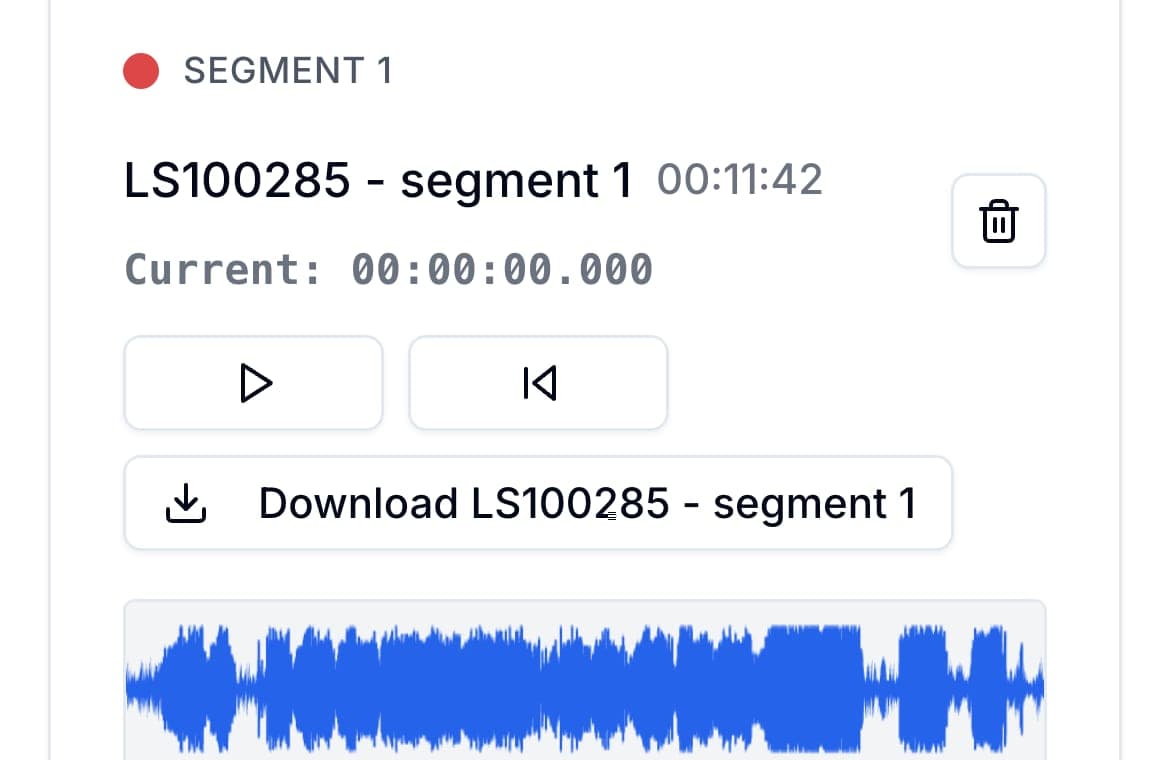
Name each chapter by topic instead of by number. Export MP3 when you want easy sharing and small files. Use WAV only when the clip needs further editing later.
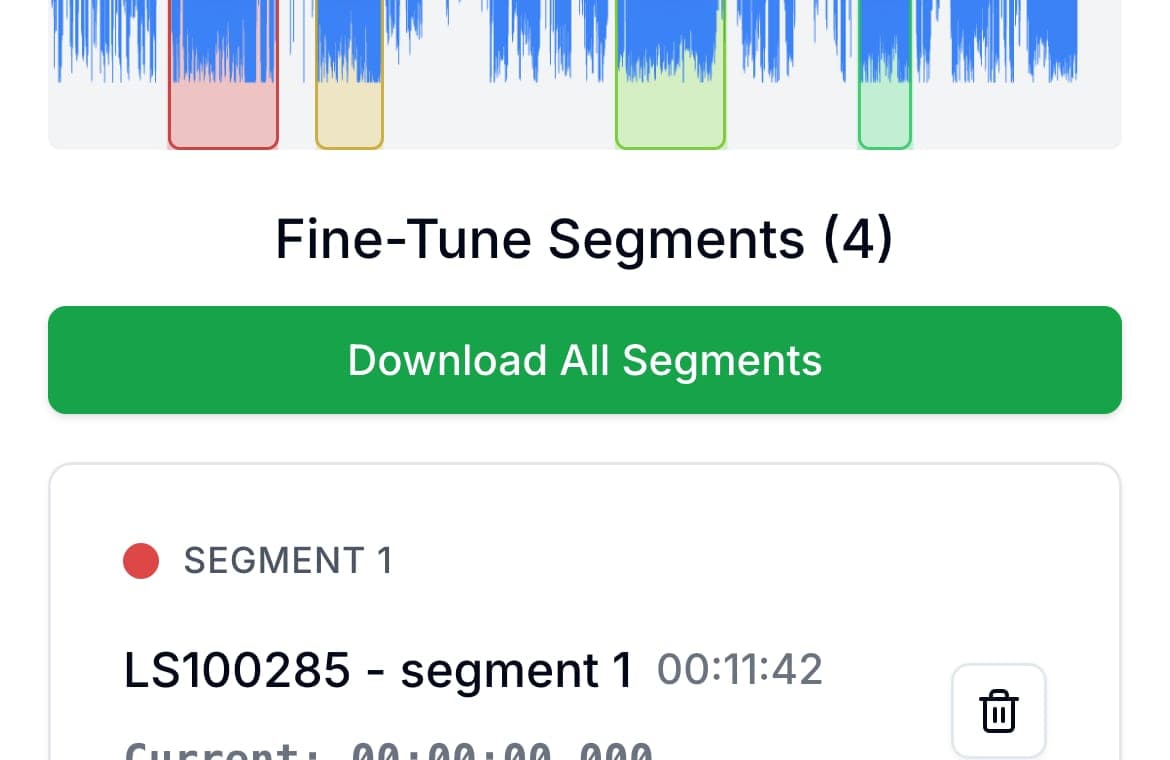
The reason this workflow works on phone is that every chapter gets its own card and controls. You are not re-finding the same spot in one giant timeline over and over. The end goal is a set of chapters people can actually return to.
FAQ
Is spoken audio harder to trim than music?
Usually yes, because bad boundaries can cut off words or leave awkward silence. That is why instant boundary preview matters so much for lectures and spoken recordings.
Why do this on phone instead of waiting for a desktop?
Because many chaptering jobs do not need a full editor. If the work is mostly marking topics and cleaning edges, doing it immediately on the phone is often faster.
More recording workflows
The best tool by device is really the one that keeps the workflow easy
Which Online Audio Cutter Works Best on Mobile and Desktop?
A practical comparison of online audio cutters across phone and desktop browsers: what works on a small screen, what needs a mouse, and where AudioMultiCut fits.
Compare audio cutters by real jobs, speed, and frustration level
Best Audio Cutter Alternatives for Splitting Long Recordings
The best audio cutter depends on the job. This guide compares AudioMultiCut with the biggest alternatives through 10 common real-world use cases, including how each one handles the work and how long it typically takes.
Related pages and tools
Turn the lecture into chapters right on your phone
Upload the full lecture, mark the topic shifts, and export clear chapter clips without dragging the job into a heavier editor.