
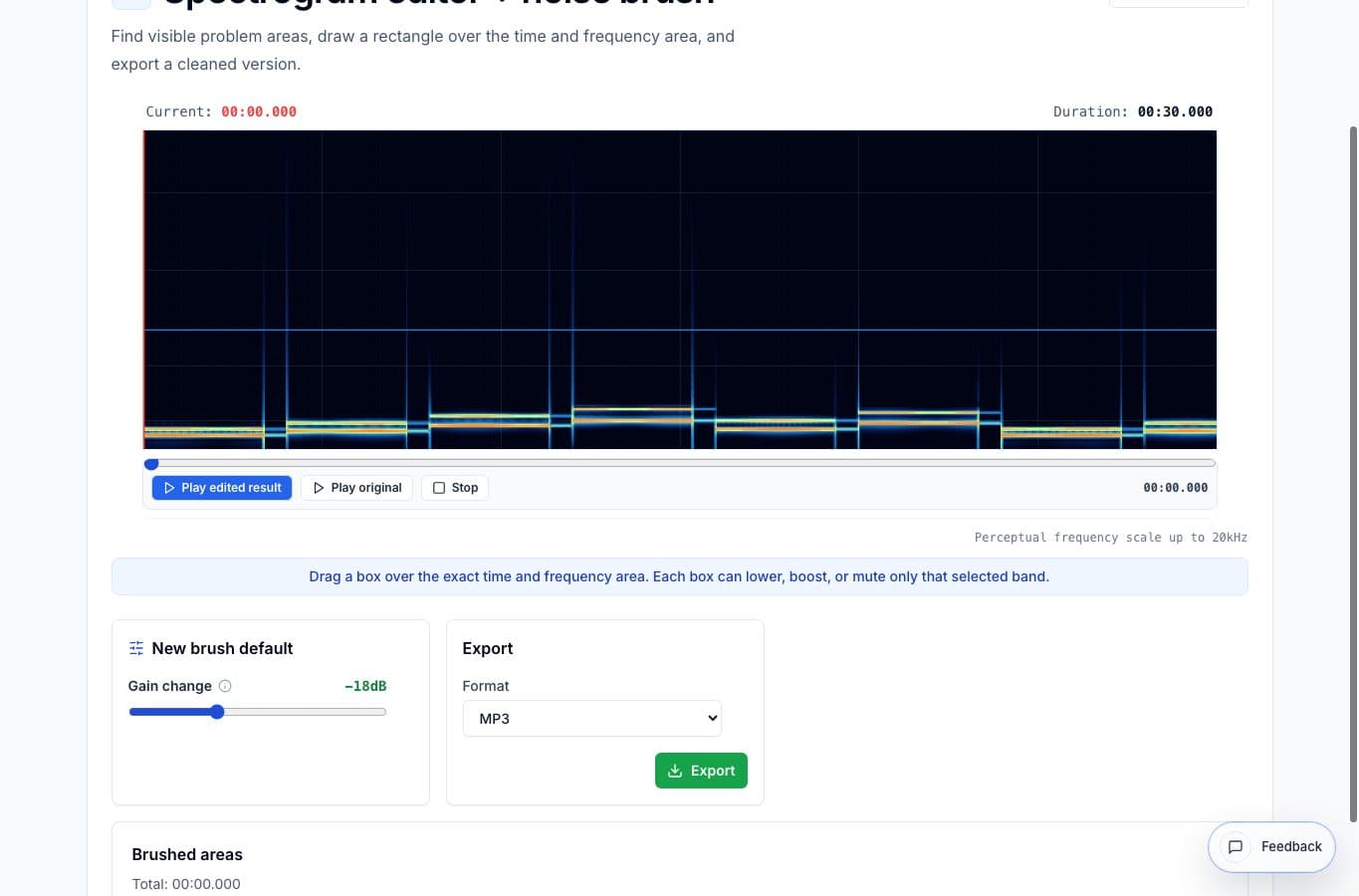
Clicks and hum are easier to repair when you can see them. A click often looks like a thin vertical mark. Hum often looks like a horizontal line that runs through the file.
The goal is not to erase everything that looks bright. The goal is to select the smallest area that contains the unwanted sound and leave the rest alone.
Step 1: Identify the noise shape
Play the problem area and watch the spectrogram. Short clicks usually appear as narrow vertical streaks. Hum, buzz, or whine usually appears as a steady horizontal band.
If you cannot see a clear shape, the problem may be too broad for a brush. In that case, a normal noise reducer or restoration tool might be a better starting point.
Step 2: Select narrowly
Draw a box around the smallest useful time and frequency area. For a click, that may be a very narrow slice. For hum, it may be a thin horizontal strip.
Avoid selecting the full height of the file unless the noise truly covers the full frequency range. Wide selections can remove useful speech or tone along with the bad sound.
Step 3: Preview and back off
Lower the selected area and preview the result. If the repair sounds dull, hollow, or obviously edited, reduce the strength or make the selection smaller.
Good spectral edits often feel boring because nothing dramatic happens. The noise is lower, and the rest of the recording still sounds like itself. Thats the target.
More noise cleanup guides
Fix visible noises without touching the whole file
Best Use Cases for a Spectrogram Editor and Noise Brush
When a spectrogram editor helps: clicks, hum, bumps, squeaks, coughs, and short noises that are easier to see by frequency than edit on a waveform.
Target a noise or reduce the whole bed
Spectrogram Editor vs Noise Reduction: Which Fixes the Problem?
Compare targeted spectrogram brushing with broad noise reduction for clicks, hum, room tone, bumps, and noisy recordings.
Use the right tool at the right stage
How to Combine AudioMultiCut Tools Without Making the Edit Messy
A practical workflow for using the cutter, remove-parts editors, normalizer, audiogram maker, video tools, and spectrogram editor together without losing track of the job.
Related pages and tools
Remove a visible click or hum
Open the spectrogram editor, select the problem area, and preview the repair before exporting.