
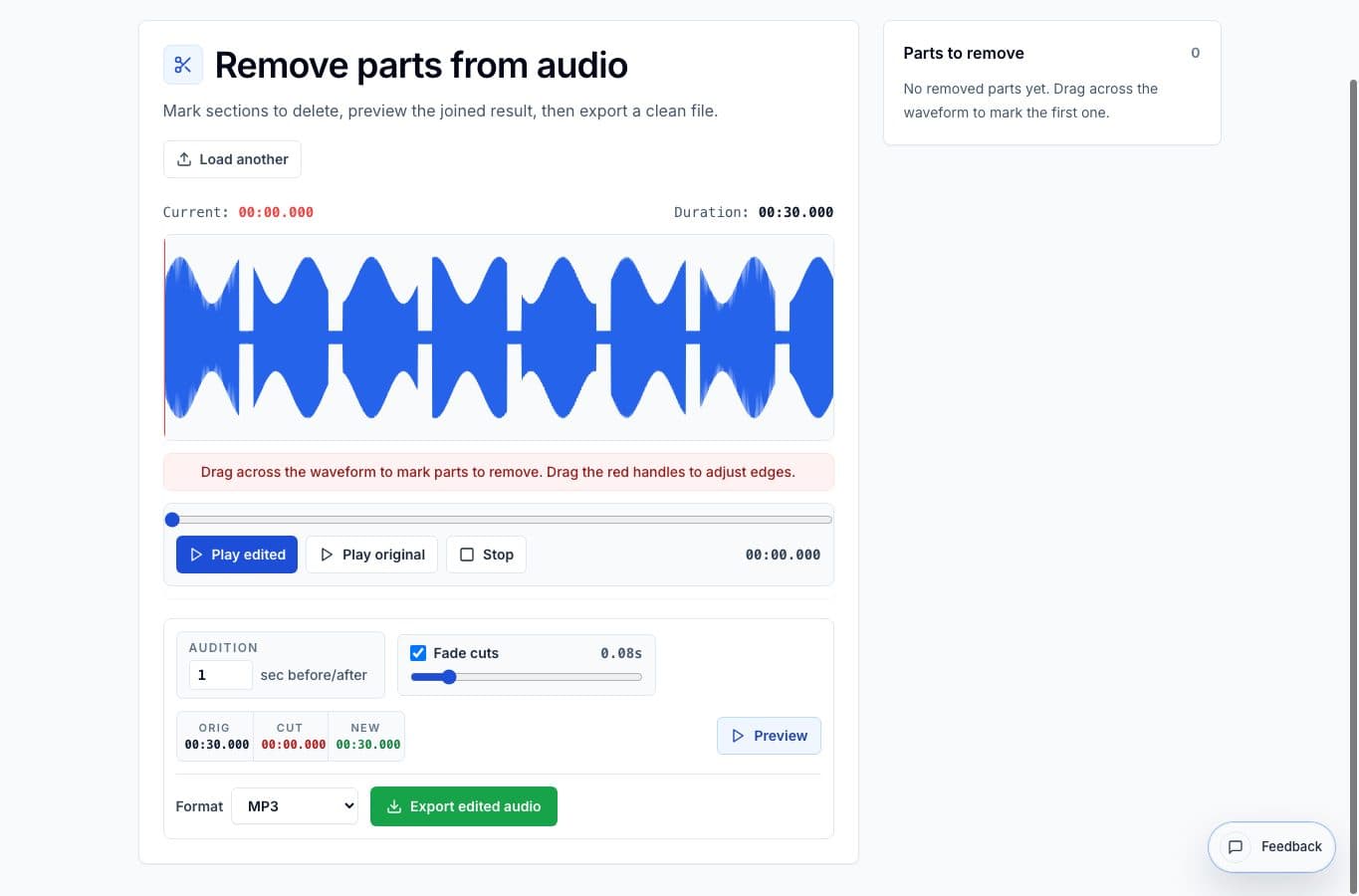
Dead air is not always silence. It can be a long pause before someone starts talking, a room reset during a lesson, a false start before a take, or a section where nothing useful happens.
The cleanest way to remove it is to keep the recording as one file and delete only those empty ranges. That avoids turning a simple cleanup into a full editing project.
Step 1: Find the boring parts
Load the recording and scan the waveform for flat or low-energy sections. Play around the area before deleting it, because some quiet sections still contain useful context.
When the pause is clearly dead space, drag across it and create a removal range. Keep the range slightly conservative at first; it is easier to trim a little more than to fix a chopped word.
Step 2: Preview the join
Use the audition or preview controls to hear the transition from before the deleted section to after it. If the cut sounds abrupt, move the range edge or use a small fade.
This is the part people skip, and it is where most bad edits come from. A technically correct delete can still sound weird if the sentence rhythm jumps too hard.
Step 3: Export the cleaned version
Once the joins sound natural, export the file. MP3 is usually fine for sharing a cleaned voice memo, meeting, or lesson. WAV is better if the file will go into another editor later.
Keep the original recording until the cleaned version has been checked. It gives you a fallback if you removed too much, which happens to everyone occassionally.
More cleanup guides
Keep one recording, delete the bad parts
Best Use Cases for Removing Parts From Audio Online
When to use Remove Parts from Audio: dead air, stumbles, coughs, false starts, long pauses, and private details that need to disappear without rebuilding the whole recording.
Delete sections or extract clips
Remove Parts From Audio vs Audio Cutter: Which One Should You Use?
A practical comparison between deleting unwanted sections from one file and cutting separate clips from a longer recording.
Use the right tool at the right stage
How to Combine AudioMultiCut Tools Without Making the Edit Messy
A practical workflow for using the cutter, remove-parts editors, normalizer, audiogram maker, video tools, and spectrogram editor together without losing track of the job.
Related pages and tools
Remove dead air from a real recording
Load the file, select the empty parts, preview the joined result, and export a cleaner version.