
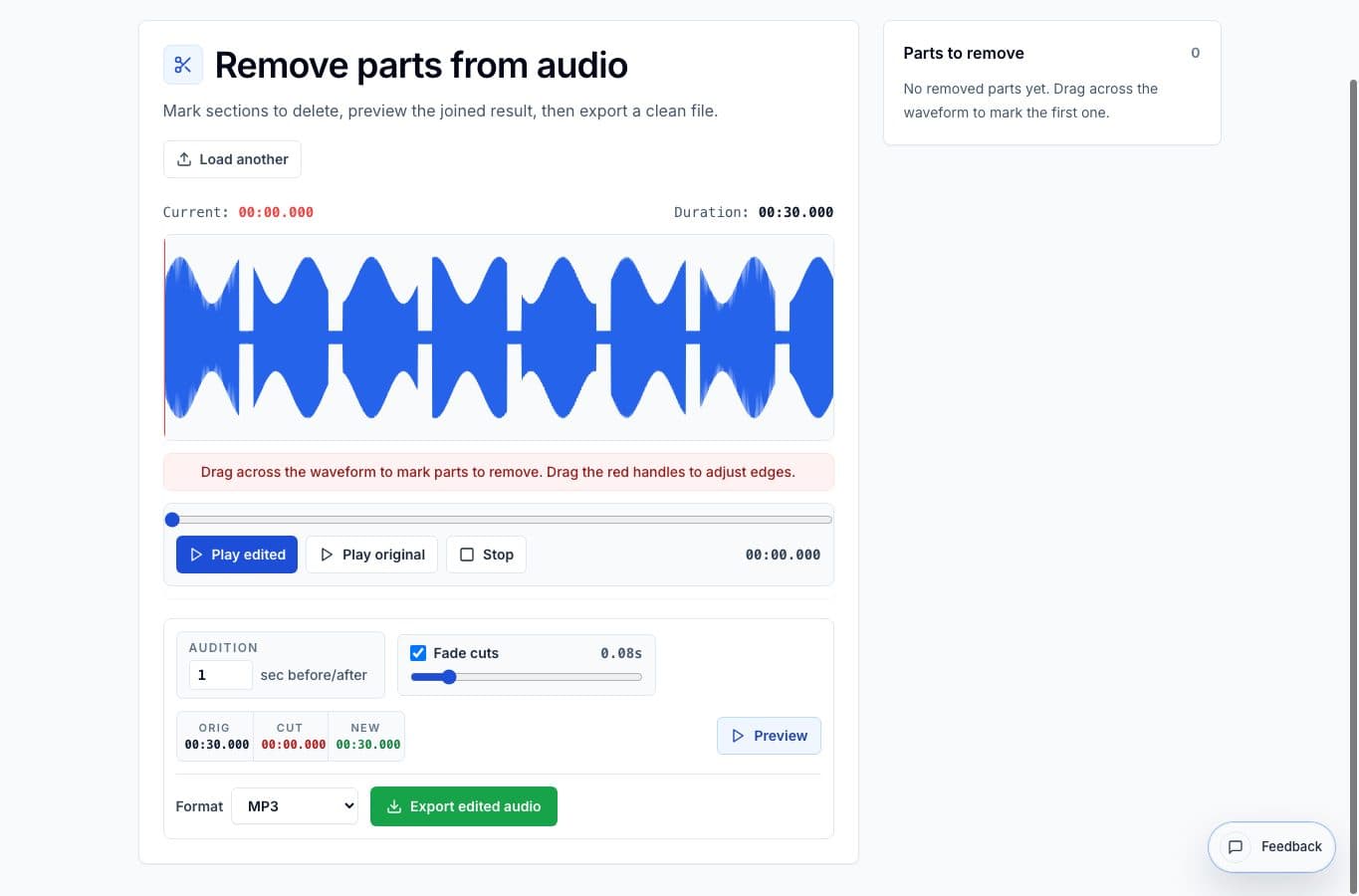
Remove Parts from Audio is for edits where the final result should still feel like one continuous recording. Instead of exporting several clips, it deletes the unwanted ranges and joins the kept audio back together.
That makes it useful for rehearsals, voice notes, lessons, interviews, and meeting recordings where one or two parts need to go but the rest should stay in order. It is built for removal edits rather than full mixing.
Mistakes in an otherwise good take
The clearest use case is a good recording with a few bad moments: a cough in a lecture, a phone buzz in an interview, a false start before a song, or a long pause while someone looks for a page. Mark those ranges, audition the join, and export a version that keeps the original flow.
This is different from a normal audio cutter. A cutter extracts clips. This tool removes holes from the middle and keeps the rest together.
Privacy cleanup before sharing
It also helps when a recording contains a private name, phone number, address, or side conversation that should not be shared. The edit is simple: select only that range and remove it. The crossfade option can make the join feel less abrupt when the surrounding audio allows it.
For sensitive recordings, the local browser workflow matters. The audio is edited on the device instead of being sent through a big account-based editor for a tiny change, which is nice when the file is just meant for a small group.
When not to use it
Do not use this tool when you need separate deliverables. If a 90-minute rehearsal needs eight song files, use AudioMultiCut. If a podcast needs five highlight clips, split the clips first and then clean each one only if it needs repair.
Remove Parts from Audio is best when the answer is still one file. That simple rule catches most decisions.
More cleanup guides
Choose by how much cleanup you really need
Best Remove Parts From Audio Alternatives for Quick Cleanup
A comparison of Remove Parts from Audio, Audacity, browser trimmers, Descript-style editors, and full video suites for deleting mistakes or unwanted sections.
Use the right tool at the right stage
How to Combine AudioMultiCut Tools Without Making the Edit Messy
A practical workflow for using the cutter, remove-parts editors, normalizer, audiogram maker, video tools, and spectrogram editor together without losing track of the job.
Three common audio jobs, one browser tab
Everyday Audio Editing: Splitting Albums, Trimming Tracks, and Making Ringtones in One Tool
A practical walkthrough of three things most people eventually need to do with audio files and how to handle all of them without installing anything.
Related pages and tools
Remove the parts you do not want
Load a recording, mark the sections to delete, preview the joins, and export the cleaned file from your browser.