
Most audio editing tasks people run into day-to-day boil down to one of three jobs: breaking a long file into individual tracks, shortening a song so it only contains the part they care about, or carving out a clip short enough to use as a phone ringtone. Each feels like it should be trivial, yet the usual path of downloading Audacity, finding an online tool that watermarks the output, or hunting through app-store ringtone makers filled with ads turns a two-minute task into a twenty-minute detour.
AudioMultiCut handles all three in a single browser session. There is nothing to install, no account to create, and your audio never touches a remote server. Below is a hands-on look at how each workflow plays out.
Quick comparison of the three workflows
| Splitting an album or mix | Trimming a track | Making a ringtone | |
|---|---|---|---|
| Goal | One file → many separate songs | One song → shorter version of itself | One song → 25-30 sec clip for your phone |
| Typical source | Live recording, DJ set, vinyl rip, rehearsal tape | Studio track with a long intro or fade-out | Any song with a memorable hook or chorus |
| Key feature used | Auto-detect + multi-segment creation | Click-and-drag waveform selection | Precise waveform selection + preview playback |
| Recommended export | MP3 for sharing, WAV for archival | MP3 for playlists, WAV for further editing | MP3: small and universally supported |
| Typical time | 2-5 min for a 60-min recording | Under 30 seconds | Under a minute |
Workflow 1: Dividing an album or continuous recording into separate tracks
This is the scenario AudioMultiCut was originally designed around. You have a single file, such as a live concert capture, a cassette rip, a rehearsal recording, or a DJ mix, and you need each song or section saved as its own file.
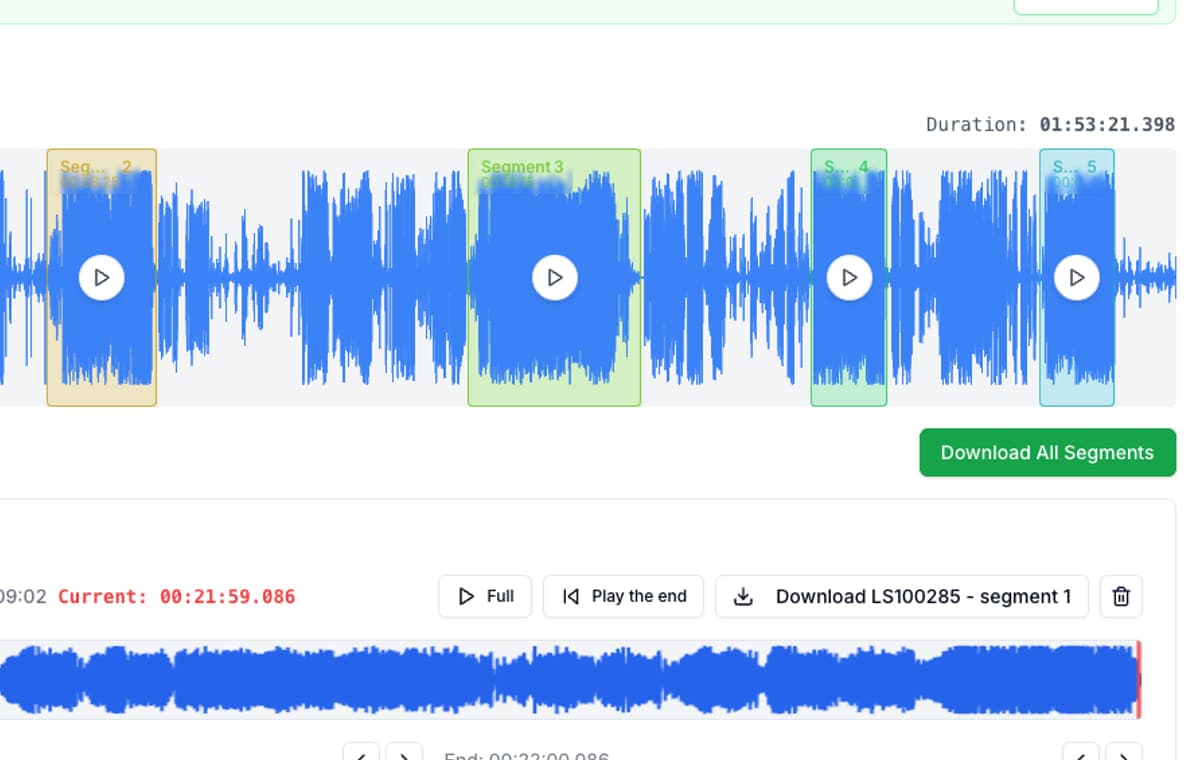
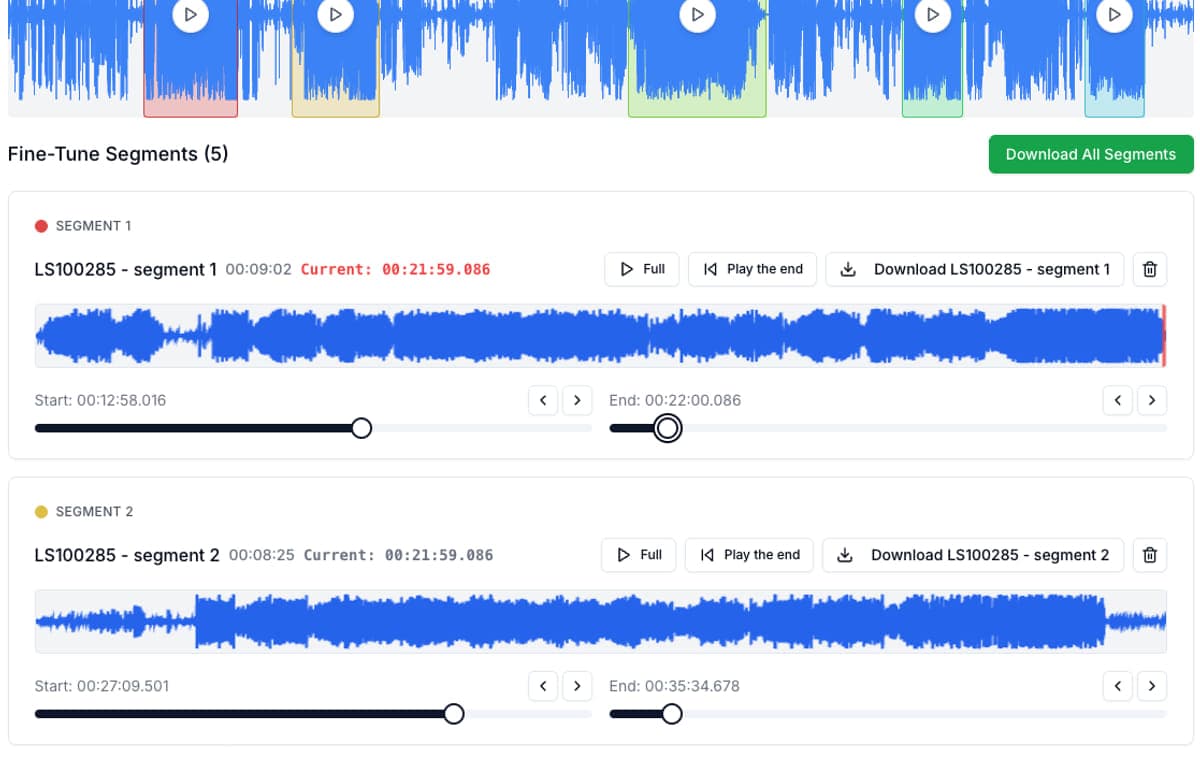
After uploading, the waveform reveals the structure of the recording at a glance. Quiet stretches between songs appear as thin, flat lines, while loud passages bulge outward. For recordings longer than eight minutes you can run auto-detect, which scans for silence gaps and drops coloured markers around every segment it finds. From there you fine-tune the edges, preview each cut, and batch-export the lot.
- Drag-and-drop any format: MP3, M4A, WAV, FLAC, OGG
- Auto-detect finds silence gaps and creates segments automatically
- Adjust boundaries with precision sliders while hearing instant preview
- Export individually or batch-download everything at once
Workflow 2: Trimming a song down to just the part you need
Sometimes you do not need multiple clips. You just need a shorter version of a single track: skip the 15-second intro, drop the fade-out, or isolate the bridge for a presentation background. This is straightforward trimming, and the waveform makes it visual instead of guesswork.
Click where you want the clip to start, drag to where it should end, and the selected region highlights in colour. Hit the play button on the segment card to hear exactly what the export will contain. If the edges are slightly off, nudge them with the fine-adjustment controls. Each change triggers an instant preview of the first and last second so you never export a clipped syllable or an awkward fade.
Workflow 3: Cutting a custom ringtone from any song
A good ringtone starts instantly recognisable and ends cleanly. That means picking a strong, loud section, usually the chorus or main hook, and keeping it under 30 seconds. The native iOS 26 ringtone feature requires files under 30 seconds. Android is more lenient, but shorter is better.
The waveform lets you spot the energetic sections visually. Select one, preview it, and export as MP3. On Android you can drop the file into the Ringtones folder and select it in Settings. On iPhone running iOS 26 or later, open the downloaded file in the Files app, tap Share → More → Use as Ringtone, and assign it in Settings → Sounds & Haptics. On older iOS versions, GarageBand still works as a fallback.
- Aim for 25-30 seconds: long enough to recognise, short enough to stay pleasant
- Choose a section that starts loud and clear so you hear it immediately when the phone rings
- Export as MP3 for universal compatibility across devices
- iPhone (iOS 26+): Files app → Share → Use as Ringtone. Older iOS: use GarageBand. Android: drop into the Ringtones folder
Why handle all three in the browser?
Desktop apps like Audacity are powerful but heavyweight. Downloading, installing, and navigating menus is overkill when the job takes under five minutes. Most online alternatives either watermark the output, require a signup, impose file-size limits, or upload your audio to a remote server for processing.
AudioMultiCut sidesteps all of that. The Web Audio API decodes and encodes everything locally, so performance is fast and privacy is guaranteed. There is no account wall, no watermark, and no cap on file size or number of exports. The same waveform interface adapts naturally whether you are splitting twenty tracks or trimming one.
FAQ
Can I really do all three tasks without installing anything?
Yes. AudioMultiCut runs entirely in the browser. Upload, edit, and download, with no plugins, extensions, or desktop software required.
Does the tool upload my files to a server?
No. All decoding, editing, and encoding happens locally using the Web Audio API and a Web Worker for MP3 output. Your files stay on your device.
What is the best export format for a ringtone?
MP3 is the safest choice. It is small, universally compatible, and works on both iPhone (iOS 26 lets you set it as a ringtone directly from the Files app) and Android.
How does auto-detect know where songs start and end?
It scans the waveform for stretches of low amplitude (silence or near-silence) that last longer than a configurable threshold. Each gap becomes a boundary between two segments.
Is there a file-size or duration limit?
There is no hard limit. Processing speed depends on your browser and device, but recordings of an hour or more work fine on modern hardware.
Will splitting or trimming reduce audio quality?
WAV export is fully lossless. MP3 export re-encodes at 96 kbps, which sounds good for casual listening. For archival or further editing, use WAV.
More recording workflows
Turn one rehearsal file into useful song files without the usual cleanup pain
How to Split Band Rehearsal Recordings Into Individual Songs
A practical workflow for taking one long rehearsal recording and turning it into clean song files your band can actually review and share.
Compare audio cutters by real jobs, speed, and frustration level
Best Audio Cutter Alternatives for Splitting Long Recordings
The best audio cutter depends on the job. This guide compares AudioMultiCut with the biggest alternatives through 10 common real-world use cases, including how each one handles the work and how long it typically takes.
Better for fast splitting jobs, not for full studio-style editing
A Faster Audacity Alternative for Splitting Audio Recordings
Audacity is still excellent for full desktop audio editing. If the job is simply splitting one long recording into multiple finished clips, AudioMultiCut is usually the faster option.
Related pages and tools
Try it yourself: pick any of the three workflows
Drop a music file, a long recording, or a song you want as a ringtone. The same tool handles all three.