
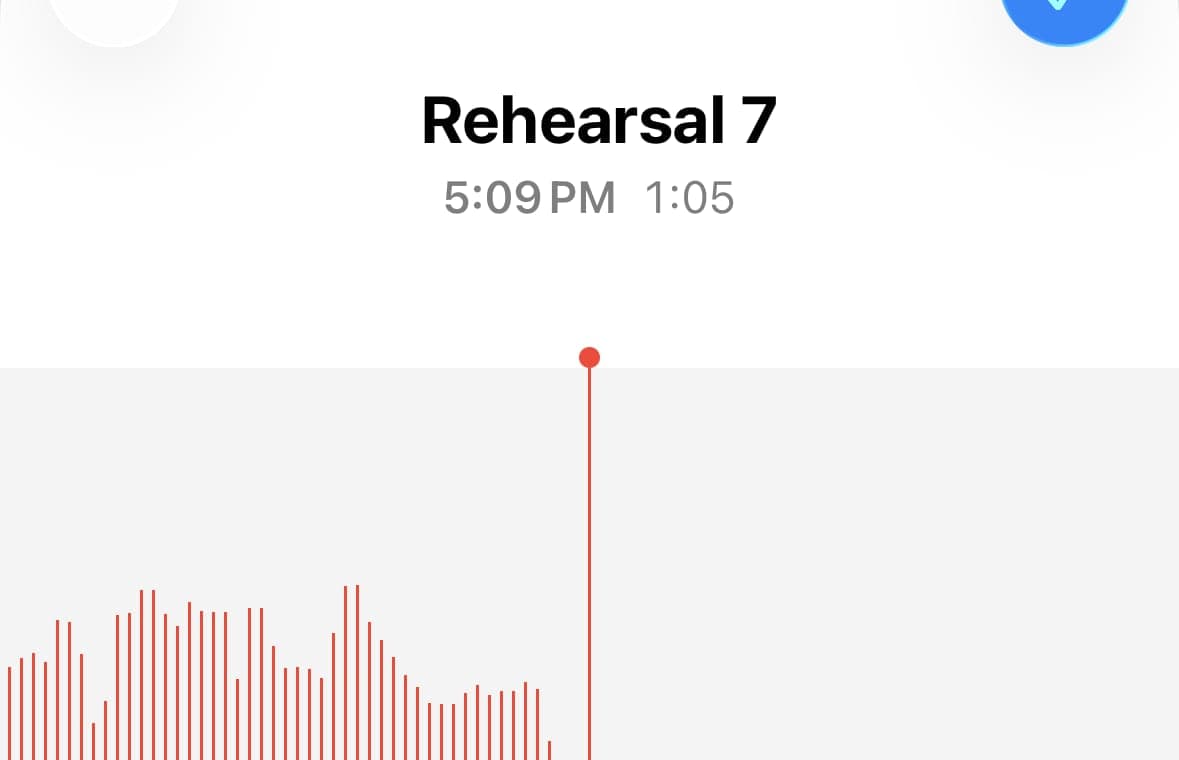
To split an M4A file, open it in AudioMultiCut, mark each clip on the waveform, and export the segments as separate files. No conversion step, no upload, no account, and no cost. M4A is the format iPhones and many Android recorders produce by default, which is exactly why so much real-world audio, such as rehearsals, lessons, meetings, and voice notes, arrives as one long M4A that needs to become several clips.
Plenty of free cutters still stumble here: they reject M4A outright, force a conversion to MP3 first, or upload your recording to a server to process it. None of that is necessary.
Video transcript
Your best idea is buried somewhere in a long voice memo. You want just that part, as its own clip. Here's how to split M4A files and iPhone voice memos into separate clips. No conversion, no computer, and no upload. You'll learn three things. Splitting in the iPhone app. Splitting in any browser. And why you should skip converting to MP3. Voice Memos saves your recordings as M4A. AudioMultiCut opens M4A directly, so there's nothing to convert. Can Voice Memos split one recording into multiple files? Not on its own. That's the gap AudioMultiCut fills. And there's plenty to split. Song ideas from a practice session, a lecture into topics, a meeting into agenda items, or an interview into the best quotes. On iPhone, the app is the smoothest path. Open Voice Memos and tap Share. Pick AudioMultiCut. Mark your segments on the waveform. Preview and adjust each boundary. Export through the share sheet. For a long memo, tap Auto-Cut and let it find the silences. Presets like Smart, Podcast Clips or Lecture Chapters give you a head start. Then export as M4A, MP3 or WAV. And send the clips to Messages, WhatsApp, Telegram, AirDrop or Files, without leaving your phone. It's great for voice notes, too. Split a long memo into short parts that are easy to send and easy to play. The app is free for recordings up to ten minutes. AudioMultiCut Unlimited removes the length limit. No app? Open audiomulticut.com in Safari, or on any phone or computer. Drag in the M4A, see the waveform, and mark where each clip starts and ends. Four steps. Visit audiomulticut.com. Load the file from your phone or computer. Split the recording. Download the clips. They land in your downloads folder. On Android, there's nothing to install. The browser editor does it all. Web or app for a long memo? The web works well for short files. Phone browsers have memory limits, so for long memos on iPhone, the app is more reliable. Should you convert M4A to MP3 before splitting? No. Converting adds an extra re-encode. It adds extra steps. Split the M4A directly, and keep the original quality. Then pick the output for where it's going. M4A Original quality, copied with no re-encoding. MP3, for sharing. WAV, for more editing. And your recordings stay private. Decoding happens on your device. Nothing is uploaded. No account needed. Quick recap. On iPhone, share from Voice Memos to the app. Anywhere else, use the browser. Don't convert first. Split the M4A directly. And export M4A Original to keep full quality. Try AudioMultiCut, free on the web and in the iPhone app.
Splitting M4A in the browser
Drag the M4A into AudioMultiCut like any other audio file. The waveform renders, and from there the workflow is the same as MP3 or WAV: drag out segments, let Auto-Cut find the silences in long recordings, preview each boundary, and export. Choose M4A Original quality to copy compatible M4A/AAC audio without re-encoding, MP3 for easy sharing, or WAV if the clips are headed into another editor.
Because decoding happens in your browser, a private lesson or a work meeting recorded as M4A is never uploaded anywhere. It stays on your machine the entire time.
Splitting Voice Memos on your phone
You do not need a desktop for this. The web editor works in a phone browser, and the AudioMultiCut iPhone app makes the loop even shorter: share a recording from Voice Memos straight into the app, split it into clips, and send the results to Messages, WhatsApp, Telegram, AirDrop, or Files.
That covers the common mobile cases end to end: a band member sending each song from last night's rehearsal, a student sharing one exercise from an hour-long lesson, or pulling a single decision out of a recorded call, all without the recording ever leaving the phone.
Should you convert M4A to MP3 first?
No. Converting before cutting adds a lossy re-encode before you have even edited, and it doubles the steps. Split the M4A directly, then choose the output format that fits the destination: Original-quality M4A for a fast no-reencode copy, MP3 for chat apps and email, or WAV when you need uncompressed audio downstream. If you are deciding what format to record in going forward, we compare the trade-offs in our M4A vs MP3 guide.
FAQ
Can I split an M4A file online for free?
Yes. AudioMultiCut opens M4A natively in the browser, splits it into as many clips as you need, and exports them free, with no ads, no watermark, and no account required.
How do I split a Voice Memo on iPhone?
Share the memo from the Voice Memos app to AudioMultiCut for iPhone, or open audiomulticut.com in Safari and load the file. Mark the clips and export; you can share multiple files at once to Messages, WhatsApp, Telegram, AirDrop, or Files.
Will splitting an M4A reduce its quality?
Not when you choose M4A Original quality for a compatible M4A/AAC source: AudioMultiCut copies the compressed audio without re-encoding. Choose WAV for uncompressed output, or MP3 when small shareable files matter more.
More recording workflows
Technical guide to iPhone recordings, codecs, and export time
M4A vs MP3 for iPhone Voice Memos: What You’re Actually Recording
A technical guide to iPhone Voice Memos: what the .m4a file really is, what Apple’s built-in microphones are actually doing, and why exporting to MP3 takes real CPU time.
Long recording in, useful clips out
How to Split Long Recordings on iPhone with AudioMultiCut
A step-by-step iPhone workflow for splitting Voice Memos, rehearsals, lectures, meetings, and live recordings into clean MP3 or WAV clips.
A real iPhone workflow beats a repeat upload loop
Best iPhone Audio Splitter App for Long Recordings vs Online Cutters
Online cutters are fine for one quick trim. The AudioMultiCut iPhone app is better when you keep coming back to long recordings, saved projects, merging, and sharing.
Long messages get heard when they arrive in pieces
How to Send a Long Voice Memo in Parts
Recording too big to send? Split it into parts in your phone browser on Android or in the iPhone app, then share all the parts at once.
Related pages and tools
Split an M4A file
Open a Voice Memo or any M4A recording, mark the clips, and export them as separate files, on desktop or right on your phone.