
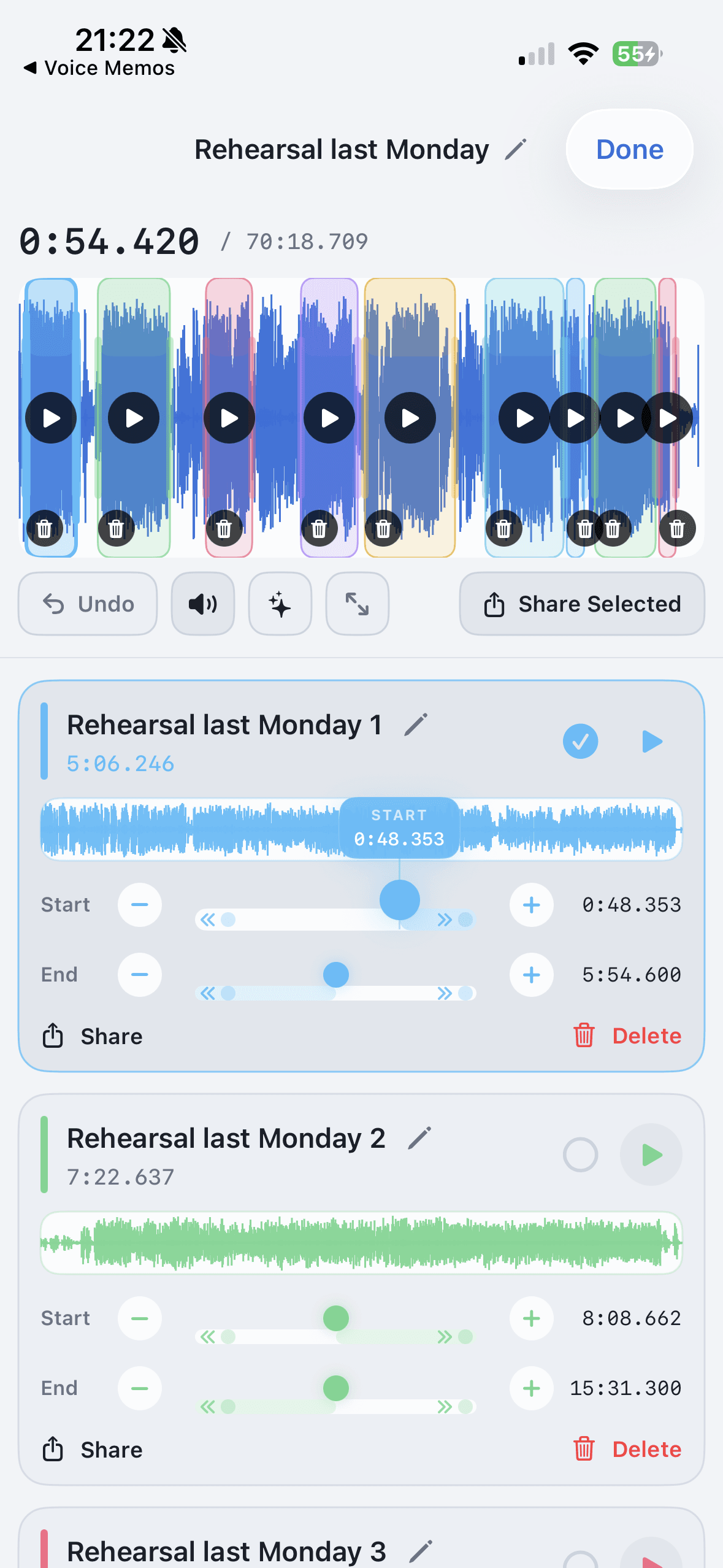
A long iPhone recording is easy to make and annoying to split. You record the class, rehearsal, meeting, or idea session. Then it sits there as one long file because cutting it into useful pieces feels like a project.
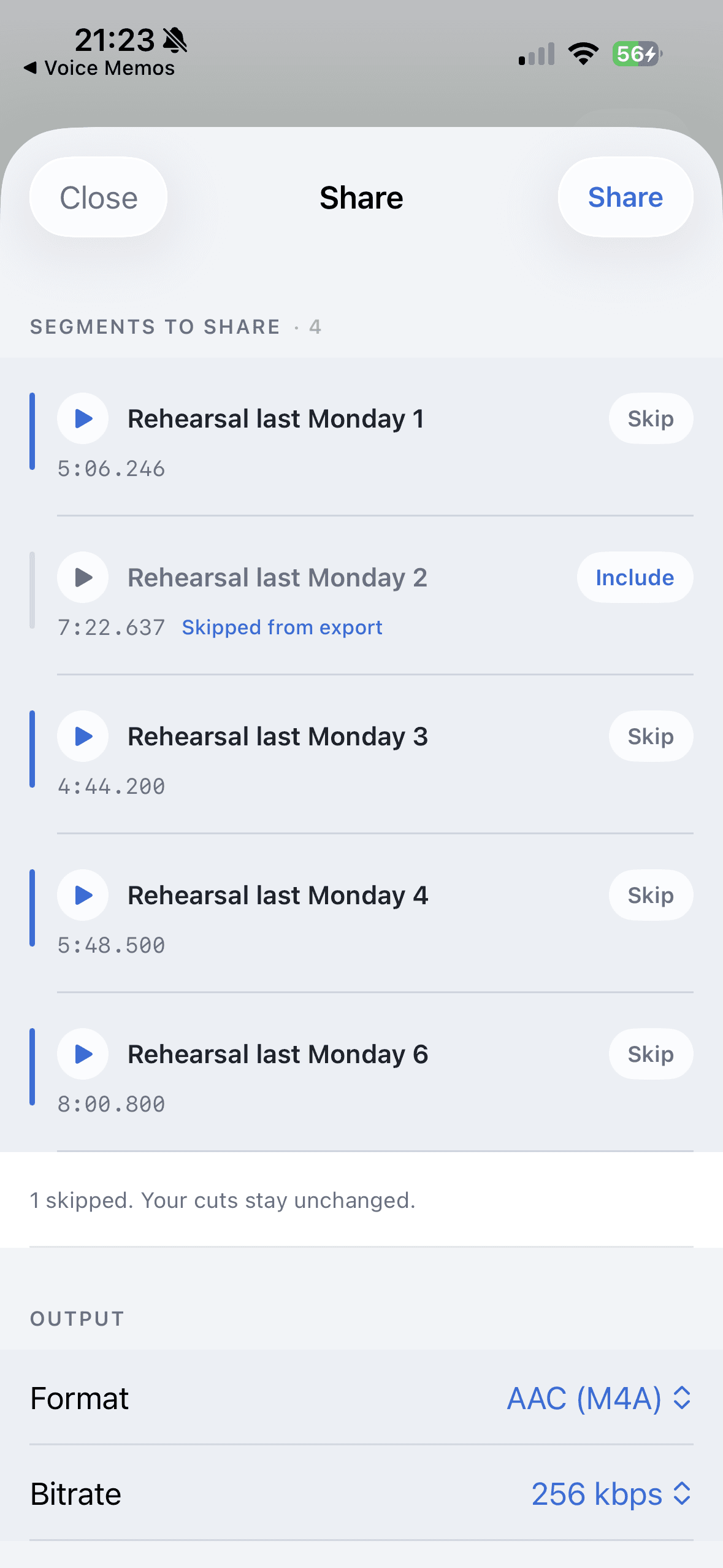
AudioMultiCut iOS makes the next step direct. Import the recording, create the clips, preview the edges, export MP3 or WAV, and share the files through Messages, WhatsApp, Telegram, AirDrop, Files, or the app you already use.
Step 1: Import the recording
Open AudioMultiCut on iPhone and import from Files, Photos, or another app that can share audio. Voice Memos can be exported to Files first, then opened in AudioMultiCut. Video files can also be useful when the part you need is the audio.
Give the project a name that will still make sense later: band rehearsal June 14, lecture week 3, client interview, lesson homework, or live set. That keeps it from ending up as another unnamed recording.
Step 2: Mark the clips
Move through the waveform and make segments for the parts you want to keep. For a lecture, that might be introduction, topic one, topic two, and questions. For a rehearsal, it might be each song. For a meeting, it might be decisions, action items, and the client quote you need later.
Use auto-detection as a starting point when the recording has clear gaps, but do not treat it as the final edit. The important part is listening to each edge: nudge the boundary until the first word or note is not clipped.
Step 3: Name the exports
Short names beat clever names. A good export name tells the recipient what the file is before they open it: song-03-final-take, lecture-q-and-a, lesson-left-hand-drill, meeting-budget-decision.
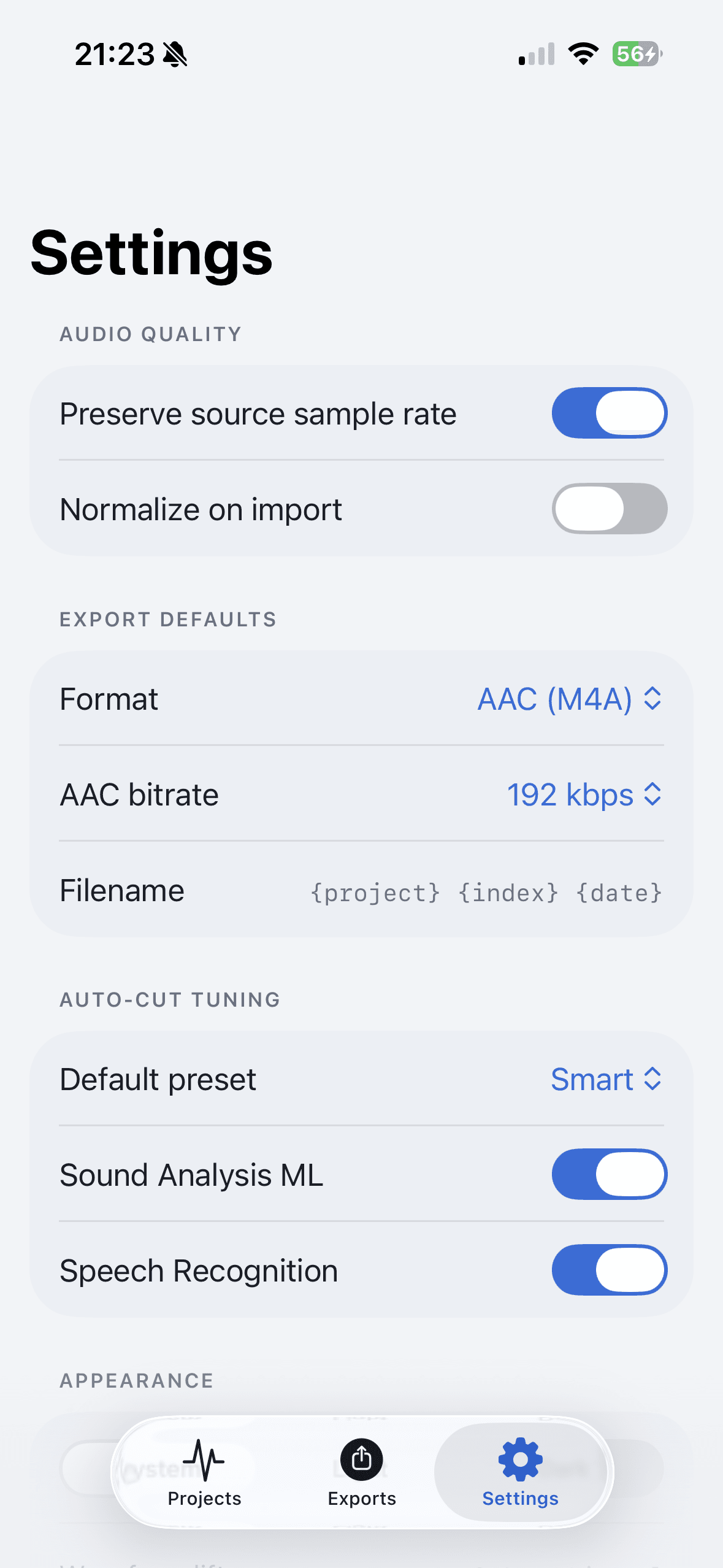
If you are exporting several clips, decide the naming pattern before export. That keeps Files, AirDrop, and chat threads readable instead of turning into a pile of anonymous audio attachments.
Step 4: Export and share
Choose MP3 when the files are for quick listening or messaging. Choose WAV when the clips are going into another editor or sample workflow. Then share the exports through the iPhone share sheet.
Use a short real file to learn the app first. The free app includes editing and export for recordings up to 10 minutes. AudioMultiCut Unlimited unlocks longer recordings.
FAQ
Can I split Voice Memos with AudioMultiCut?
Yes. Export the Voice Memo to Files, then import it into AudioMultiCut. From there you can split it into clips, preview boundaries, export, and share.
What are good examples of clips to make?
Rehearsal songs, lecture chapters, lesson exercises, meeting decisions, podcast quotes, live set songs, sample-chain notes, and long voice memo ideas all fit the workflow.
More recording workflows
A real iPhone workflow beats a repeat upload loop
Best iPhone Audio Splitter App for Long Recordings vs Online Cutters
Online cutters are fine for one quick trim. The AudioMultiCut iPhone app is better when you keep coming back to long recordings, saved projects, merging, and sharing.
Technical guide to iPhone recordings, codecs, and export time
M4A vs MP3 for iPhone Voice Memos: What You’re Actually Recording
A technical guide to iPhone Voice Memos: what the .m4a file really is, what Apple’s built-in microphones are actually doing, and why exporting to MP3 takes real CPU time.
Chapter a lecture on your phone without turning it into a desktop project
How to Split Lecture Recordings Into Chapters on Your Phone
A phone-first workflow for turning one long lecture into topic-based chapters that are easier to review, study, and share.
Built for long files
How to Split a 2-Hour Recording Into Clips
Long recordings are where most audio tools give up. How to turn a two-hour rehearsal, lecture, or interview into usable clips in one browser session.
Long messages get heard when they arrive in pieces
How to Send a Long Voice Memo in Parts
When a voice memo is too long to send or too long to expect anyone to play, split it into parts on your phone and share them together.
Related pages and tools
Split the recording where it already lives
Download AudioMultiCut on iPhone and turn long recordings into clean files without moving them through a desktop editor.