
Remove Parts from Video is for the edit where one video should stay one video, but a few moments need to disappear. Instead of exporting separate clips, you mark the unwanted ranges and download one joined result.
That makes it useful for phone videos, screen recordings, lessons, interviews, demos, rehearsals, and review footage where the final file should feel continuous after the rough parts are skipped.
False starts and dead air
A lot of everyday video starts before the real action. There is setup time, a missed first take, a pause while someone finds the right window, or a long silence before the class begins. Mark those ranges in red and keep the rest of the video together.
This is cleaner than trimming the start and end only, because the unwanted part may be in the middle. It is also faster than opening a full video editor when the only decision is what to remove.
Private details and interruptions
Meeting recordings, demos, and phone videos sometimes include details that should not be shared: a name, phone number, private screen, accidental interruption, or off-topic exchange. Remove the section and preview the join so the video moves from the second before to the second after.
Keep the original file until the export has been checked. The tool edits a downloaded copy, but the original is still the best fallback if a removal was too tight.
When Video Multi Cut is better
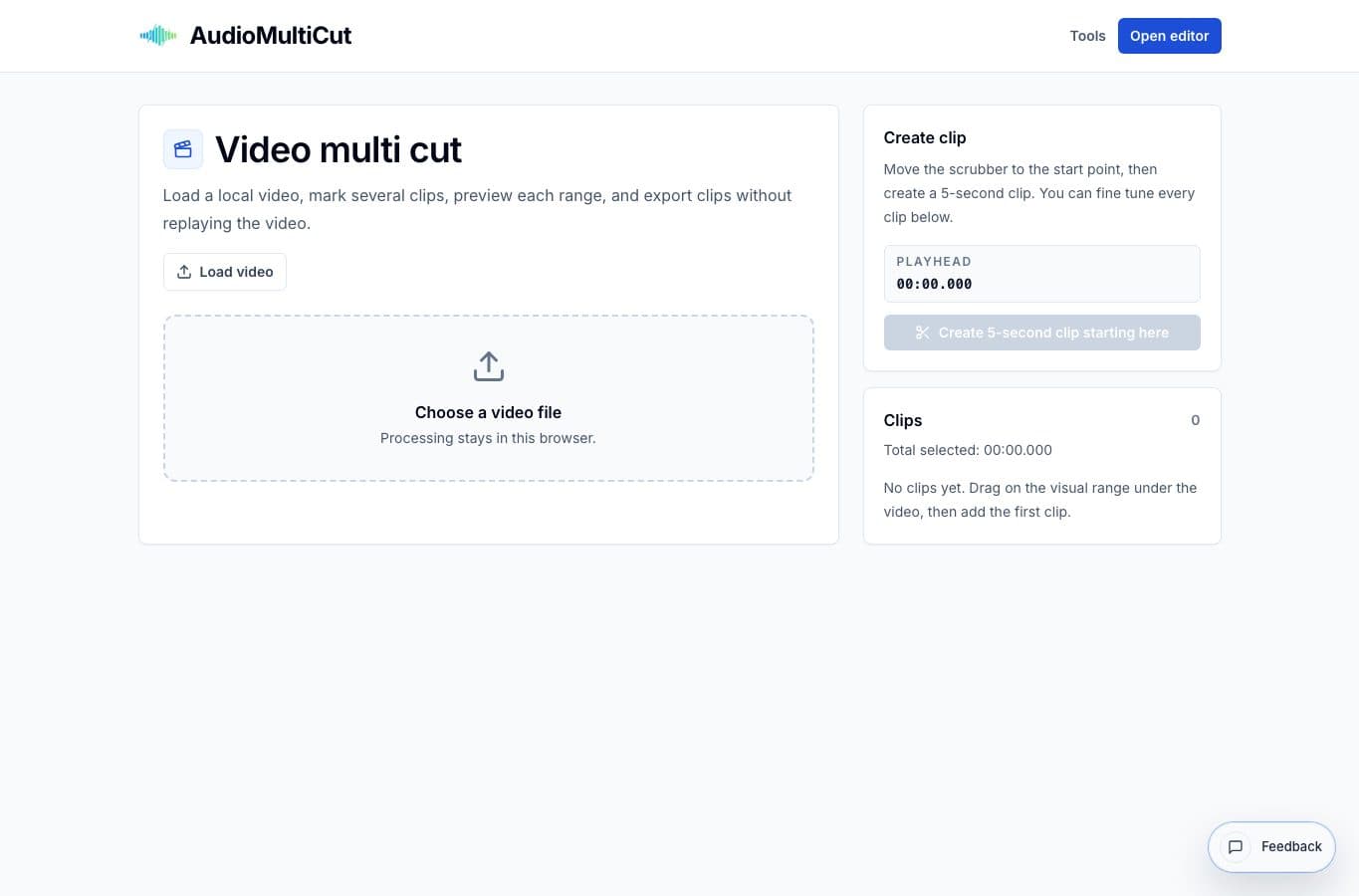
Use Video Multi Cut when the same long source should become several separate clips. Use Remove Parts from Video when the final result should be one cleaned file.
That distinction matters. Extracting five good moments and deleting three bad moments can look similar on a timeline, but the exports are different: many files versus one joined video.
FAQ
Does Remove Parts from Video create separate clips?
No. It removes the marked red ranges and exports one joined video. Use Video Multi Cut when you want separate clips.
Why does the preview jump over the removed section?
Because the removed section will not exist in the export. The useful preview is the join from just before the removal to just after it.
More video clipping guides
One cleaned video or many exported clips
Remove Parts From Video vs Video Multi Cut: Which Should You Use?
A practical comparison between deleting unwanted parts from one video and extracting several separate video clips from a longer source.
Simple deletion workflow versus full video editing
Best Remove Parts From Video Alternatives
Compare Remove Parts from Video with CapCut, Premiere Pro, DaVinci Resolve, Final Cut, online trimmers, and transcript-based video editors.
Mark the parts to remove, then check the joins
How to Remove Unwanted Parts From a Video
A step-by-step workflow for deleting mistakes, dead air, private details, interruptions, or rough sections from one video file.
Related pages and tools
Remove unwanted video sections
Load a local video, mark the parts that should disappear, preview each join, and export one cleaned file.