
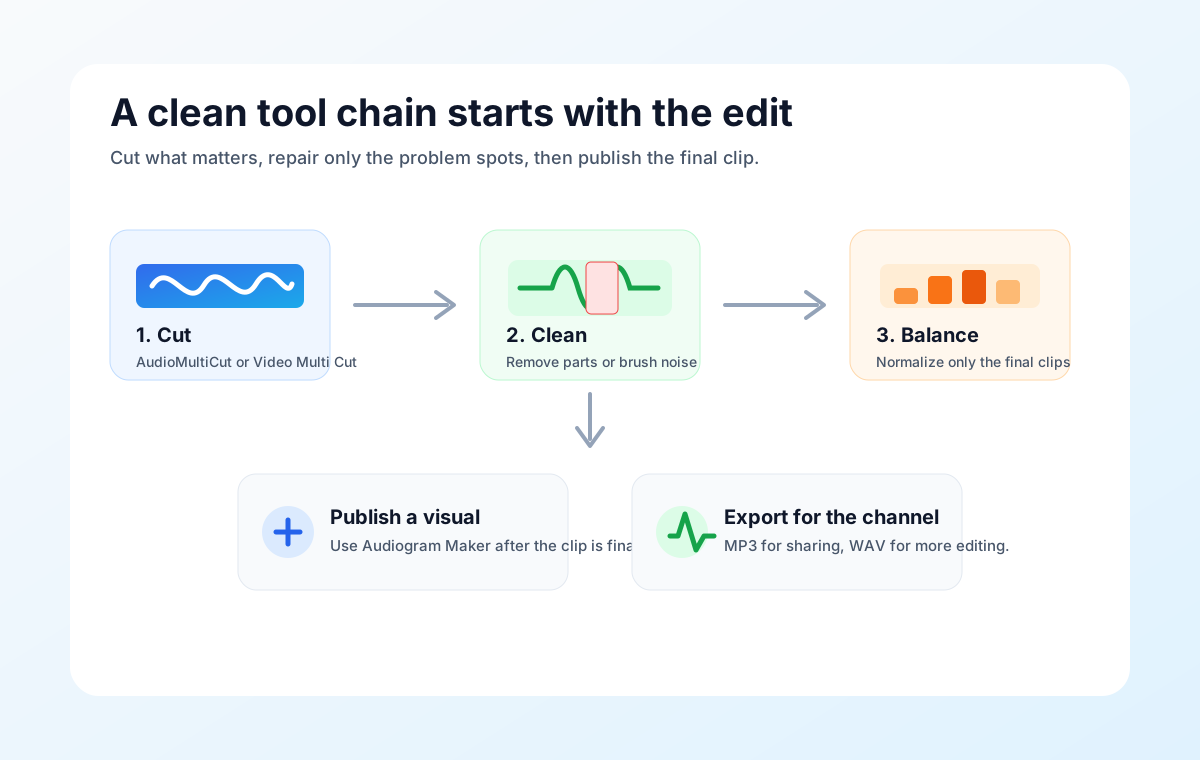
When a long recording needs both cutting and loudness cleanup, the order matters. Cut first. Normalize second. That keeps the project smaller and makes the loudness decision react to the audio people will actually hear.
The workflow is simple: export the keepers from AudioMultiCut, then import each finished clip into the Audio Volume Normalizer if it is too quiet, too uneven, or does not match the other clips.
Why cutting should happen first
A long source file often contains silence, setup noise, false starts, and sections nobody will use. If you normalize the whole source before cutting, one loud spike or mic bump can control the gain for the entire recording. The useful parts may still end up quieter than expected.
After cutting, each exported clip has its own real loudness problem. A lecture chapter, rehearsal song, or podcast highlight can be judged on its own instead of being tied to everything around it.
How to move between tools
In AudioMultiCut, mark the segments, name them clearly, and export MP3 or WAV. Then open the Audio Volume Normalizer and upload the exported clip. Use gain and normalization for overall level, quiet boost for soft speech, and light compression only when the clip has a large gap between loud and quiet moments.
For a set of clips, normalize the quiet ones first and compare them by ear. The goal is not to make every waveform look identical. The goal is to make the listener stop reaching for the volume control.
Where this workflow fits
This is a good fit for rehearsal songs, lecture chapters, private lesson clips, voice memo notes, and interview highlights. It is especially helpful when several exports came from different parts of the same long recording and some sections were recorded farther from the mic.
If the source needs a mistake removed from the middle before it becomes one final file, use Remove Parts from Audio first instead. If the source is already a clean single clip, you can go straight to the normalizer.
FAQ
Should I normalize before auto-cut or segment detection?
Usually no. Cut or detect the useful sections first, then normalize the exported files. That keeps loudness processing focused on the final clips.
Should every exported clip be normalized?
No. Only normalize clips that are too quiet, too uneven, or noticeably different from the rest of the set.
More audio workflows
Use the right tool at the right stage
How to Combine AudioMultiCut Tools Without Making the Edit Messy
A practical workflow for using the cutter, remove-parts editors, normalizer, audiogram maker, video tools, and spectrogram editor together without losing track of the job.
Make quiet or uneven clips easier to hear
Best Use Cases for an Online Audio Volume Normalizer
When to normalize audio, raise quiet recordings, add light compression, and export a more consistent file without turning the process into mastering.
Raise the useful parts, protect the loud parts
How to Make Quiet Audio Louder Without Blowing Out the Peaks
A practical workflow for raising quiet recordings while avoiding clipping, pumping, and harsh compression.
Related pages and tools
Start with the right stage
Cut the useful sections first, then import the final clips into the normalizer only when they need loudness help.