
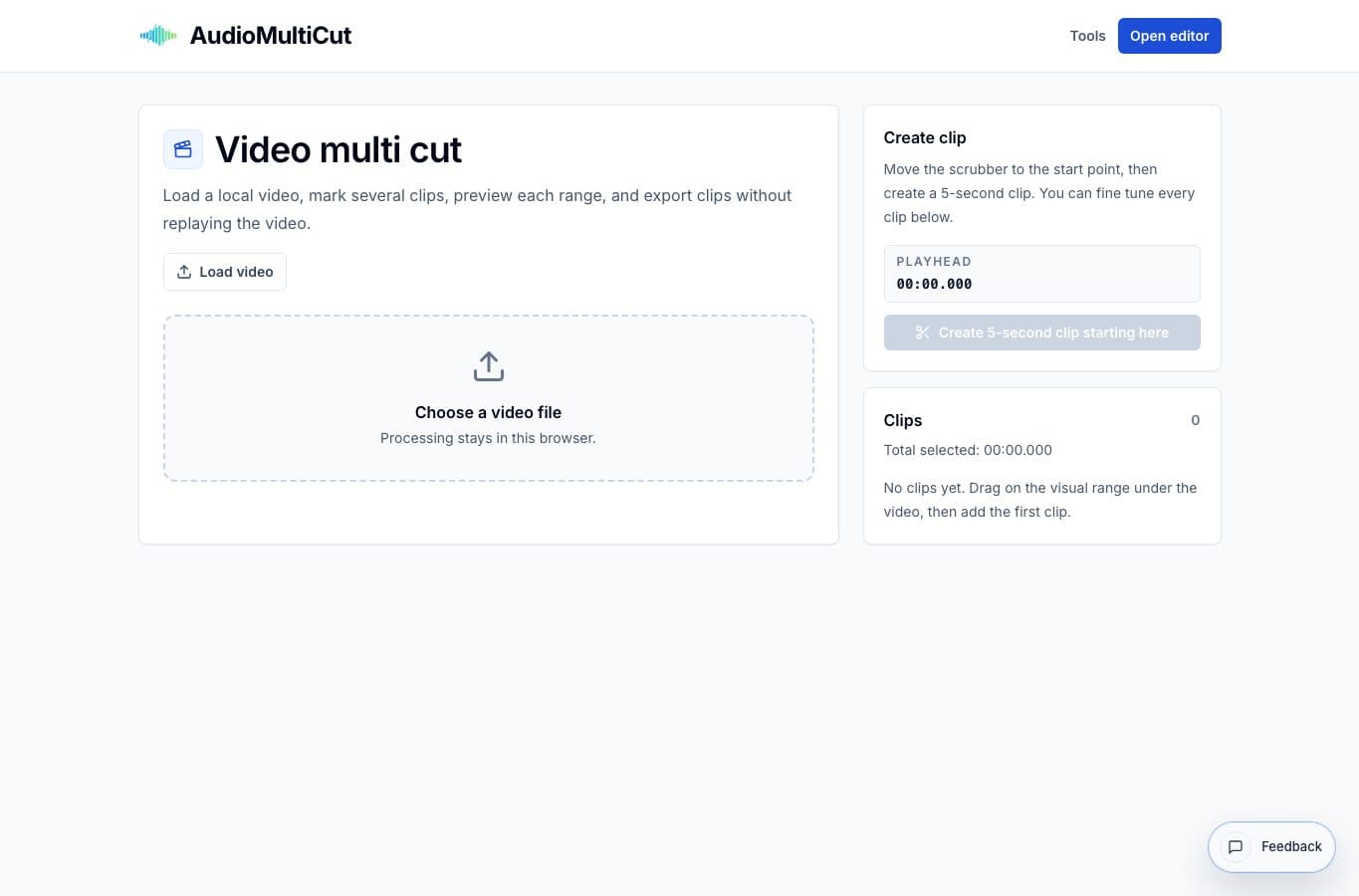
Long videos usually contain more than one useful moment. The slow way is to trim the same source over and over. The cleaner way is to review once and keep a list of clips as you go.
That works for rehearsal footage, classes, interviews, screen recordings, demos, coaching videos, and live shows.
Step 1: Load and scan
Open the video and scrub through the source once before exporting anything. Make rough notes mentally: song starts, useful explanations, bug moments, good takes, or the parts someone actually asked for.
Do not try to perfect the first clip immediately. Get the rough moments down first, then come back and adjust edges.
Step 2: Create clip ranges
Move to the start of a keeper moment, create a clip, then adjust the start and end times. Name clips in a way that will still make sense after download, like “Song 2 bridge take” or “Login bug repro”.
Clip names are not decoration. They save time later when the files are shared in a chat, folder, or review thread.
Step 3: Export only the useful parts
Before exporting, play each clip boundary once. A few seconds of checking can prevent a clipped sentence, missed downbeat, or awkward ending.
After that, export the selected clips. The result is easier to send, easier to review, and less annoying than asking someone to find the right timestamp themself.
More video clipping guides
Pull multiple moments from one long video
Best Use Cases for Video Multi Cut
When to cut several moments from one long video: rehearsals, shows, talks, classes, screen recordings, interviews, and review footage.
One trim or many moments
Video Multi Cut vs Video Trimmer: Best Tool for Several Clips
A comparison of multi-clip video cutting and basic video trimming for shows, classes, rehearsals, screen recordings, and interviews.
Use the right tool at the right stage
How to Combine AudioMultiCut Tools Without Making the Edit Messy
A practical workflow for using the cutter, remove-parts editors, normalizer, audiogram maker, video tools, and spectrogram editor together without losing track of the job.
Related pages and tools
Start cutting a long video
Load a local video, create clip ranges, and export the useful sections without rebuilding a full timeline.