
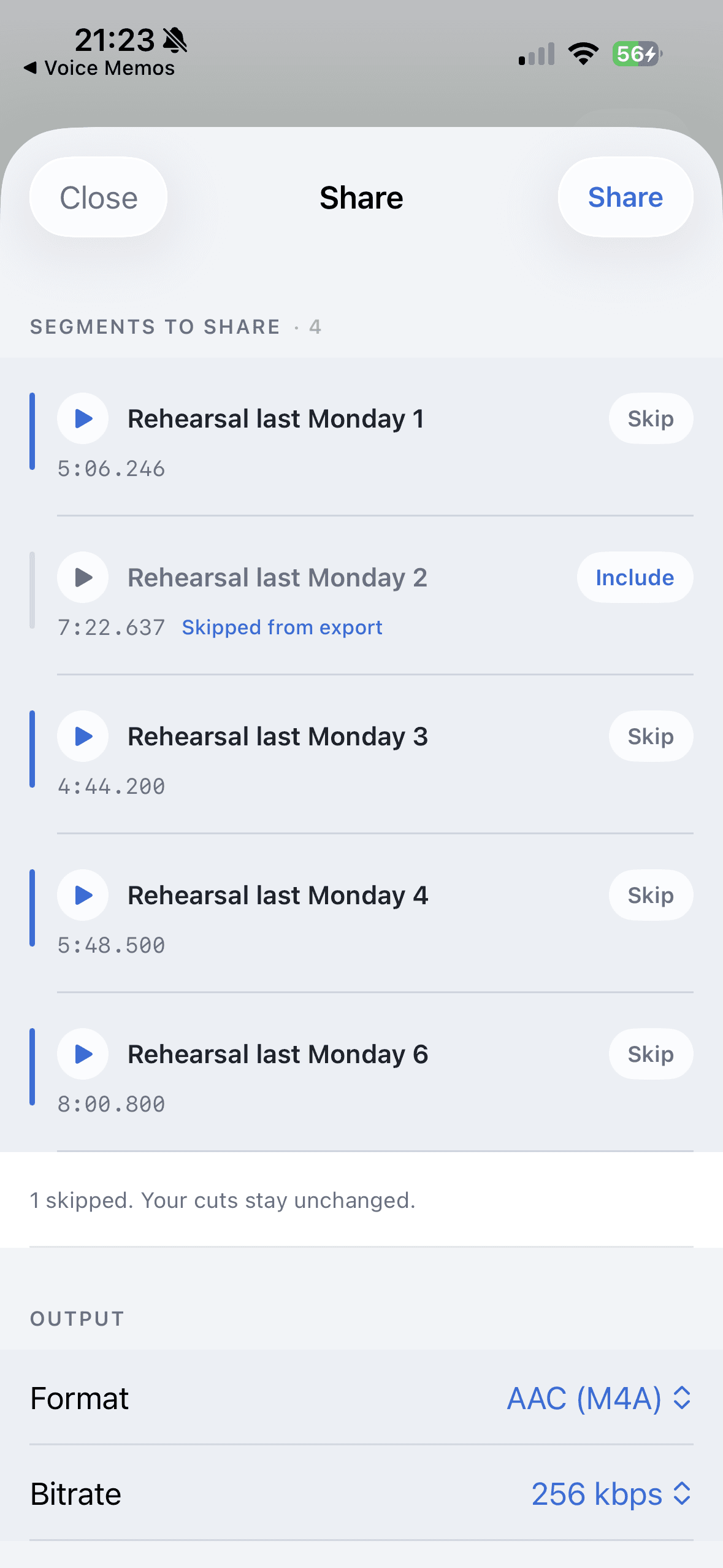
You record an intro separately from a lesson. You have three rehearsal notes from the same song. You saved several voice ideas and want one file to send. A desktop timeline can do it, but that is more setup than a simple merge needs.
On iPhone, the better path is to collect the pieces, put them in order, listen through the joins, and send one file. AudioMultiCut lets you merge where the recordings already are.
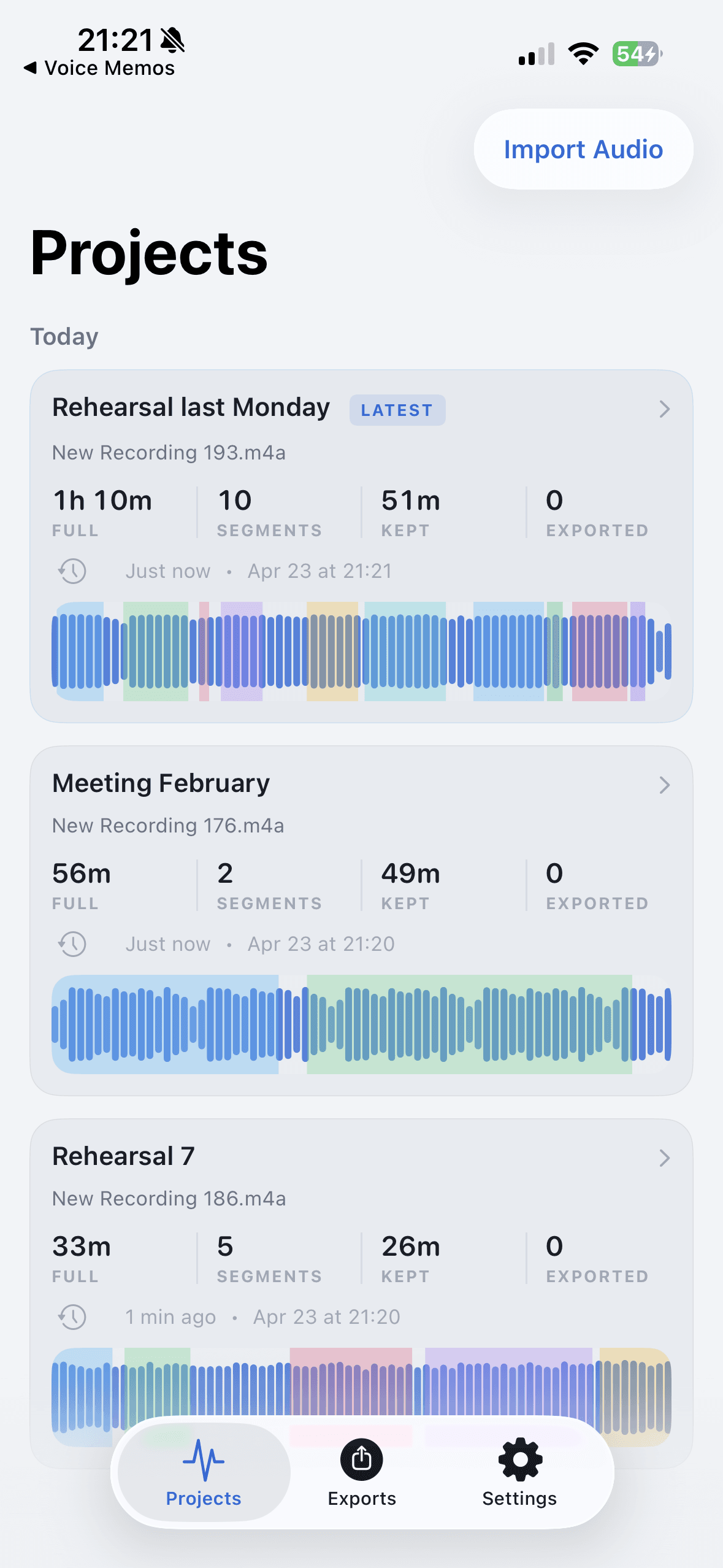
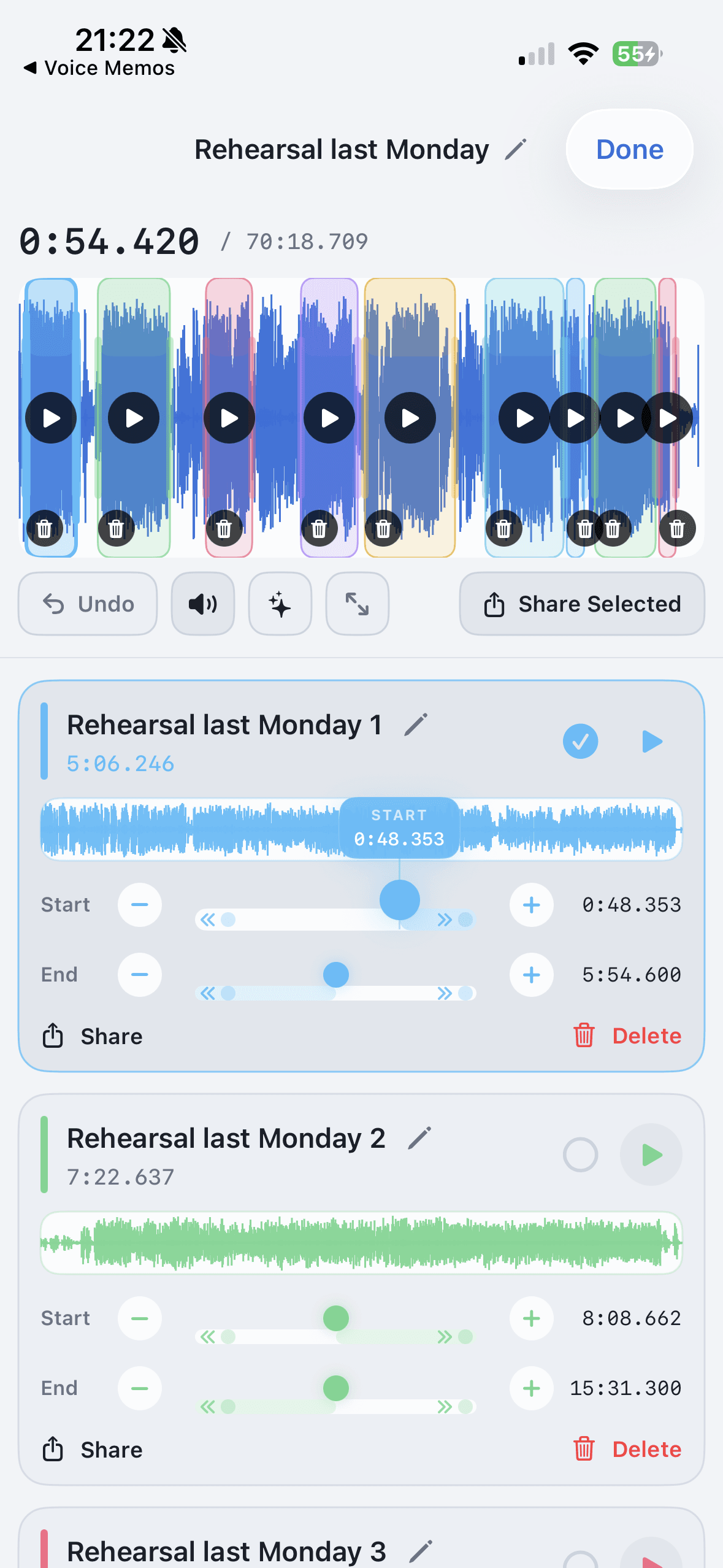
Step 1: Gather the files
Put the recordings somewhere easy to reach, usually Files. They might come from Voice Memos, Messages, AirDrop, Photos, another recording app, or a video whose audio you want to use.
Before merging, listen quickly to each source. Delete obvious duplicates and decide the order. Merging becomes easy once you know the final sequence.
Step 2: Import and arrange
Open AudioMultiCut on iPhone and import the files into a project. Arrange them in the order the listener should hear them. For a lesson, that might be explanation, slow demo, full-speed demo, homework reminder. For a rehearsal, it might be take one, take two, final chorus idea.
Keep names plain. The merged file should explain itself: guitar-lesson-week-4, rehearsal-song-ideas, interview-selected-quotes, sample-chain-best-takes.
Step 3: Preview the joins
The merge button is the easy part. The joins are what matter. Listen around each transition and make sure the change does not chop off a word, note, breath, or count-in. If a source file has a long dead start or tail, split or trim it before merging.
Here, fewer controls help. You are not managing tracks and automation. You are checking whether the combined file will make sense to the person who receives it.
Step 4: Export one file you can send
Export MP3 for sharing through Messages, WhatsApp, Telegram, AirDrop, or email. Export WAV if the merged file is going into another editor or sampler. Save the project if you may need a different version later.
Examples that fit well: combining short lesson drills into one homework file, joining several Voice Memo ideas into one song sketch, merging interview picks for a producer, or making one rehearsal recap from scattered takes.
FAQ
Can I merge audio from different iPhone apps?
Yes. If you can share the file to AudioMultiCut, you can bring it into the project.
Should I merge before or after splitting?
If the sources contain extra material, split or trim them first. Merge once each piece is already the version you want in the final file.
More recording workflows
Long recording in, useful clips out
How to Split Long Recordings on iPhone with AudioMultiCut
A step-by-step iPhone workflow for splitting Voice Memos, rehearsals, lectures, meetings, and live recordings into clean MP3 or WAV clips.
A real iPhone workflow beats a repeat upload loop
Best iPhone Audio Splitter App for Long Recordings vs Online Cutters
Online cutters are fine for one quick trim. The AudioMultiCut iPhone app is better when you keep coming back to long recordings, saved projects, merging, and sharing.
Power is not the same as speed
AudioMultiCut iOS vs Desktop Audio Editors for Long Recordings
Desktop editors are powerful, but many long recordings only need clean splitting, merging, preview, export, and sharing from the phone.
Related pages and tools
Merge iPhone audio without a studio timeline
Download AudioMultiCut for iPhone when several recordings need to become one clean MP3 or WAV export.