
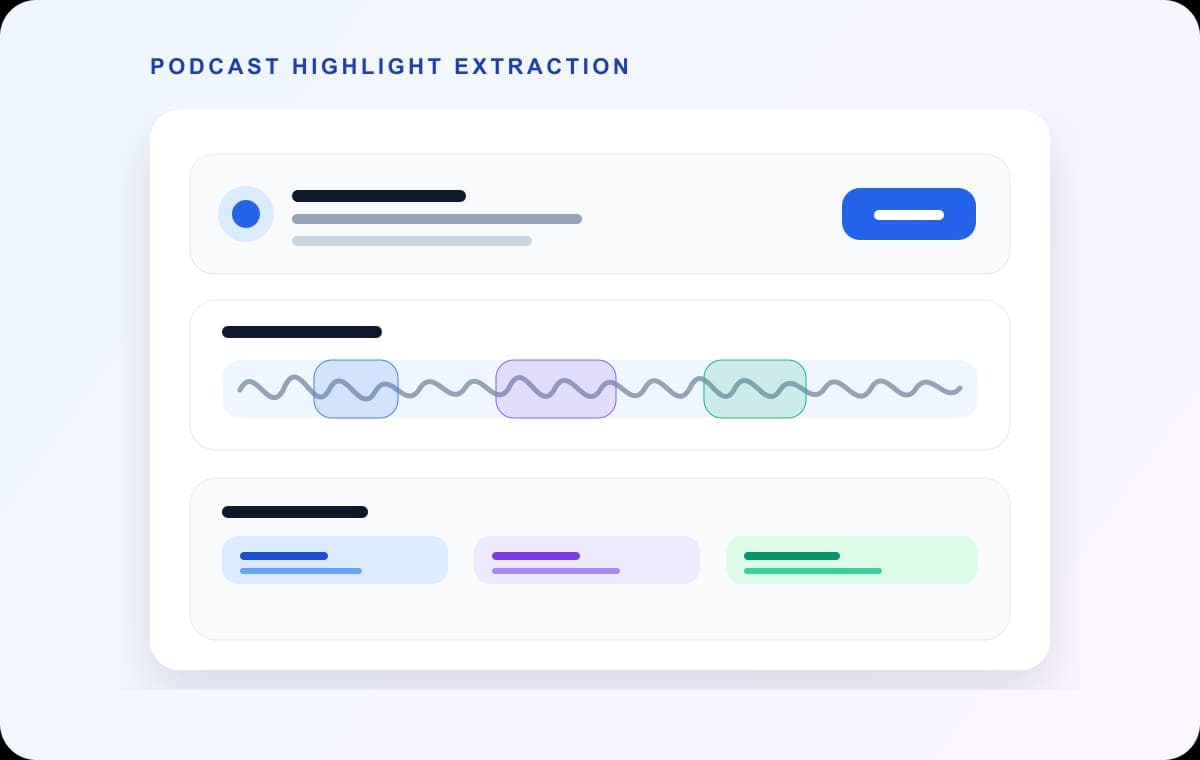
Podcast clipping gets slow when you open a full editor and start polishing before you know which twenty seconds are worth sharing. The better route is smaller: find the quote, export it, then fix only that quote.
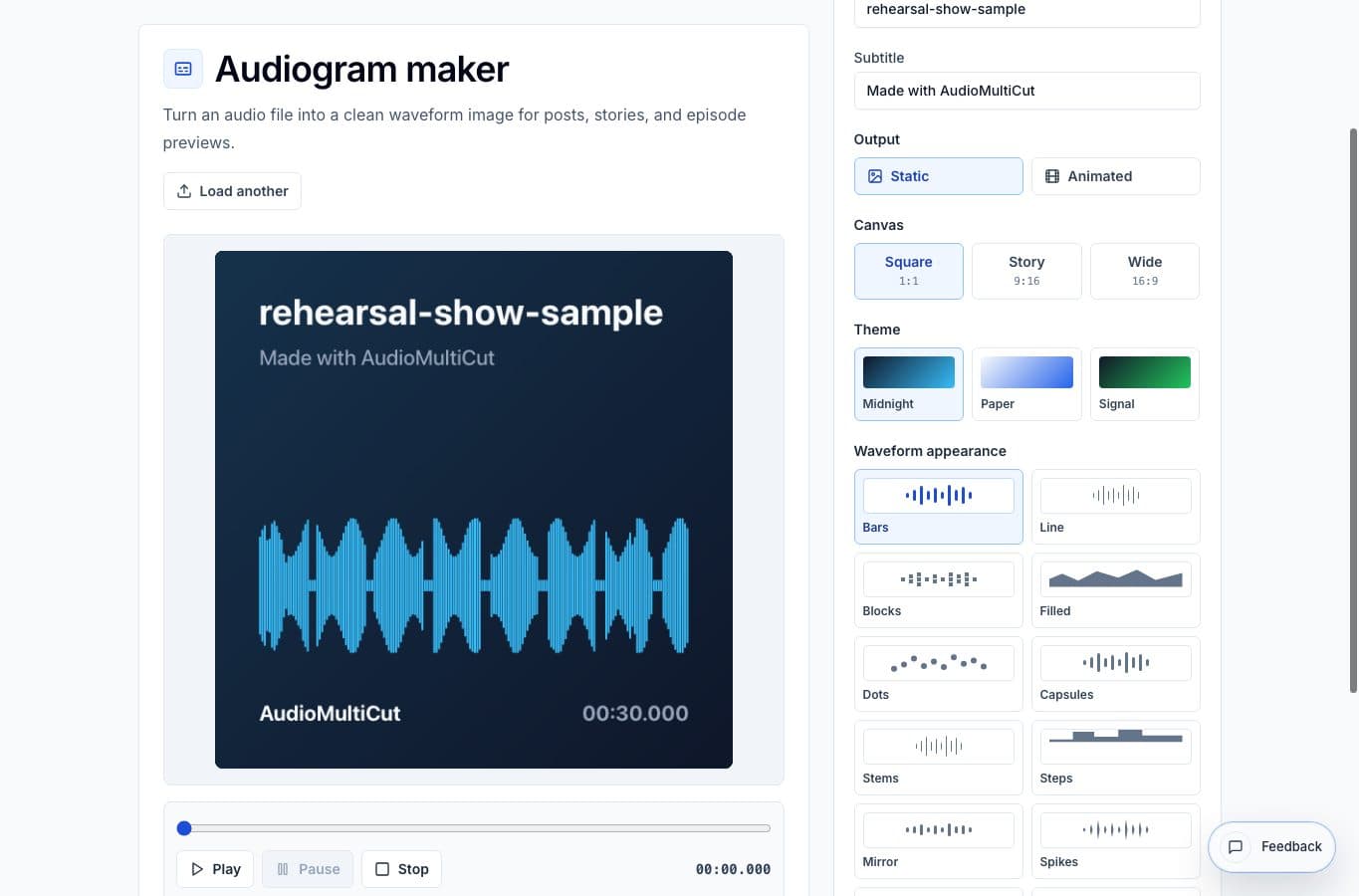
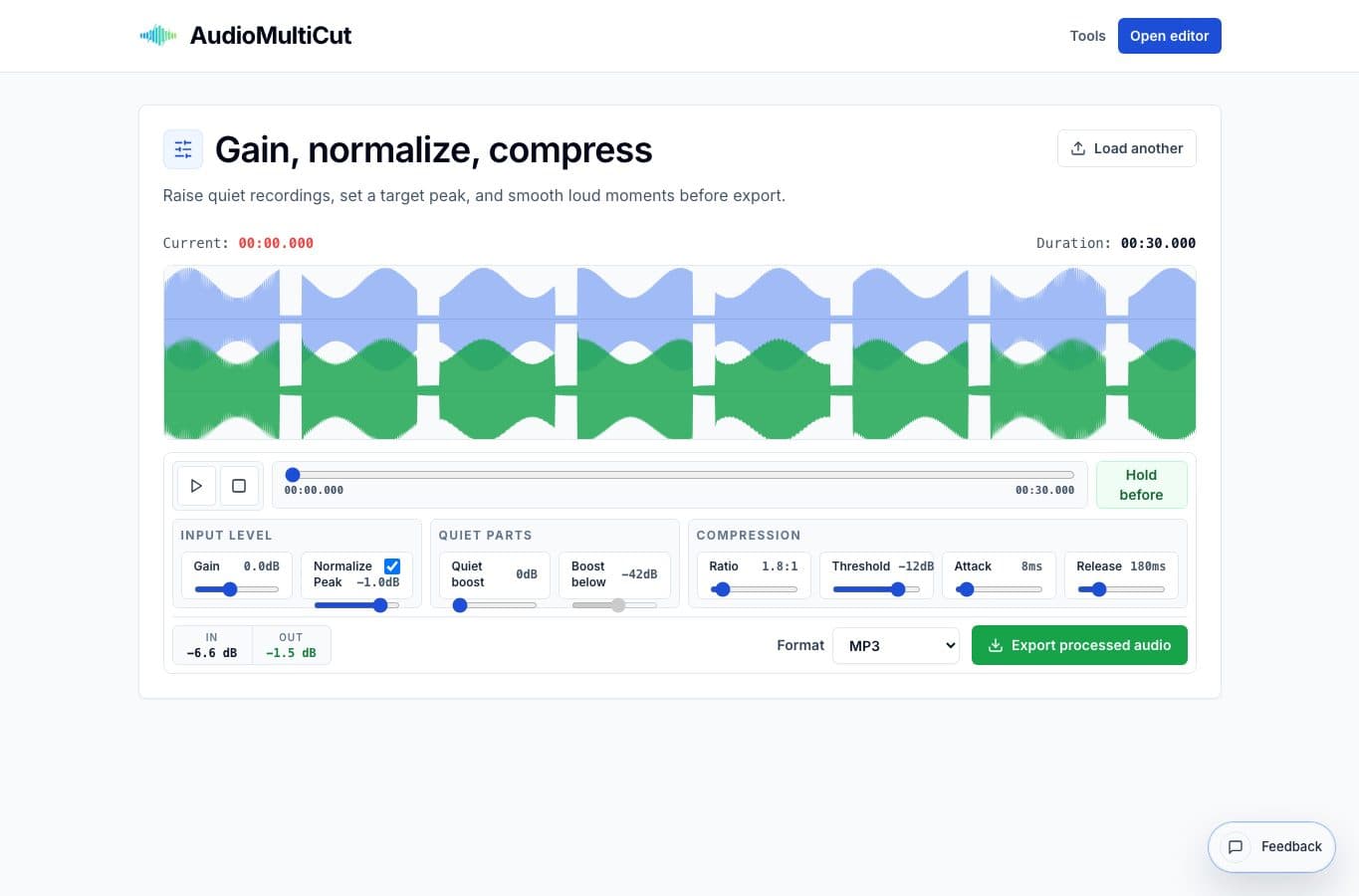
Use the cutter for the long file, then only clean the exported clip. Remove Parts from Audio handles a pause or stumble if one is still inside it. The Audio Volume Normalizer makes the clip easier to hear. The Audiogram Maker turns the finished audio into a shareable post.
The clean order
Start in AudioMultiCut with the whole episode, interview, or voice memo. Mark the quote or story you want to share, then preview the start and end. Do not worry yet about the final visual or loudness. The first decision is what the clip is.
Export that clip. If the export still contains a false start, long pause, private aside, or filler section, open Remove Parts from Audio and delete only those small ranges. This is easier than trying to repair the entire episode.
- Use the cutter when one long recording needs several separate clips.
- Use Remove Parts from Audio when one chosen clip should stay one file but a few moments should disappear.
- Use the normalizer after the clip is final, not before.
- Use the audiogram maker only after the audio sounds ready to publish.
A real example
Say you recorded a 54-minute conversation and want a clip where the guest explains the best idea in the episode. In AudioMultiCut, make a segment from 18:42 to 19:31 and export it. When you listen back, there is a five-second search for words in the middle. Open Remove Parts from Audio, mark that pause, and audition the join.
Now the clip is 44 seconds. It sounds good, but the guest is quieter than the host. Open the Audio Volume Normalizer, lift the quiet parts gently, and export the final MP3. Then upload that final MP3 to the Audiogram Maker and make the square or vertical version.
Why the order matters
Split before cleanup so you only polish the clip you are keeping. You are not moving tiny handles inside a giant timeline while also thinking about compression, captions, colors, and export format. You finish one decision and move on.
That is the part people usually expect to be hard. Podcast clips do not need a huge studio interface. They need the right order: choose the moment, clean it, level it, then make the visual if the clip needs one.
Where to stop
Not every podcast clip needs every tool. If the clip already sounds good, skip normalization. If it is for a private group chat, skip the audiogram. If the quote is clean, skip Remove Parts from Audio.
The point of the workflow is not to process more. It is to avoid dragging a small publishing job through tools it does not need.
FAQ
Should I normalize the whole podcast before clipping?
Usually no. Clip first, then normalize the specific exports that need help. A loud laugh, intro sting, or room bump in the full episode can push whole-file normalization in the wrong direction.
Do I need an audiogram for every clip?
No. Use the Audiogram Maker when the clip needs a visual wrapper for social, a newsletter, or a podcast page. For Messages, Slack, WhatsApp, Telegram, or Files, the audio export may be enough.
More audio workflows
Use the right tool at the right stage
How to Combine AudioMultiCut Tools Without Making the Edit Messy
A practical workflow for using the cutter, remove-parts editors, normalizer, audiogram maker, video tools, and spectrogram editor together without losing track of the job.
Cut before loudness
Cut Clips First, Then Normalize: A Cleaner Audio Workflow
A practical export-then-import workflow for cutting useful clips first, then importing the final files into AudioMultiCut's volume normalizer.
Clip first, visual second
How to Make a Podcast Audiogram From a Finished Clip
A practical step-by-step workflow for turning a podcast quote or interview clip into a shareable waveform image or short audiogram.
Related pages and tools
Make a podcast clip
Start with the useful moment, then move through cleanup, loudness, and audiogram output only when each step is needed.