
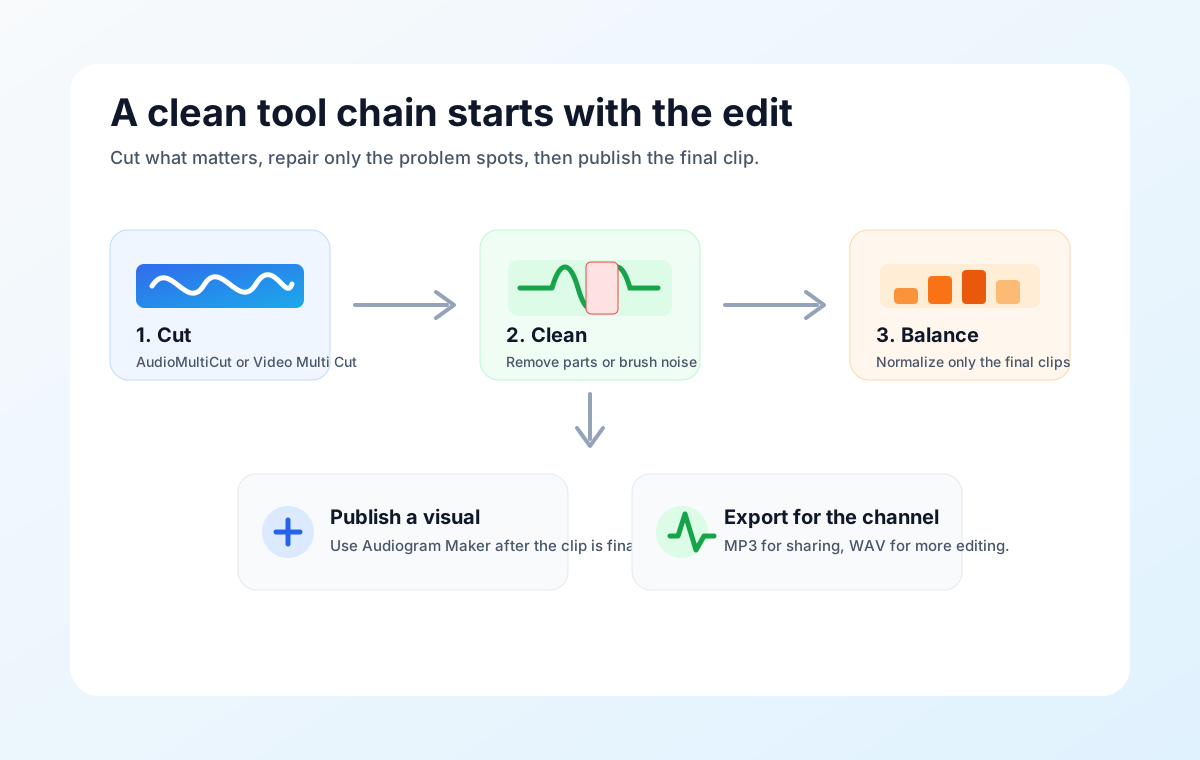
Most everyday recordings do not need mastering. They need the useful parts kept, the obvious mistakes removed, and the final file loud enough to hear.
AudioMultiCut works best when you treat those as separate steps. Instead of loading one big editor and hunting through menus, the next move is usually obvious: cut, remove, brush, or level.
Start by deciding the final shape
If the final result should be several clips, start in the main AudioMultiCut editor. A rehearsal becomes songs. A lecture becomes chapters. A lesson becomes practice clips. You are making separate exports.
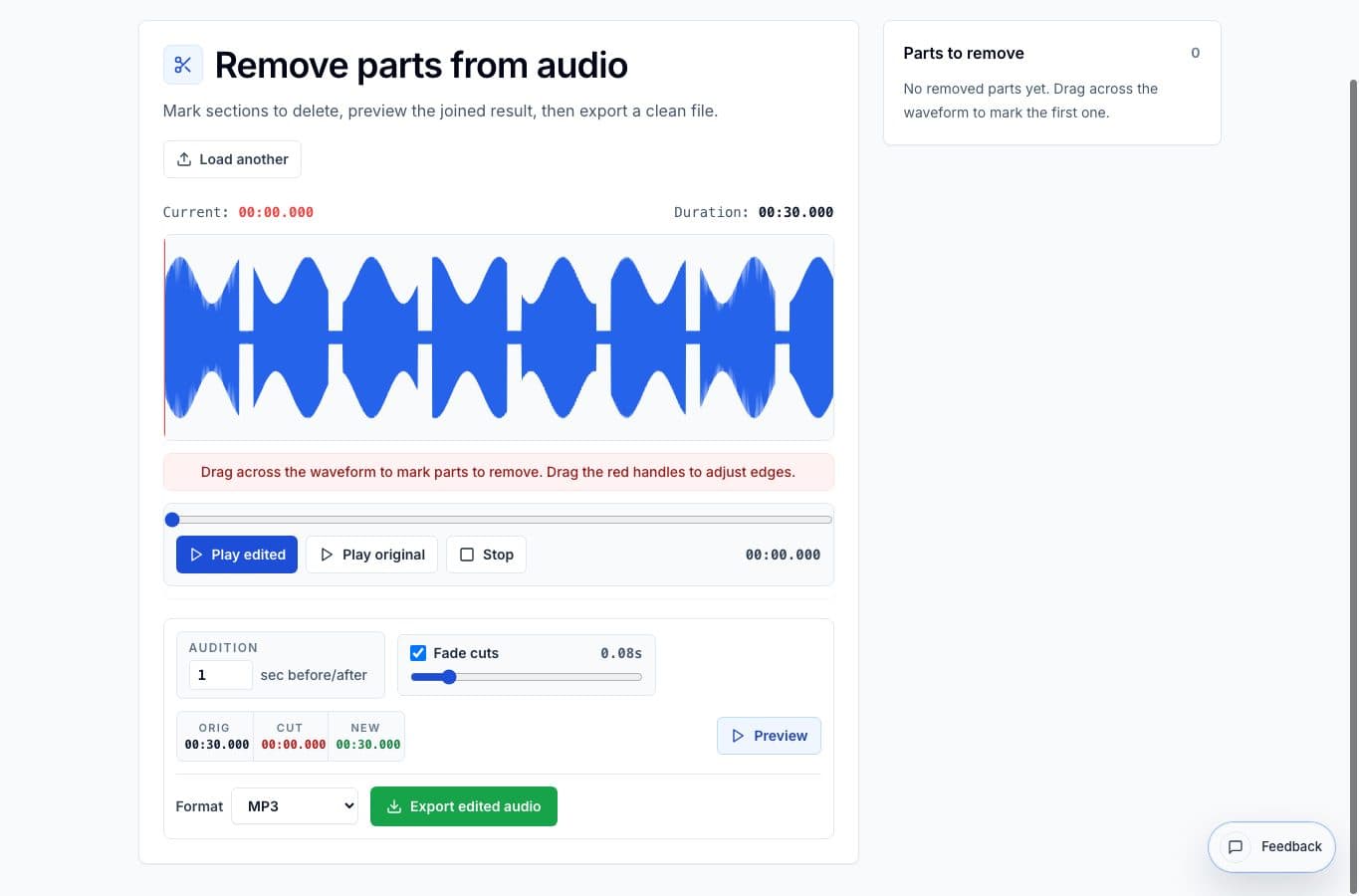
If the final result should stay one continuous file, start in Remove Parts from Audio. A meeting with a private aside, a lesson with a long pause, or a rehearsal note with a false start can stay one file while the bad parts disappear.
Use the spectrogram only for visible problems
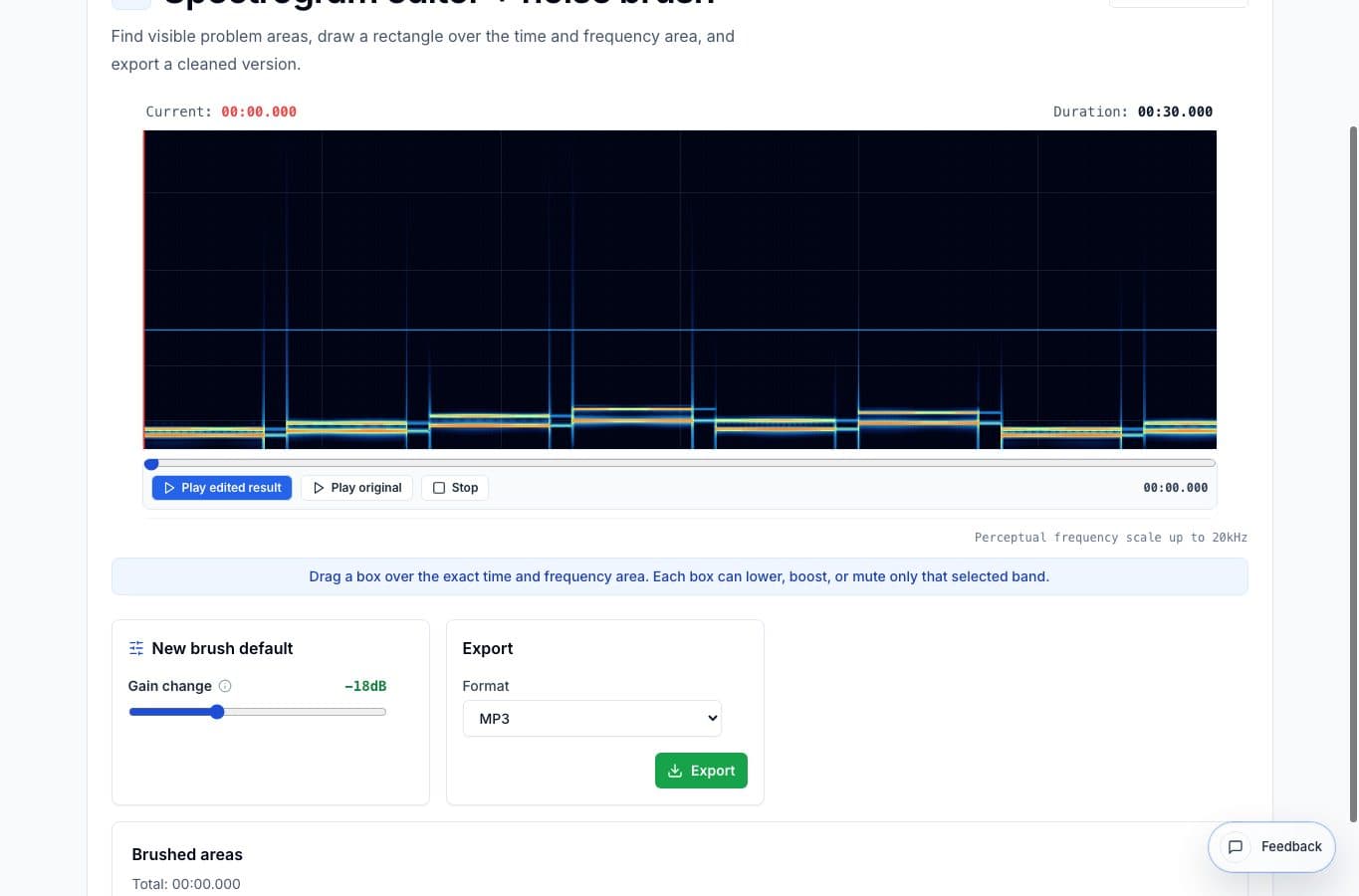
Use the spectrogram editor for visible noises like clicks, pops, hum lines, chair bumps, or brief scrapes. It is not a magic clean-up pass for everything. If the whole room is noisy, a full restoration tool may be a better fit.
For everyday cleanup, the move should be small and obvious. Find the noise, select the narrowest area that contains it, reduce it, then preview. If the voice, note, or instrument starts to sound damaged, back off.
Normalize after the content is final
Loudness comes near the end. Once the clips or cleaned file are ready, import the export into the Audio Volume Normalizer if it is too quiet, too uneven, or too different from the other files in the set.
For speech, a little gain and gentle quiet boost often does enough. For music rehearsal clips, be more careful. The goal is to make the recording easier to listen to, not to flatten every dynamic change.
Examples by recording type
For a guitar lesson, split the long voice memo into warmup, riff, homework, and teacher example clips. Remove the long pause where the phone was on the table. Normalize the homework clip if it was recorded quietly.
For a band rehearsal, split the recording into songs, brush one cable pop if it ruins a keeper, then normalize the rough MP3s so everyone can hear them in the car. For a meeting, remove the private aside first, then normalize the single cleaned export.
FAQ
Which tool should I open first?
Open the main AudioMultiCut editor when you need multiple clips. Open Remove Parts from Audio when you need one cleaned file. Open the normalizer after the edit is already chosen.
Is the spectrogram editor required for cleanup?
No. Use it only for targeted noises. Many lesson, rehearsal, and meeting files only need splitting, removal, and maybe normalization.
More audio workflows
Use the right tool at the right stage
How to Combine AudioMultiCut Tools Without Making the Edit Messy
A practical workflow for using the cutter, remove-parts editors, normalizer, audiogram maker, video tools, and spectrogram editor together without losing track of the job.
Delete problems before raising level
Remove Mistakes First, Then Normalize the Cleaned Audio
Use Remove Parts from Audio to delete dead air, stumbles, or private details, then import the cleaned export into the volume normalizer.
Repair noise before raising level
Clean Clicks or Hum Before Normalizing Audio
Use the spectrogram editor for visible clicks, bumps, or hum lines before importing the cleaned export into the volume normalizer.
Related pages and tools
Choose the cleanup step you need
Use the cutter, removal editor, spectrogram brush, and normalizer as small steps instead of one overloaded timeline.