
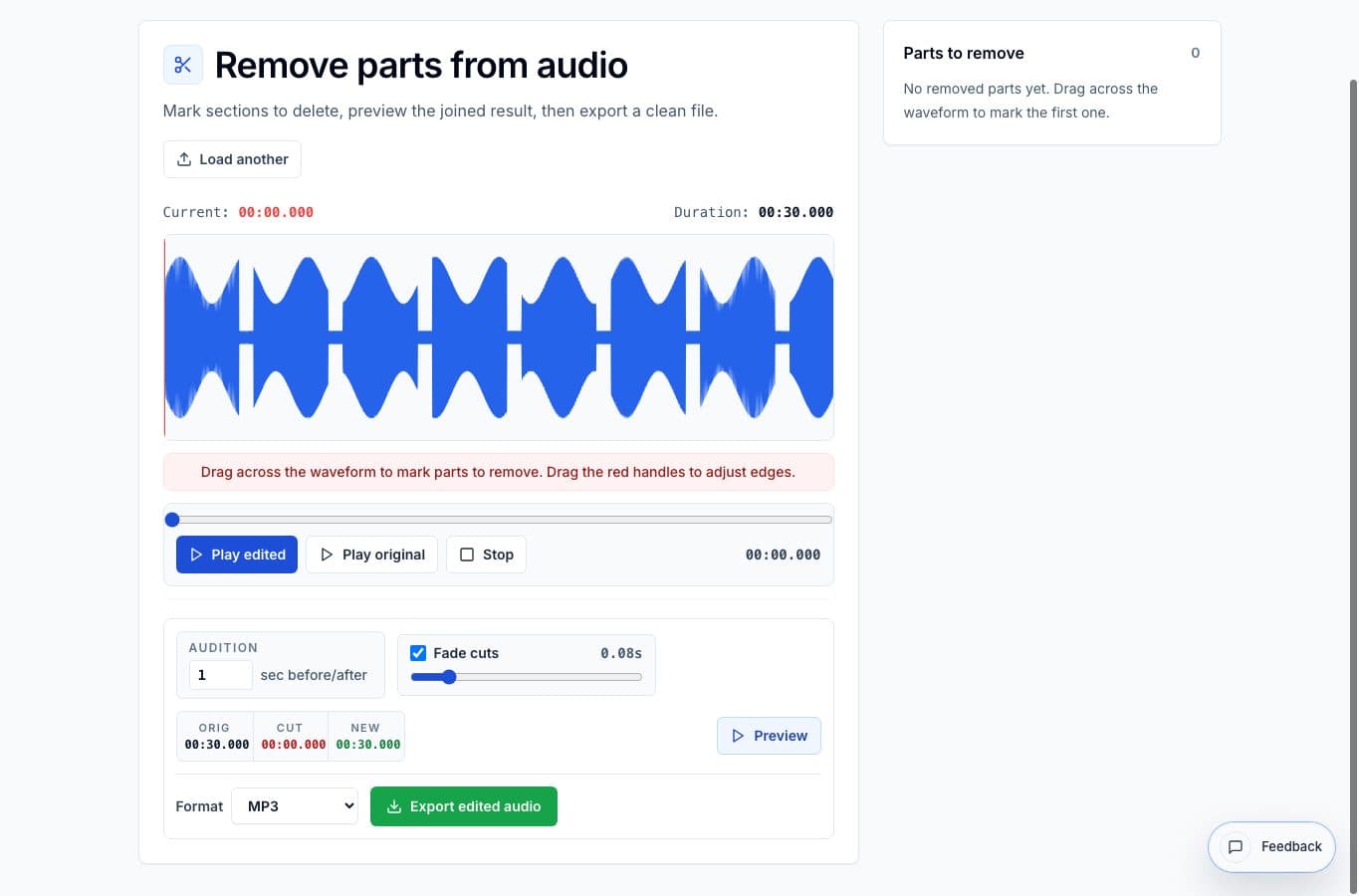
If a recording has both unwanted sections and low volume, remove the unwanted sections first. Loudness cleanup should happen after the content is final, not while mistakes and dead air are still part of the file.
The workflow is export-then-import: clean the recording in Remove Parts from Audio, export the edited file, then upload that export into the Audio Volume Normalizer.
Why mistakes should be removed first
Dead air, bumps, coughs, and false starts can affect how you judge loudness. If you raise or compress the file first, quiet room noise and unwanted pauses may become more obvious. Removing them first gives the normalizer a cleaner file to process.
It also protects the edit. You can focus on timing and joins in the removal tool, then focus on listening level in the normalizer. Each tool handles one decision at a time.
The step-by-step workflow
Open Remove Parts from Audio and mark each section that should disappear. Use the audition buttons to check the joins, especially around speech. Export MP3 for quick sharing or WAV if you want a higher-quality intermediate file.
Next, open the Audio Volume Normalizer and import that exported file. Start gently: keep normalize enabled, add gain only if needed, use quiet boost for soft speech, and compare before and after before exporting again.
Good examples
This works well for meeting recordings with private details, lessons with long pauses, interviews with false starts, and voice memos recorded too quietly. The final result stays one continuous file, but the annoying parts are gone and the volume is easier to hear.
If the recording needs several separate clips instead of one cleaned file, use the main AudioMultiCut editor first. Remove Parts from Audio is best when the final answer is still one file.
FAQ
Should I export WAV between tools?
Use WAV when you want the cleanest intermediate file. Use MP3 when the job is casual sharing and speed or file size matters more.
Can normalization make bad cuts less obvious?
Not really. Check the joins before normalizing. Loudness processing can make an awkward edit more noticeable, not less.
More cleanup guides
Keep one recording, delete the bad parts
Best Use Cases for Removing Parts From Audio Online
When to use Remove Parts from Audio: dead air, stumbles, coughs, false starts, long pauses, and private details that need to disappear without rebuilding the whole recording.
Make quiet or uneven clips easier to hear
Best Use Cases for an Online Audio Volume Normalizer
When to normalize audio, raise quiet recordings, add light compression, and export a more consistent file without turning the process into mastering.
Use the right tool at the right stage
How to Combine AudioMultiCut Tools Without Making the Edit Messy
A practical workflow for using the cutter, remove-parts editors, normalizer, audiogram maker, video tools, and spectrogram editor together without losing track of the job.
Related pages and tools
Clean the timeline before loudness work
Remove the sections that should disappear, export the cleaned file, then normalize only the version you plan to share.