
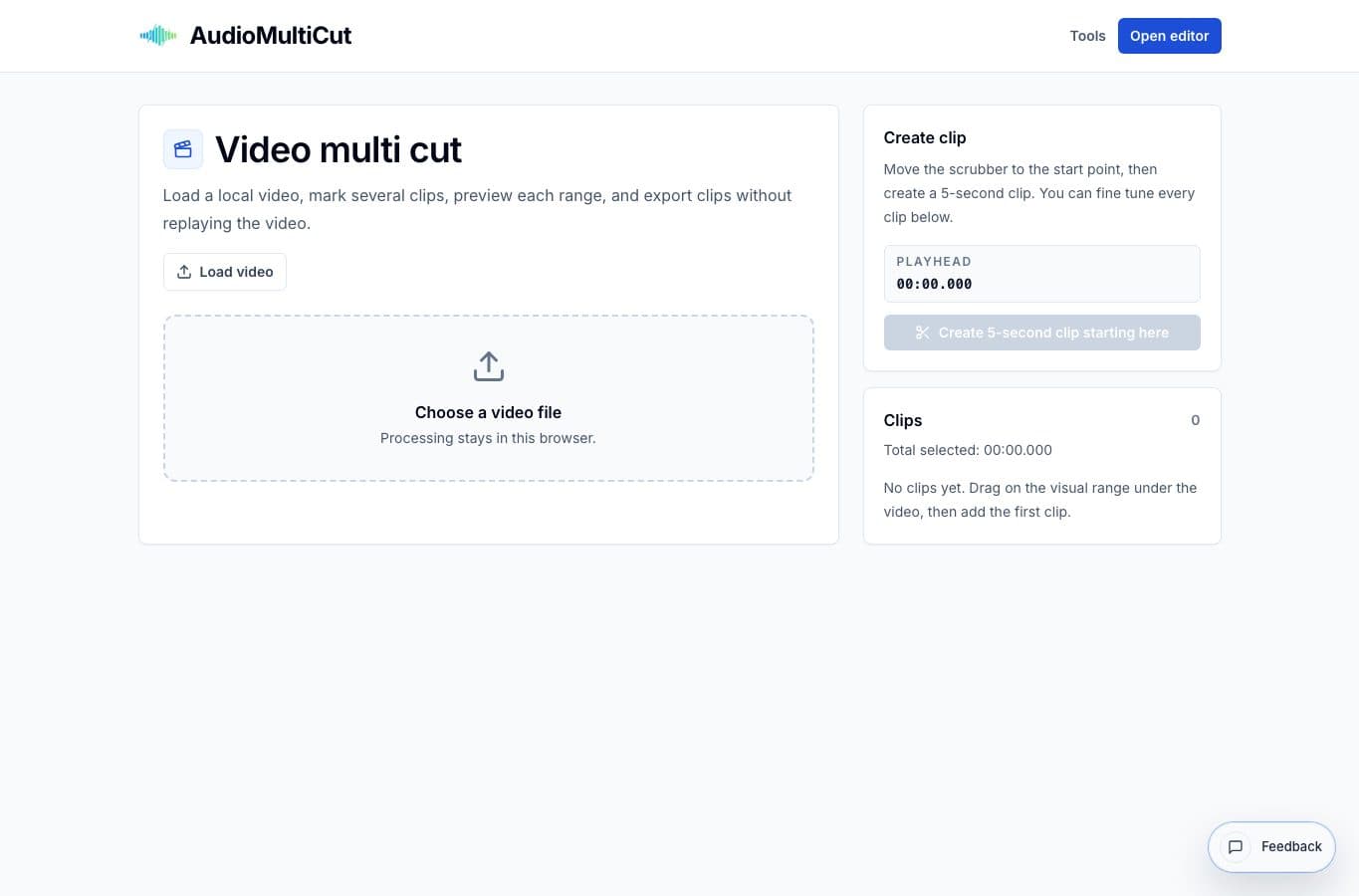
Remove Parts from Video and Video Multi Cut both use ranges on a video timeline, but they answer opposite questions. One marks what should disappear. The other marks what should be exported as clips.
The quickest way to choose is to picture the final download. If you want one cleaned video, remove parts. If you want several files, multi-cut.
Fast decision guide
| Job | Better tool | Why |
|---|---|---|
| Delete a private sentence from a screen recording | The video should stay one file after that moment is gone. | |
| Export five highlights from a class recording | Each highlight should become its own clip. | |
| Remove a false start from a phone video | You are cleaning the source, not making a clip set. | |
| Split rehearsal footage into songs | Each song needs its own file name and download. |
Use Remove Parts from Video for one final file
This is the right workflow when the story, demo, lesson, or recording should remain continuous. You mark the bad sections, preview the join around each removal, and export one cleaned result.
It is especially useful for interior mistakes. A normal trim can cut the beginning or end, but it does not handle a pause, interruption, or private detail in the middle without more timeline work.
Use Video Multi Cut for several outputs
Video Multi Cut is the better choice when the source contains multiple useful moments that should become separate files. A show, rehearsal, class, interview, or review video often fits that pattern.
The tool keeps each selected clip visible as its own item, so exporting several sections is less repetitive than trimming the same source over and over.
FAQ
Can I use both tools on one project?
Yes. For example, remove a private section from a source video first, then use Video Multi Cut on the cleaned export if you need separate highlights.
Which tool is closer to a normal video trimmer?
Remove Parts from Video is closer when you want one cleaned file. Video Multi Cut is closer to batch clip extraction.
More video clipping guides
Delete moments while keeping one finished video
Best Use Cases for Remove Parts From Video
When to delete unwanted sections from one local video and keep one joined result: false starts, dead air, private details, interruptions, and rough openings.
Pull multiple moments from one long video
Best Use Cases for Video Multi Cut
When to cut several moments from one long video: rehearsals, shows, talks, classes, screen recordings, interviews, and review footage.
Simple deletion workflow versus full video editing
Best Remove Parts From Video Alternatives
Compare Remove Parts from Video with CapCut, Premiere Pro, DaVinci Resolve, Final Cut, online trimmers, and transcript-based video editors.
Related pages and tools
Pick the video workflow by output
Use Remove Parts from Video for one cleaned file, or Video Multi Cut when you need several separate clips.