
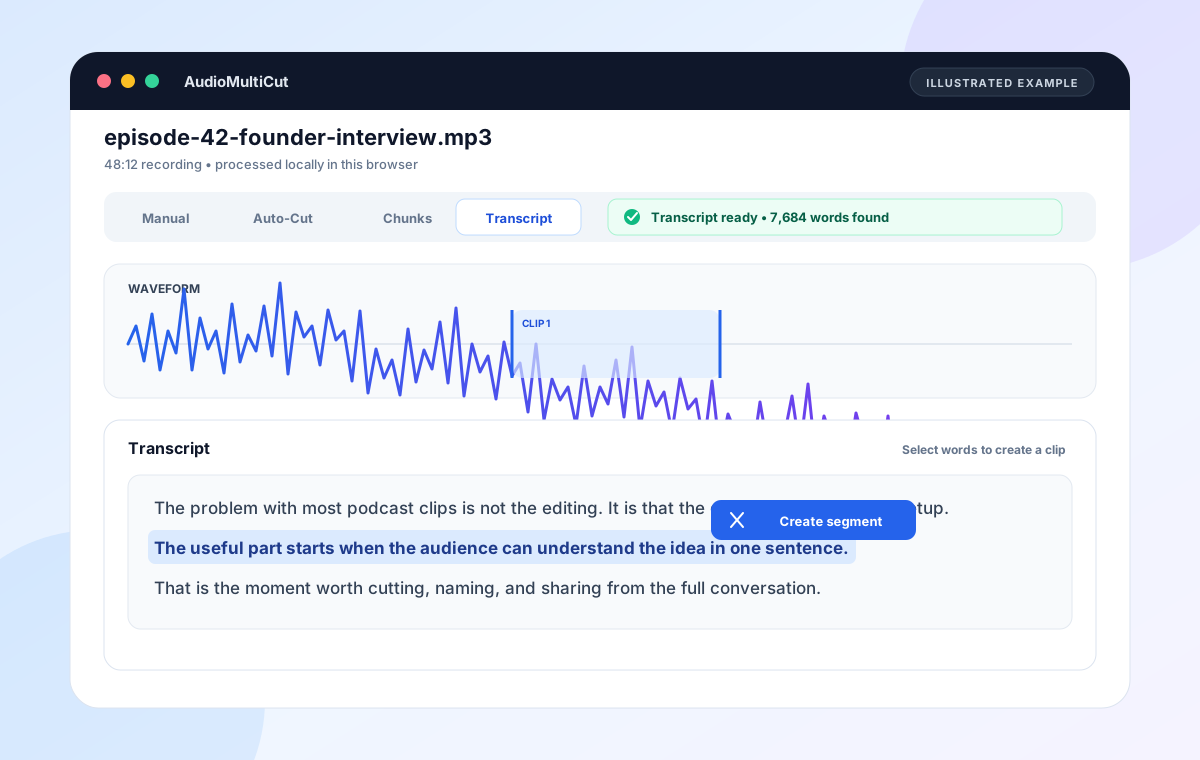
To transcribe a podcast for clip editing, open AudioMultiCut's Transcript workflow and upload the episode. The browser prepares a small English Whisper model, reads the recording locally, and shows words with approximate timings. Select the quote you want, choose Create segment, preview the audio boundaries, and export the clip.
This is built for finding and cutting spoken moments from an existing recording. It is not a full transcript publishing service: AudioMultiCut does not currently add speaker names or export TXT, SRT, or VTT files. Use it when the transcript is the fastest route to the audio clip you need.
What the local podcast transcript can do
| Podcast job | What happens | Use another tool when |
|---|---|---|
| Find a quote in a long interview | Scan the words instead of replaying the entire waveform, then select the exact passage. | You need semantic search across a library of many episodes. |
| Turn a quote into an audio clip | Create a timed segment from selected words, then preview and adjust its edges. | You want an AI system to choose and fully produce social video clips for you. |
| Split on natural speech pauses | Use the detected word gaps as a first pass, then review the proposed cuts. | You need speaker-aware chapters or a finished podcast edit with music and effects. |
| Keep an unpublished recording local | The audio decoding, word detection, preview, and export happen in the browser. | You need cloud collaboration, shared comments, or a hosted transcript page. |
The upload-to-transcript workflow
Use the Transcribe Podcast Audio button on this page. It opens the editor in Transcript mode instead of the general Manual tab. Choose the recording once. After decoding finishes, transcription starts automatically, so there is no second mode choice or Transcribe button to find.
On the first run, the browser may need to download about 150 MB of local model files. The model can be cached by the browser for later sessions. Processing time depends on the recording length, browser, memory, and processor, so a long episode can take time even though no audio upload is happening.
- Use a current desktop browser with WebAssembly support.
- Keep the tab open while the local model reads the recording.
- Words appear progressively, so you can see whether useful speech is being found.
- Cancel if the device is struggling and continue with normal waveform editing.
Turn a useful passage into a clip
Read the transcript until you find a passage that stands on its own. Select the first through last word of that passage. AudioMultiCut uses the word timings to create a segment on the waveform, so the text selection and audio range stay connected.
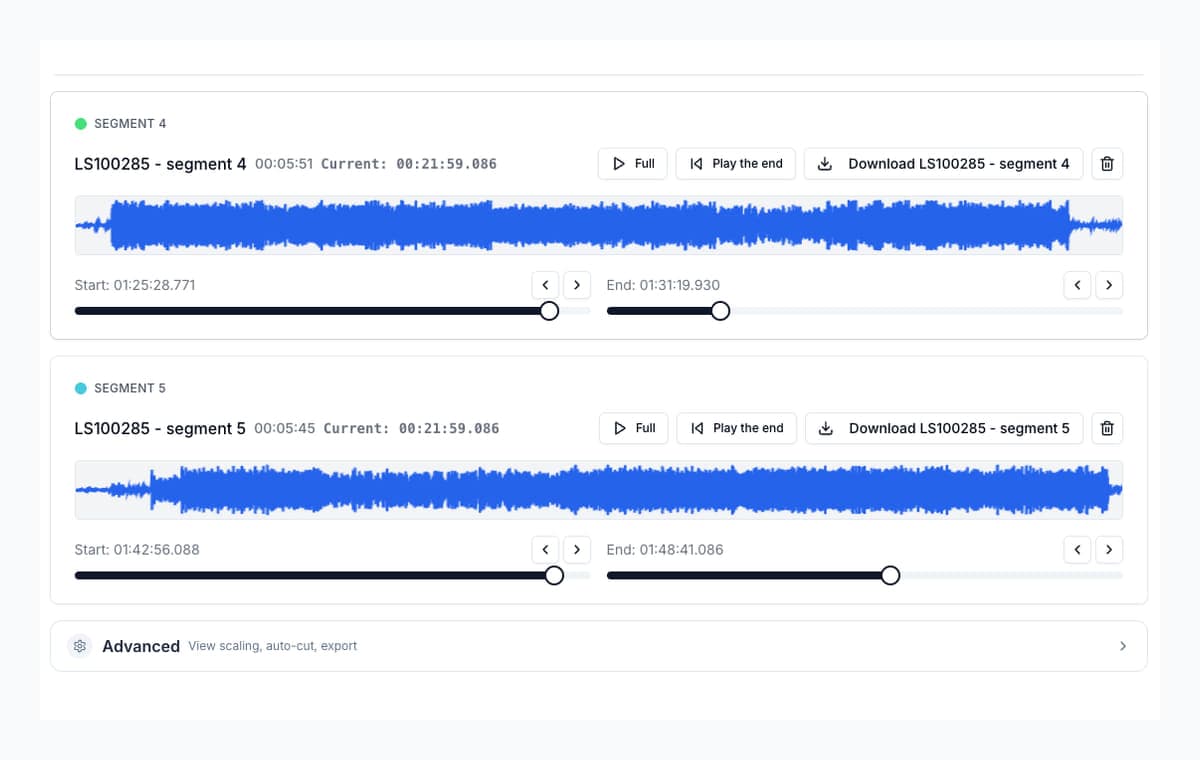
The first cut is a starting point. Play the segment, listen to the opening breath and final word, then drag the word-aligned segment edge or use the waveform controls for a cleaner boundary. If you want several highlights, repeat the selection without reloading the episode.
After word selection, the normal editor takes over
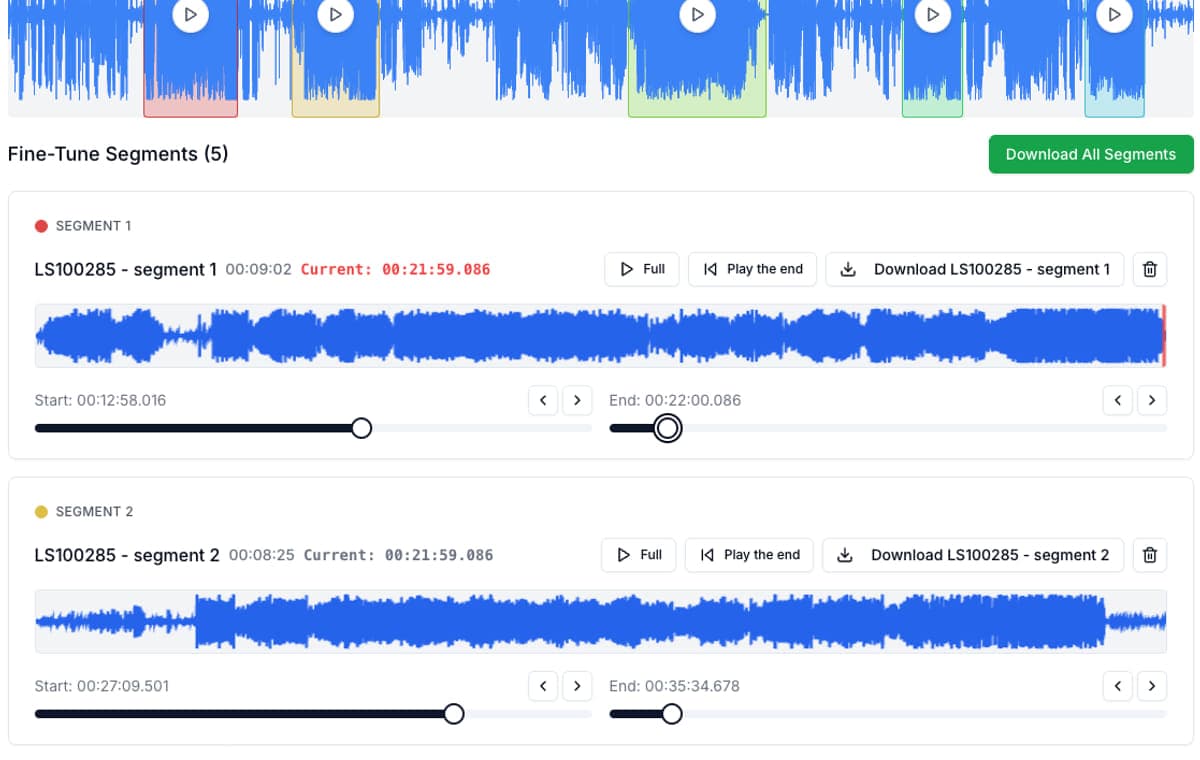
Creating a segment from selected words does not lock you into an automatic result. It adds an ordinary segment to the same waveform editor used for manual cuts. You can play the boundary, move the start or end, rename the clip, and choose MP3 or WAV before export.
That matters when the transcript timing lands slightly before a breath or after the last consonant. Use the words to find the passage quickly, then use your ears and the boundary controls to finish it. Several selected passages remain together in the segment list, so you can review the whole batch before downloading.
A practical podcast example
Suppose the guest gives a useful answer twenty minutes into a forty-eight minute interview. The first sentence depends on an earlier question, but the next two sentences explain the idea clearly. Select only those self-contained sentences, create the segment, and preview the first and last second.
Name the clip by its idea, not its timestamp. Export MP3 for review or quick sharing. Use WAV when the clip is going into a full editor for music, processing, captions, or a finished video. If the clip will become an audiogram, choose and clean the quote before building the visual.
What to check before publishing
The local model is a small English Whisper model. It can miss names, punctuation, accents, quiet speech, overlapping speakers, or words under music. Timings are approximate. Always listen to the clip instead of trusting the text alone.
For a public transcript, accessibility captions, speaker labels, or legal review, use a transcription product built for those outputs and proofread the result. AudioMultiCut's transcript is an editing surface for finding and cutting audio, not a certified record of what was said.
FAQ
Does AudioMultiCut upload my podcast for transcription?
No audio is uploaded to AudioMultiCut servers for the browser Transcript workflow. The browser may download and cache the third-party Whisper model files, then it reads the podcast locally on your device.
Can I download the podcast transcript as text or captions?
Not currently. The transcript is for selecting, timing, and cutting audio. Use Descript, Riverside, or another transcript publishing tool when you need TXT, SRT, VTT, speaker labels, or captions.
Can it find podcast clips automatically?
It can suggest cuts from speech pauses, but it does not decide which quote is interesting or fully produce a social clip. Select the passage you want and review every boundary.
Which languages work?
The current local browser model is English-focused. Other languages may fail or produce unreliable words, so use a multilingual transcription service for non-English episodes.
Sources
Product behavior and the linked editor controls were checked in the AudioMultiCut browser implementation on August 28, 2026. The local model can make mistakes and is not a substitute for human transcript review.
More audio guides
Private meeting transcription for an existing recording
Meeting Transcription: How to Transcribe a Recording Privately
Meeting transcription for an existing English recording: find decisions and action items locally, then turn useful passages into audio clips.
The best podcast transcription tool depends on the final output
Podcast Transcription Tools: AudioMultiCut vs Descript, Otter, and Riverside
Compare podcast transcription tools by the result you need: local audio clips, text-based editing, meeting notes, captions, or transcript files.
One quote should not become a full editing project
A Faster Podcast Clip Workflow: Split, Clean, Normalize, Audiogram
A practical order for making a podcast clip: pull the quote, clean only that clip, fix loudness, then make the audiogram.
Related pages and tools
Transcribe a podcast recording locally
Open the transcript workflow, choose your podcast file, and transcription will start as soon as the browser finishes preparing the audio.