
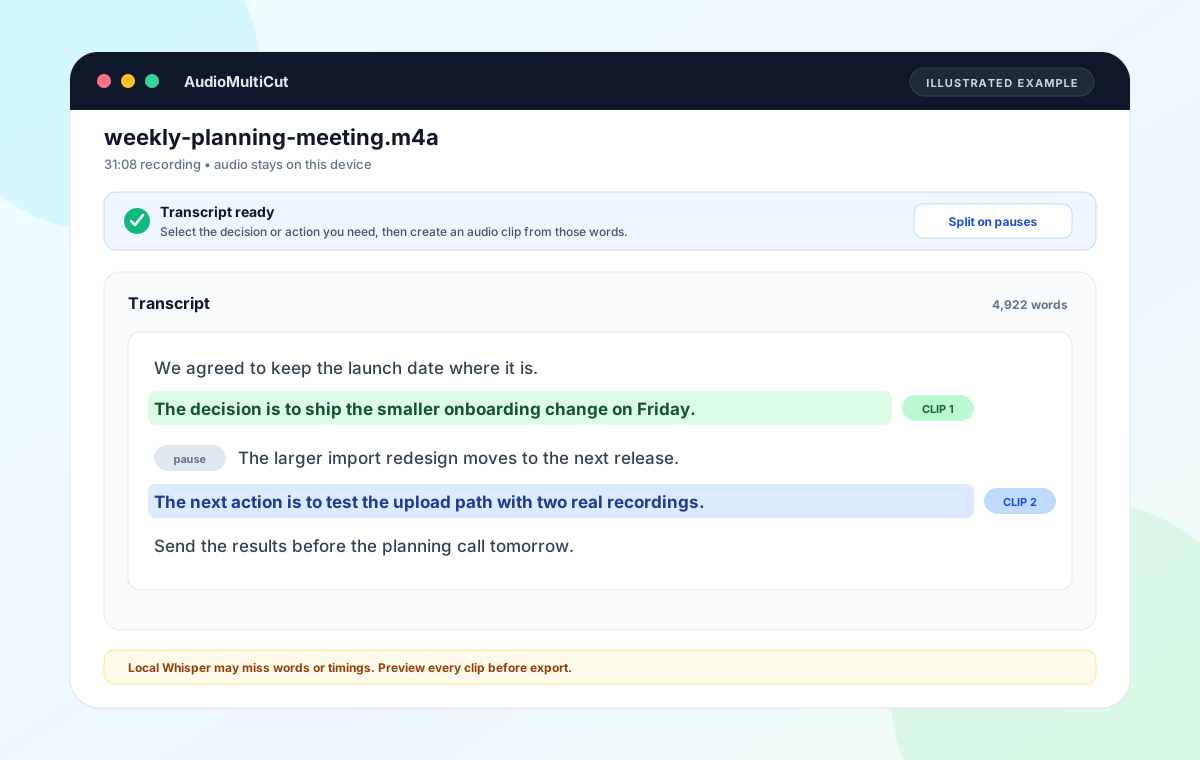
If you already have an English meeting recording and only need to find or share a few important passages, use AudioMultiCut's local Transcript workflow. Upload the file from this page. Transcription starts after the browser decodes it, and the recording stays on your device while the words are found.
This is a good fit for extracting the decision, project update, explanation, or next action as an audio clip. It is not a live meeting bot, shared meeting notebook, or automatic minutes generator. It does not identify speakers or create a verified written record.
Choose the meeting workflow by the result you need
| Need | Best route | Why |
|---|---|---|
| Find one decision in an existing recording | AudioMultiCut Transcript | Read the locally generated words, select the decision, and create a timed audio segment. |
| Send two action items as audio clips | AudioMultiCut Transcript | Create several segments from one recording and export only the passages each person needs. |
| Create searchable minutes with speaker names | Meeting transcription service | Use a product that supports speaker labels, text correction, document export, search, and collaboration. |
| Capture a live Zoom, Meet, or Teams call | Live meeting assistant | AudioMultiCut works with a recording file after the meeting. It does not join calls or record live meetings. |
| Make formal captions or an accessibility transcript | Caption or transcription workflow with human review | You need export formats, speaker review, timing QA, and a corrected final document. |
What private means in this workflow
The source recording is decoded and transcribed in the browser. AudioMultiCut does not send the audio to its servers for the Transcript feature. The page does download the Whisper model code and model files needed to run speech recognition, and the browser may cache those files and the detected words locally.
Local processing reduces one common privacy risk, but it does not replace meeting consent or your organization's rules. Make sure you have permission to record, transcribe, cut, and share the conversation. Do not export a clip that exposes information the recipient should not receive.
Find the decision without replaying thirty minutes
Start from the Transcribe Meeting Audio button. Choose the file once. The page opens in Transcript mode and begins transcription automatically after decoding. Words appear as the local model moves through the recording.
Scan for the sentence that contains the decision. Select a self-contained passage, not only the final yes or no. A useful decision clip usually includes enough context to explain what changed, what was chosen, and when the next step happens.
- Select the decision and one short sentence of context when needed.
- Create the segment from the selected words.
- Play the full segment and check that no sentence is clipped.
- Give the export a plain name such as onboarding-decision or friday-action.
Use separate clips for separate people
One meeting can produce several small clips without becoming a full editing project. A product decision can go to the design thread, a deadline explanation can go to the delivery team, and a technical answer can go to the person who asked for it.
This is more useful than sending the full recording when each recipient needs one part. It also keeps the source meeting out of more inboxes and chat threads. Review every clip for nearby private details before sharing it.
Limits of a small local transcript
The current model is English-focused and intentionally small enough to run in a browser. It may miss names, acronyms, soft speech, overlapping voices, or words under room noise. It does not assign speaker names, make a summary, or decide which sentence is an action item.
Use the transcript to navigate and cut the recording, then use your ears to verify the clip. If the written text itself will be relied on, shared as minutes, or used for compliance, move the recording through an approved transcription and review process.
FAQ
Can AudioMultiCut join and transcribe a live meeting?
No. It transcribes an existing audio file in the browser. Use your approved meeting platform or recording tool to capture the call first.
Does it create meeting notes or action items automatically?
No. It shows detected words with timings. You decide which passage is a decision or action item and can turn that passage into an audio clip.
Does the meeting audio leave my computer?
Not for the browser Transcript workflow. The audio stays in the browser, while third-party model files are downloaded so speech recognition can run locally.
Can I use it for confidential meetings?
Local processing may fit some private workflows, but confidentiality depends on consent, device security, local browser storage, company policy, and what you export or share. Follow your organization's approved process.
Sources
Product behavior checked in the AudioMultiCut browser implementation on August 21, 2026. Recording, transcription, and sharing permissions depend on the meeting and jurisdiction.
More audio guides
Podcast transcription for finding and cutting the quote you need
How to Transcribe a Podcast Recording and Cut Audio Clips
Transcribe a podcast recording locally, scan a word-timed transcript, and turn selected quotes into audio clips without uploading the source audio.
The best podcast transcription tool depends on the final output
Podcast Transcription Tools: AudioMultiCut vs Descript, Otter, and Riverside
Compare podcast transcription tools by the result you need: local audio clips, text-based editing, meeting notes, captions, or transcript files.
Turn one long meeting recording into focused clips people can replay, forward, and act on
How to Cut Meeting Recordings Into Shareable Clips and Follow-Ups
A practical workflow for turning standups, client calls, interviews, trainings, and leadership meetings into clear audio clips people can actually use.
Related pages and tools
Transcribe a meeting recording on this device
Choose the recording from your computer. AudioMultiCut opens the Transcript workflow and starts local word detection after the file is ready.