
The fastest way to trim multiple parts of an audio file is to stop using a single-cut trimmer. A typical online trimmer handles one selection per pass: cut, export, re-upload, cut again. If a recording needs five trims, that is five rounds. AudioMultiCut is built for the multi-trim case: open the file once, mark every section, and export everything in one go, free and without the file ever leaving your browser.
There are really two jobs that both get called trimming, and it helps to name them. Sometimes you want to keep several pieces of a long recording, and sometimes you want one continuous file with a few moments deleted from the middle. AudioMultiCut covers both.
Video transcript
One recording needs five trims. With most trimmers, that's five rounds. Cut, export, re-upload, cut again. Here's how to trim multiple parts of an audio file at once, for free. One file, one session, and no upload. You'll learn two ways to trim. Keep several pieces as separate clips. Or delete moments, and get one clean file. Plus which export format to pick. Here's the difference. A classic trimmer makes one cut per round. Every extra trim means another export and re-upload. AudioMultiCut does every trim in one session. Open the file once. Mark every section you want to keep or delete. Then export once. Mode one: trim to keep several pieces. Drag on the waveform to mark each section you want. Each one becomes its own clip. The workflow is short. Open your MP3, M4A or WAV. Drag to mark each section. Adjust the boundaries while you preview. Export every clip as MP3 or WAV. Previews are instant, because nothing is uploaded. Move a handle, and you hear the new start right away. Got a long recording? Let Auto-Cut find the natural silences and suggest the boundaries for you. Then fine-tune any cut by hand. This mode is made for rehearsals with several songs, lectures in chapters, and interviews where only some answers matter. Mode two: trim to delete moments. This is the Remove Parts from Audio tool. Mark each range you want gone. A cough. A false start. Dead air. A private aside. What's left is joined into one continuous file. No manual slicing, and no stitching clips back together. Four steps again. Load the recording. Mark each range to delete. Audition the joins. Export one clean file. And if you only need to trim the ends, like the silence before you start talking, it's the same editor. Trim the start and the end, and export. Trimmer or splitter, what's the difference? A trimmer removes audio from the ends. A splitter divides one file into several. AudioMultiCut does both, and deletes from the middle too. Can I trim more than two parts of an MP3 online, for free? Yes. Mark as many segments as you need in one session, at no cost. Does trimming re-encode the audio? Exports render to MP3 or WAV. If you'll keep editing, pick WAV to avoid another lossy step. All of this runs in your browser. Your file is never uploaded. No account needed. No ads, and no watermark. On iPhone, the AudioMultiCut app lets you fine-tune every cut with automatic boundary preview. One honest note. It's not a multitrack editor. For plugins, restoration or mastering, Audacity is the better tool. Quick recap. Keep several pieces, and export each as a clip. Or delete moments, and export one clean file. Either way, it's one session, not five rounds. Try AudioMultiCut, free on the web and in the iPhone app.
Trimming to keep several pieces
If the goal is several separate clips from one file, use the main cutter. Drag on the waveform to mark each section you want, adjust the boundaries while previewing, and export the segments as individual MP3 or WAV files. On long recordings, Auto-Cut can find the natural silences and propose the segments for you.
This is the right mode for a rehearsal that contains four songs, a lecture you want as chapters, or an interview where only three answers matter.
Trimming to delete moments from the middle
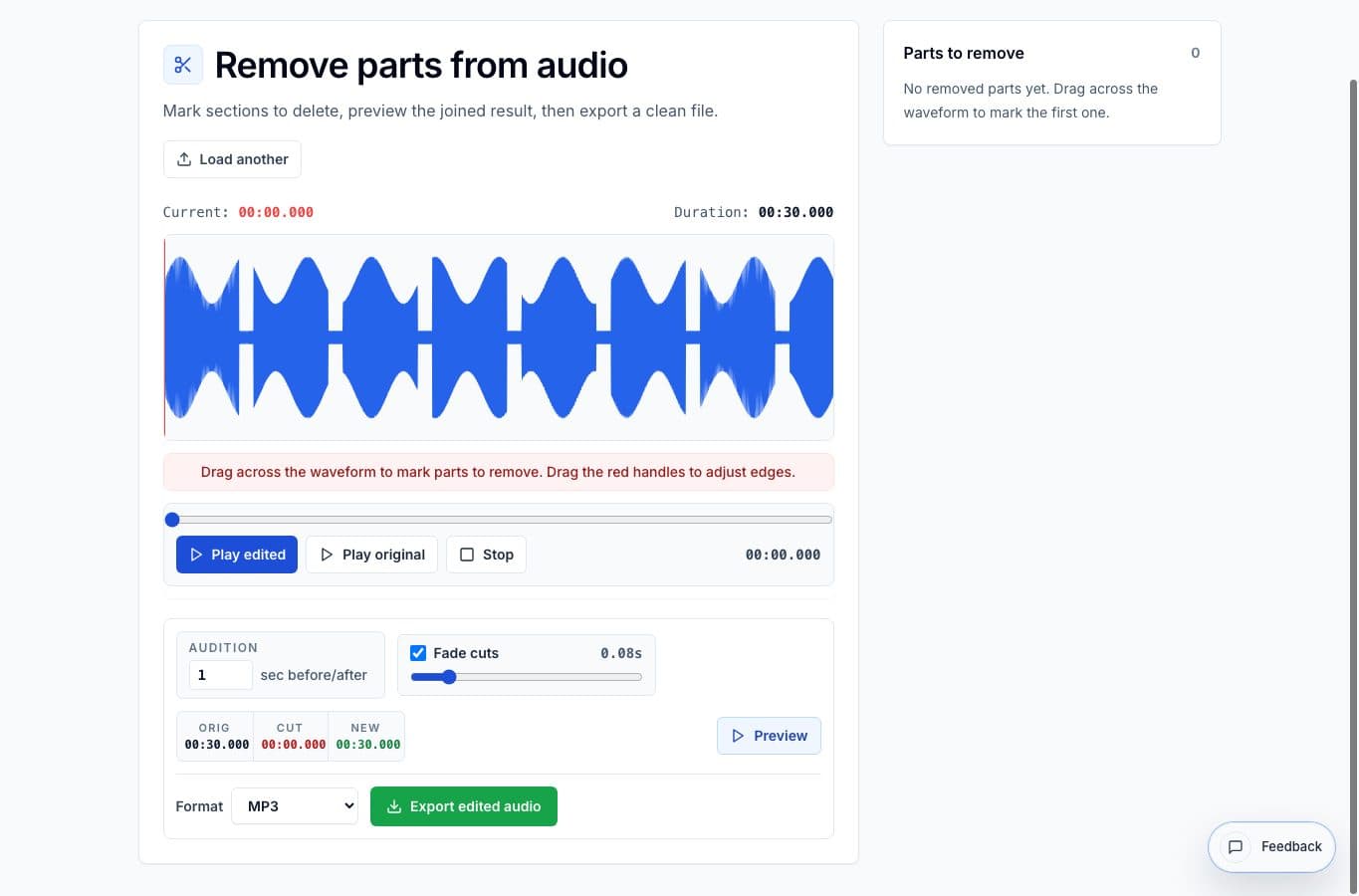
If the goal is one file with the bad parts gone, use Remove Parts from Audio. Mark each range to delete, such as a cough, a false start, dead air, or a private aside, then audition the joins before exporting. You get one continuous file with every marked section removed, without slicing and re-joining anything by hand.
- Use the cutter when the output is several files.
- Use Remove Parts from Audio when the output is one cleaned file.
- Both handle MP3, M4A, WAV, and other common formats.
- Both preview every edit before you commit to an export.
Why in-browser trimming matters here
Multi-trim work means listening back and forth around each cut point. Tools that upload your file to a server make every preview a round trip, and your recording sits on someone else's machine while you work. AudioMultiCut processes audio directly in your browser, so previews are instant and the file never leaves your device. It stays free, with no ads, no watermarks, and no account required.
FAQ
Can I trim more than two parts of an MP3 online for free?
Yes. AudioMultiCut has no limit on the number of segments or deletions in one session, and it is free. Mark as many sections as the recording needs and export them together.
What is the difference between an audio trimmer and an audio splitter?
A trimmer usually removes audio from the start or end of a file, one selection at a time. A splitter divides one file into several files. AudioMultiCut does both, plus mid-file deletion with Remove Parts from Audio.
Does trimming re-encode my audio?
Exports are rendered to the format you choose, such as MP3 or WAV. Pick WAV if you want to avoid lossy re-encoding before further editing.
More cleanup guides
Delete sections or extract clips
Remove Parts From Audio vs Audio Cutter: Which One Should You Use?
A practical comparison between deleting unwanted sections from one file and cutting separate clips from a longer recording.
Clean long pauses and keep the file intact
How to Remove Dead Air From Audio Without Rebuilding the Whole File
A step-by-step workflow for removing long pauses, false starts, and empty sections from a voice memo, lesson, meeting, or rehearsal recording.
Three common audio jobs, one browser tab
Everyday Audio Editing: Splitting Albums, Trimming Tracks, and Making Ringtones in One Tool
A practical walkthrough of three things most people eventually need to do with audio files and how to handle all of them without installing anything.
Related pages and tools
Trim several parts in one session
Open the file once, mark every section you want to keep or delete, preview the joins, and export. Everything runs in your browser.