
Can You Split Audio Files Without Uploading Them?
Yes - you can split audio files on your device without uploading them. If you only need a few clips, I’d use Voice Memos on iPhone. If I need 5+ segments, batch naming, silence-based cuts, or export in MP3/WAV, I’d use a local browser tool or a native iPhone app.
Here’s the short version:
- No upload means the file stays on your phone or computer while it’s processed
- Browser-based local tools work well for long recordings with many cuts
- iPhone Voice Memos works for a small number of manual clips
- Batch split tools save time when working with rehearsals, lectures, meetings, and interviews
- Long browser sessions can hit memory limits, especially with very long files
- Some tools support files up to 4 hours 30 minutes, with warnings after 3 hours
If I were choosing fast:
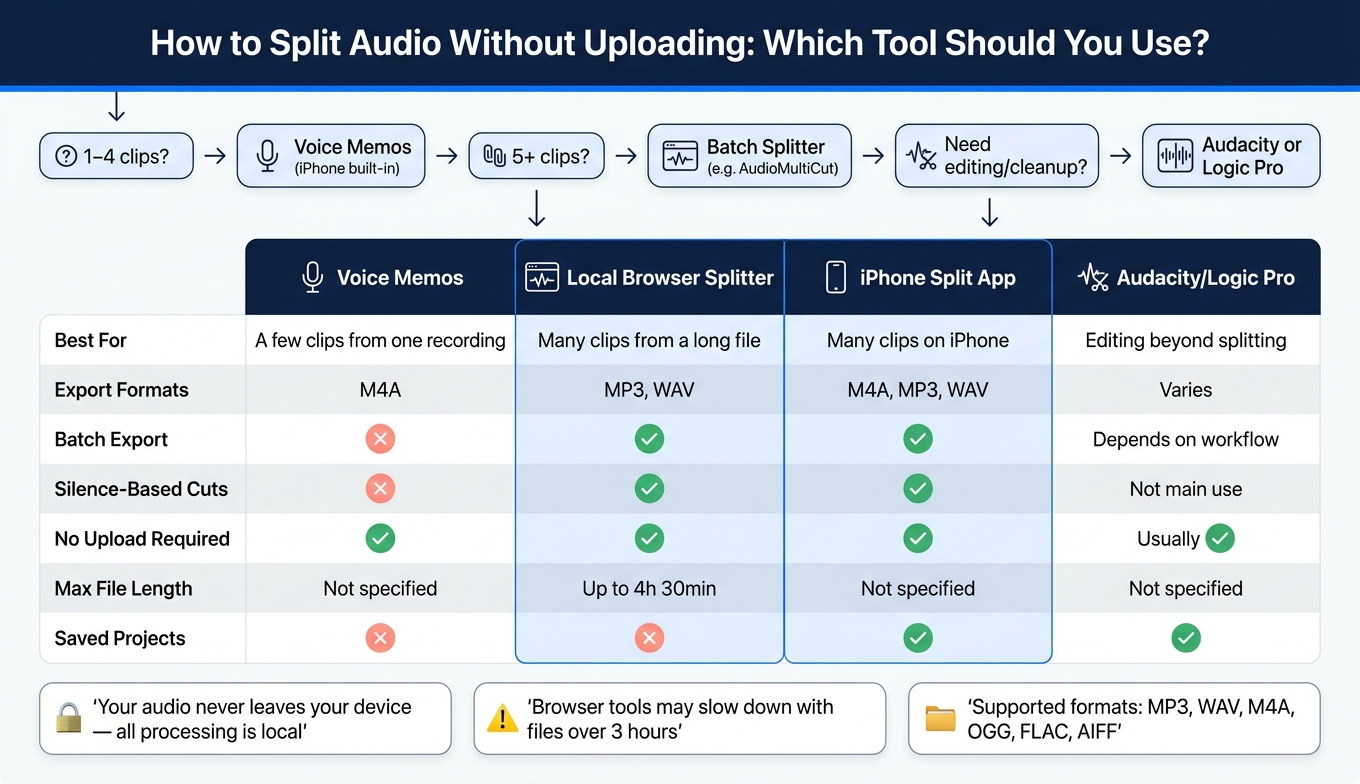
- 1–4 clips: use Voice Memos
- 5 or more clips: use a batch splitter
- Need deep editing or cleanup: use Audacity or Logic Pro
Quick Comparison
| Option | Best for | Export types | Batch export | Silence-based cuts | No upload |
|---|---|---|---|---|---|
| Voice Memos | A few clips from one recording | M4A | No | No | Yes |
| Local browser splitter | Many clips from a long file | MP3, WAV | Yes | Yes | Yes |
| iPhone split app | Many clips on iPhone | M4A, MP3, WAV | Yes | Yes | Yes |
| Audacity / Logic Pro | Editing beyond simple splitting | Varies | Depends on workflow | Not the main use | Usually yes |
The main thing is simple: the right choice depends on clip count, file length, and export format. If you want a short, private workflow, local tools do the job without sending your recording to a server.
How to Split Audio Without Uploading: Tool Comparison Guide
How local browser splitting works for one long recording
For a long recording, the process is pretty straightforward: your browser handles the file right on your device, in memory, so the audio doesn't get uploaded anywhere. Recent desktop browsers can do this without much fuss. The catch is memory. If the file gets very long, things can slow down, and on some devices the session may feel less stable.
Load a file, find cut points, and preview boundaries
Drop your file into the tool or pick it manually. Common formats like MP3, WAV, M4A/AAC, OGG, FLAC, and AIFF load right away.
Once the waveform shows up, you can start adding cuts wherever the track changes. One feature that helps a lot here is instant edge preview. When you move a segment boundary, the tool plays the first or last second of that clip right away, so you can check the cut by ear instead of guessing.
Mark all segments at once instead of trimming one clip at a time
After you set the boundaries, you can name each clip and export everything together. Instead of working clip by clip, you work from a single waveform with every segment in view. That makes a big difference for a long rehearsal or interview, because you can mark every cut first and deal with export after.
You can rename each segment right on the waveform, with labels like "Song 1" and "Song 2," then click Download All to export every clip as its own file in one pass. Your browser may prompt you one time to allow multiple downloads.
When Auto-Cut or fixed splits help
If your recording already has clear gaps between parts, Auto-Cut can save time. It looks for silence and lets you adjust things like the threshold and minimum gap length so the split points fit your recording type.
You can then export the clips as MP3 for sharing or WAV if you want to keep editing later.
sbb-itb-9696877
A no-upload example: AudioMultiCut in the browser and on iPhone
Browser workflow: one waveform, multiple named clips, local export
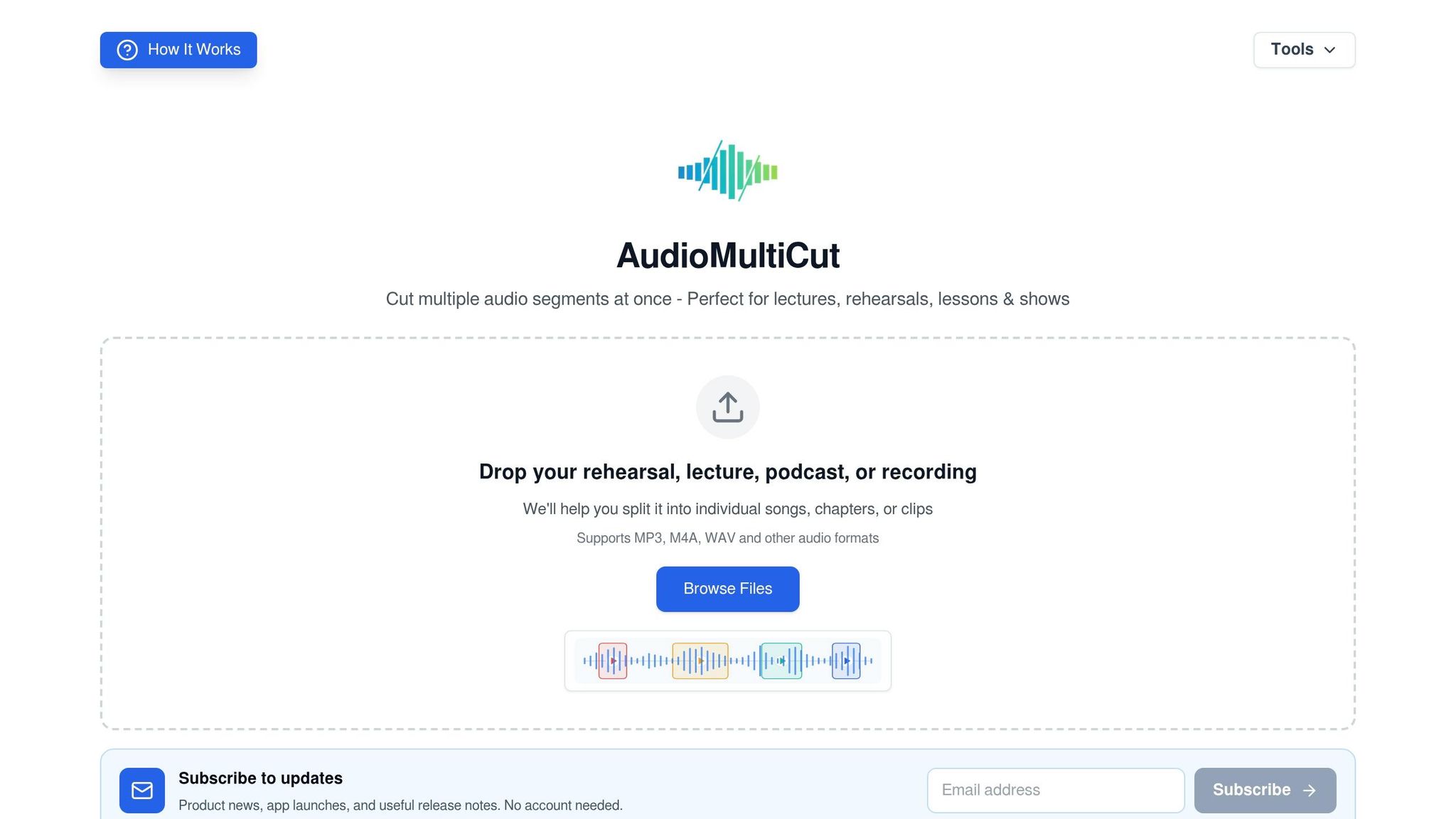
AudioMultiCut’s browser tool is free, needs no account, and exports clean files. It works with common audio formats like MP3, WAV, M4A/AAC, OGG, FLAC, and AIFF. The whole job happens locally in your browser, so your audio stays on your device.
That setup is handy if you’re cutting up a long recording and don’t want to upload anything first. You open one waveform, split it into parts, name each clip, and export everything in one go.
For splitting, Auto-Cut gives you presets made for different types of recordings: Smart, Rehearsal Songs, Live Show, Lecture Chapters, Podcast Clips, Lesson Clips, and Samples. So instead of fiddling with silence settings, you can start with a preset that fits the recording. Each segment can be renamed, and you can export all clips at once as separate MP3 or WAV files.
On desktop, the browser tool supports recordings up to 4 hours and 30 minutes. It also warns you when a file goes past 3 hours, since long files can use a lot of memory.
On iPhone, the same local workflow also works with saved projects and Voice Memos imports.
iPhone workflow: saved projects, Voice Memos import, and batch sharing
The native iPhone app for iOS 18+ handles the same split-and-export task for band rehearsals, lectures, meetings, and interviews. You can import audio from Voice Memos, Files, or Photos, and if you bring in a video, the app pulls out the audio for you.
One nice touch: cut points and segment names stay saved with the project. That means you can close the app, come back later, and keep going without losing your place.
When you’re done, batch export sends every clip at once as M4A, MP3, or WAV. From there, you can share the files through AirDrop, Messages, or Files.
If you only need to trim a couple of quick Voice Memos, the built-in iPhone tools below are simpler.
When AudioMultiCut fits and when it does not
AudioMultiCut makes sense when you have a long recording and need lots of named clips. If you need multitrack editing or audio cleanup, a DAW like Audacity or Logic Pro is the better pick.
Built-in iPhone options for splitting Voice Memos on device
Use Voice Memos trim and duplicate to make clips manually
If you only need a handful of clips from a long Voice Memos file, Voice Memos can do the job right on your iPhone. It works best when you want to stay on the phone and don’t need a ton of separate files.
Start by duplicating the recording. That part matters because trimming removes everything outside the part you keep. In plain English: if you trim the only copy, the rest is gone. A duplicate lets you keep the master file safe while you cut out each clip.
Here’s the basic loop for each clip:
- Tap the three-dot menu on the original recording and select Duplicate.
- Open the duplicate, tap Edit Recording, then Trim.
- Drag the yellow handles to choose the start and end of the clip.
- Tap Trim, then Save and Done, and rename it right away, like "Song 3" or "Interview Part B."
Need another clip from the same recording? Go back to the original and repeat the same steps.
Voice Memos saves files as M4A (AAC). If you need MP3 or WAV, you’ll need a local splitter or a file conversion step after trimming.
Where built-in iPhone tools work well and where they slow down
Voice Memos is a solid fit when you only need a small number of clips. It’s free, already on the iPhone, and simple enough once you’ve done it once or twice.
The catch shows up when the recording gets long or the clip count starts to climb. Then the duplicate-trim-save routine can feel like busywork. You also have to scrub through the waveform by hand to find each cut point, which is fine for a few edits but a drag for a lecture, rehearsal, or long interview. There’s also no batch export and no silence detection.
One more thing: each duplicate takes up full storage space until you trim it. So if you make several copies of a large recording, your storage can fill up fast.
That’s the tradeoff. Fast for a few clips, slow for many.
| Situation | Built-in Voice Memos |
|---|---|
| Small number of clips from a short recording | Works well |
| Many clips from a long rehearsal or lecture | Gets repetitive quickly |
| Batch export to MP3 or WAV | Not supported natively |
For longer recordings or a bigger batch of clips, a batch-split workflow is usually the better move.
Conclusion: the right no-upload path depends on how many clips you need
The choice mostly comes down to how many clips you need.
If you only need a couple of clips, stick with Voice Memos. The trim-and-duplicate process is manual, but it’s still fast enough when you’re only pulling out a few sections.
If the recording has lots of parts, a batch splitter makes more sense. For 5 or more segments from a band rehearsal, lecture, meeting, or interview, AudioMultiCut is the faster option. You get Auto-Cut, file naming, and batch export, which saves a lot of back-and-forth.
If you need multitrack editing, audio cleanup, or mastering, go with a DAW like Audacity or Logic Pro. Those tools take more time to learn, but they’re made for production work that a simple splitter just can’t handle.
FAQs
Is local audio splitting really private?
Yes. Local audio splitting is highly private because your audio stays on your device.
Tools like AudioMultiCut process files entirely in your browser, so your audio samples aren't uploaded, stored on a server, or sent to the cloud. Dedicated iPhone apps also split audio on-device, which helps keep sensitive recordings under your control during editing and export.
What file size is too large for browser splitting?
AudioMultiCut doesn’t have a hard file-size cap. Since the split happens locally in your browser, the main limit is your device’s available RAM.
Here’s the practical rule of thumb: recordings longer than 3 hours may trigger warnings. Files over 3 hours 30 minutes work only on desktop browsers, and 4 hours 30 minutes is the maximum recommended duration.
How do I choose between Voice Memos and a batch splitter?
Use Voice Memos for basic, one-off edits on your iPhone. If you need to split one long recording into many clips fast, go with a batch splitter like AudioMultiCut.
Batch splitters work better for multi-part jobs, like pulling songs out of a rehearsal, breaking a lecture into topics, or turning a meeting recording into separate action items. They also make it easier to preview cut points and export several segments at once.
Related articles
Cut your recording into clean clips
Upload an audio file, mark the parts you want, preview every cut, and export the finished clips.