
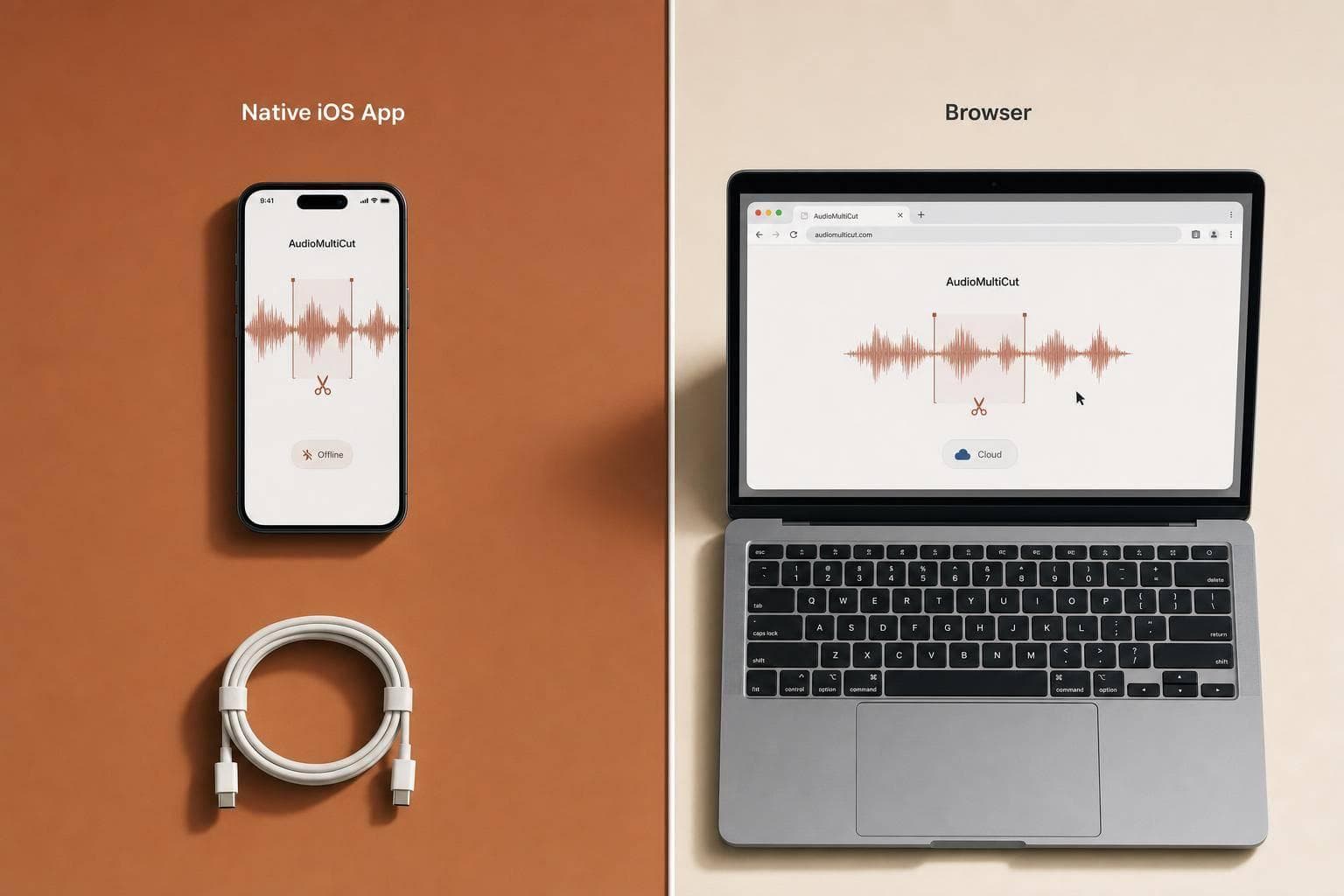
AudioMultiCut native iOS app vs Browser
If I edit on iPhone a lot, I’d pick the iOS app. If I want to open a tool on almost any device with no install, I’d use the browser. That’s the main answer.
Here’s the short version:
- Both versions split audio locally, so files stay on the device during editing.
- Both include Auto-Cut, manual waveform editing, boundary preview, and batch export.
- The iOS app adds more tools, like clip merging, video-to-audio import, and native iPhone sharing.
- The browser version is free, needs no account, and works on Chrome, Safari, Firefox, Edge, and Brave.
- The app costs $1.99 for unlimited (in the US), while the browser starts at $0.
- Auto-Cut in the browser works for files 8+ minutes long, which may matter if I’m splitting shorter recordings.
If you want the simplest rule, use this:
- Pick the iOS app for repeat iPhone work, fastest workflow, larger files, offline editing, and app-only tools.
- Pick the browser for one-off jobs, shared computers, Android, Windows, macOS, Linux, or Chromebooks.
What matters most isn’t privacy or core editing. Those are close. The main difference is workflow - where I start, what device I use, and how I want to export.
Quick Comparison
| Criteria | Native iOS App | Browser Tool |
|---|---|---|
| Best for | iPhone-first editing | No-install use on many devices |
| Cost | Free tier + $1.99 monthly unlimited tier | Free |
| Install needed | Yes | No |
| Works offline | Yes, after install | Needs internet first to load/cache |
| Shared core tools | Yes | Yes |
| Auto-Cut | Yes | Yes |
| Extra tools | Merge clips, video-to-audio | None beyond core splitting |
| Export flow | Share sheet, Files, AirDrop, apps | Download only to Files app, then share from Files |
| Device fit | iPhone and iPad | Windows, Mac, iOS, Chromebook, Android, iPad, Linux, more |
So if I’m choosing between them, I’m not asking which one can split audio into chunks. Both can. I’m asking which one fits my day-to-day setup with less friction.
sbb-itb-9696877
AudioMultiCut Native iOS App
Download it once from the App Store, and it sits on your home screen ready to go. That kind of always-there access helps if you split audio a lot. For people who do most of their editing on iPhone, it just makes sense.
What You Get on iPhone
From your Voice Memos app → Share → AudioMultiCut. No need to save it elsewhere for sharing - the sharing happens right on the iPhone between two apps.
When exporting - select a share target: an iMessage group, WhatsApp, or any other app on your device - share one or more audio segments right to it.
This means the full flow can literally be: Share recording to app → AutoCut → Export & Share. In less than a minute, completely local, to your friends.
The iOS app also comes with similar features to the webapp: silence-based Auto-Cut to spot quiet gaps and suggest where to split. You also get manual waveform selecting with pinch-to-zoom and draggable markers, plus instant boundary preview so you can hear the exact spot where a cut lands.
It also supports:
- Batch export to MP3 or WAV
- Merge audio clips
- Video-to-audio extraction so you can pull the audio track from a video file right on your phone
You can import with the iOS share sheet and export to Messages, WhatsApp, AirDrop, Telegram, or Files. There’s a free tier, along with a monthly $1.99 monthly Unlimited unlock (in the US).
When the iOS App Fits Best
The app works best when you want to save even more time on splitting, right on your iPhone: recording, editing, and export. Say you’re editing a guest interview for a podcast. You can split segments, trim pre-roll, and send out clips for social media without switching devices.
If you want a similar workflow without installing anything, the browser version comes next.
AudioMultiCut Browser Tool
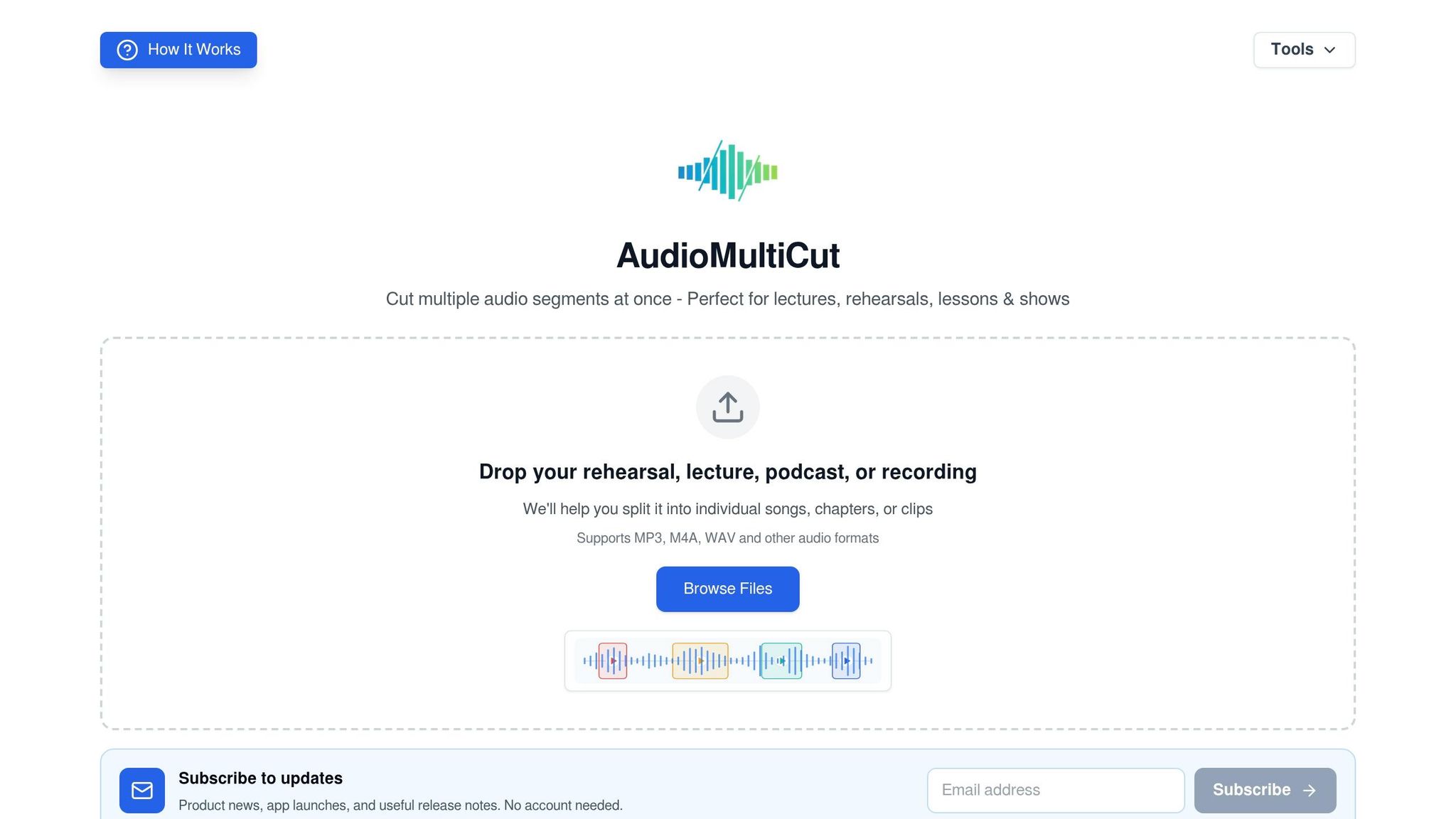
If you want the same splitting tools in a browser, AudioMultiCut's web version is the fastest way to get started. Open AudioMultiCut in your browser and begin editing in seconds - no download, no account, no setup. It's free and doesn't require registration. It works in Chrome, Safari, Firefox, Edge, and Brave on Windows, Mac, Chromebook, iPad, and Android devices.
What You Get in the Browser
The browser tool gives you the same core splitting workflow in a tab. You get silence-based Auto-Cut for recordings 8 minutes or longer, manual waveform editing with draggable cut points, and instant boundary preview that loops the first or last second of each cut.
You can also batch export all clips at once as MP3 or WAV. Supported input formats include MP3, M4A, WAV, FLAC, and OGG. And your browser editing stays local - AudioMultiCut does not upload your audio files to its servers.
That makes the browser version a strong fit for a few specific use cases.
When the Browser Fits Best
The browser version works best on non-iPhone devices, especially Android phones, Windows laptops, and Linux PCs, where opening a browser is often the simplest path. It also makes sense on managed school or office computers where IT rules block software installs and admin access isn't available.
It's also a good match for shared or borrowed devices. You don't leave anything behind - no app, no account, no install. For one-off tasks, a browser tab is simply faster.
Feature and Workflow Comparison
Both versions handle the same core job. The main split comes down to access, export flow, and a few iPhone-only extras.
Shared Features for Splitting Audio
Both tools support Auto-Cut, manual cut-point editing, instant boundary preview, and batch export.
Key Differences That Affect Your Choice
The iOS app includes a few extra workflow tools. You can merge clips, pull audio from video, and use the native share sheet to send finished segments to AirDrop, Files, or other apps. The browser tool keeps things simpler and sticks to splitting plus direct downloads.
Export flow is another big difference. In the browser, each segment downloads to your device storage. On iPhone, exports run through iOS, so you can save straight to iCloud Drive, send a file to another app, or AirDrop it to a Mac with one tap.
| Feature | iOS App | Browser Tool |
|---|---|---|
| Supported input | Audio from Voice Memos, Files, and the share sheet; video import supported | MP3, WAV, M4A, FLAC, and OGG |
| Export flow | iOS share sheet, Files, AirDrop, and other apps | Download to device storage |
| iOS-only extras | Merging, video import | Not available |
Those differences matter most when you're deciding where the workflow starts: on your iPhone or in a browser.
Performance, Privacy, and Device Requirements
Once your workflow is set, performance and device fit usually decide the better option.
Why Local Processing Matters
Both versions keep editing on-device. Privacy is the same on both. The main split comes down to performance and how well each one fits the way you work.
Both versions process audio locally, so your files never leave your device. That can matter a lot for school recordings, interviews, and internal meetings, where keeping audio off outside servers is often a policy issue, not just a nice-to-have.
From there, the practical question is simple: which setup runs better on the device you already use most?
What Each Option Needs to Run Well
The iOS app works best on newer iPhones, where the processor and memory can handle long-file waveform rendering and exports with less friction. Free storage matters too. If you're editing an hour-long recording, the app needs space for the original file and the exported segments. In plain terms, keeping a few gigabytes open is a smart habit. The app also works offline after installation, which helps in low-signal places like backstage areas, classrooms, or on transit.
The browser version works best in a modern browser on a device with enough RAM for long editing sessions. If you've ever had a browser slow to a crawl because you left 20 tabs open, you already know the fix: close memory-heavy tabs before you start. It needs an internet connection the first time so it can load and cache its local processing files. After that, core editing runs locally in the browser tab, with no audio sent out.
| Factor | iOS App | Browser Tool |
|---|---|---|
| Performance | Native responsiveness, especially on newer iPhones | Depends on browser and hardware; best on modern desktops |
| Connectivity | Works offline after install | Needs internet to load the site and cache local processing files |
| Screen fit | Built for iPhone touch; efficient for short tasks | Better on larger screens for long sessions |
| Requirements | Compatible iPhone; enough free storage | Modern browser; stable connection; at least 8 GB of RAM recommended |
Screen size plays a big part here. Larger screens make long, detailed edits easier. The iPhone, on the other hand, is usually faster for short, simple cuts.
That leads to a simple rule: use the setup that matches where you do most of your editing.
When to Use the iOS App vs. the Browser
If the feature comparison still leaves you on the fence, use a simple rule: pick the one that matches how you work. Think about where you edit, how often you do it, and whether you need app-only tools.
| Scenario | Best Fit | Why |
|---|---|---|
| Daily podcast or Voice Memos editing on iPhone | iOS App | Native touch controls and a repeat-friendly workflow |
| One-off trim on a shared or work computer | Browser | No install needed; instant start |
| Commuting or editing offline | iOS App | Works offline once installed |
| Quick split on Android, Windows, or macOS | Browser | Works in a modern browser across devices |
| Merging files or working with video | iOS App | Adds app-specific tools like merging and video support |
| Long edit session | Browser | Larger screen makes detailed cuts easier |
Choose the iOS App for iPhone-First Workflows
Start with the app when your recordings begin on iPhone and stay there through export. If you're recording on iPhone and editing there often, the app is the better fit. It makes repeat editing easier, keeps your work in one place, and adds merging and video support for repeat iPhone workflows.
Choose the Browser for Fast, No-Install Access
Pick the browser when speed and device flexibility matter more than having a dedicated install. It's the right fit when you need to open a tool and start right away on almost any device.
The browser tool is free, requires no account, and works on phones, tablets, and computers. That makes it handy for one-off jobs, borrowed devices, or work computers where you don't want to install anything.
Conclusion: Both Work Well - Pick Based on Your Setup
Both AudioMultiCut interfaces handle splitting audio into parts well. The iOS app makes more sense for repeat iPhone workflows and for people who want merging or video tools. The browser makes more sense when fast access and device flexibility matter most.
Go with the one that lines up with your usual setup, and you'll be fine either way.
FAQs
Can I switch between the iOS app and browser?
Yes, you can use both, but they work as separate environments.
AudioMultiCut keeps your workflow local to the device you're using, whether that's the native iOS app or a browser.
Because audio is processed locally and your project state isn't synced, it's best to finish your editing session on the platform where you started.
Will the browser version work if I lose internet?
Yes. Once the page loads, the browser editor keeps working offline because AudioMultiCut processes audio locally on your device.
That means you can still split, trim, and export clips without an internet connection during standard editing.
Optional cloud-based AI features, however, do need an active internet connection.
Which option is better for long recordings?
For long recordings, AudioMultiCut is usually the faster, simpler option when you need to pull out several finished clips. Its segment-card layout cuts down on the mess that often builds up in a long timeline, so splitting a big file feels much more practical.
The browser-based workflow also keeps things lean. Your file stays private on your device, which is a big plus if you want a clean, low-friction process. Go with a desktop editor only when you need heavy restoration work, advanced noise cleanup, or a lot of multitrack production.
Related articles
Cut your recording into clean clips
Upload an audio file, mark the parts you want, preview every cut, and export the finished clips.