
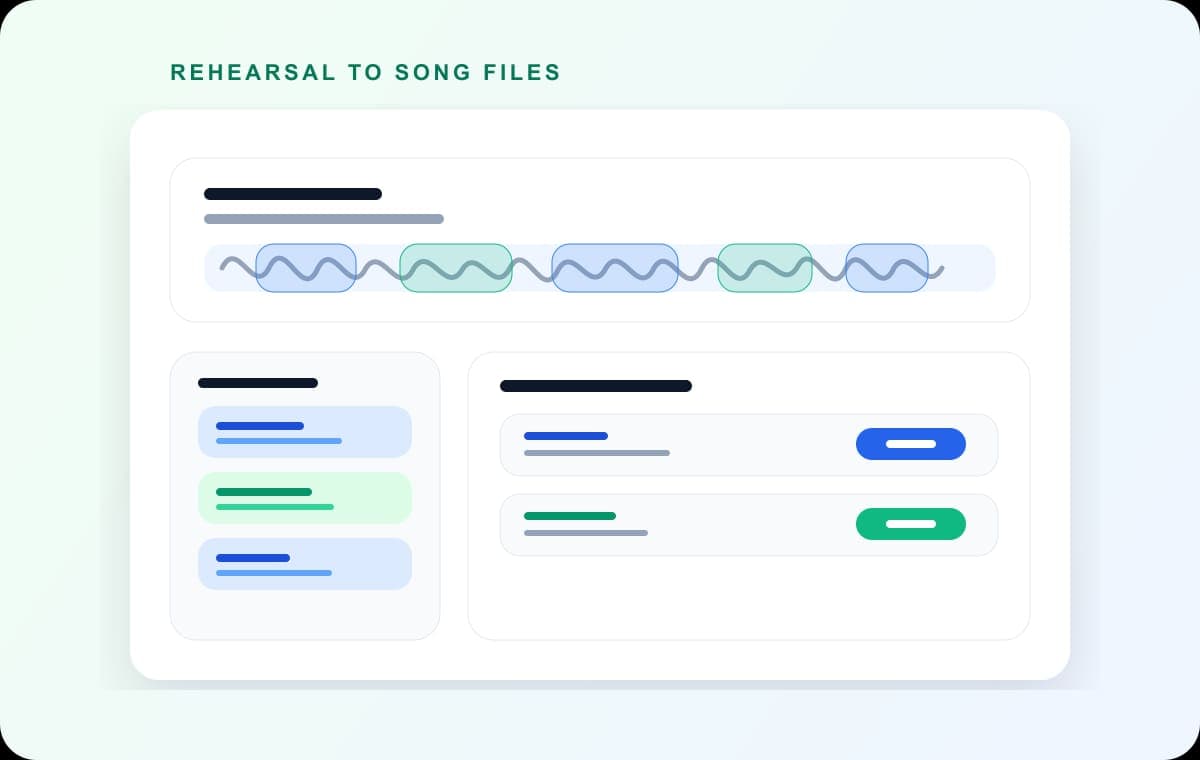
One MP3, many songs
A live set or rehearsal recorded as one MP3 becomes one file per song, each named and exported in a single batch.
MP3 Splitter
Split one MP3 into multiple tracks in a single pass. Mark every cut on the waveform, or let Auto-Cut find the silences. Free, private, browser-based.
Upload audio
Drop an MP3 and open the full editor. Mark songs, chapters, or highlights and export them as separate files.
Quick answer
Most MP3 splitters cut one piece at a time. AudioMultiCut opens the whole file on a waveform, lets you mark every track boundary at once, previews each edge, and exports all the pieces together. It runs entirely in your browser, so the MP3 is never uploaded.
A live set or rehearsal recorded as one MP3 becomes one file per song, each named and exported in a single batch.
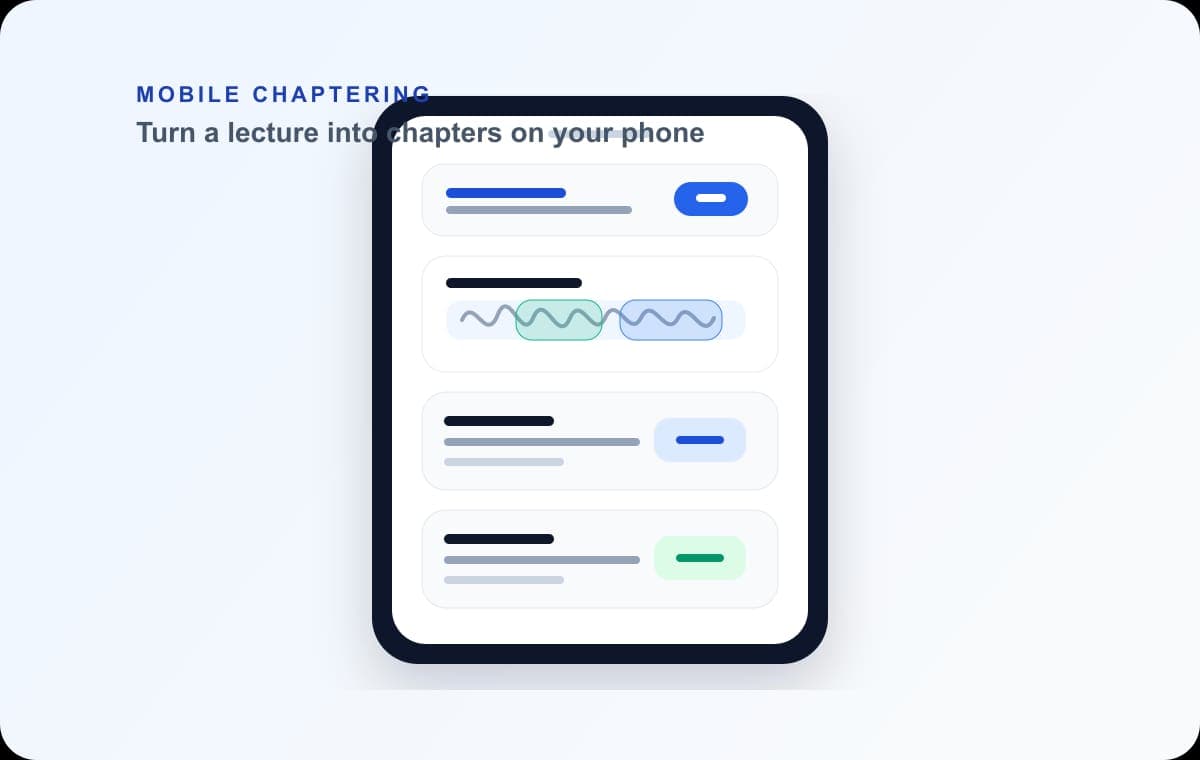
Split audiobook-length MP3s, lectures, or sermons into chapters listeners can actually navigate.
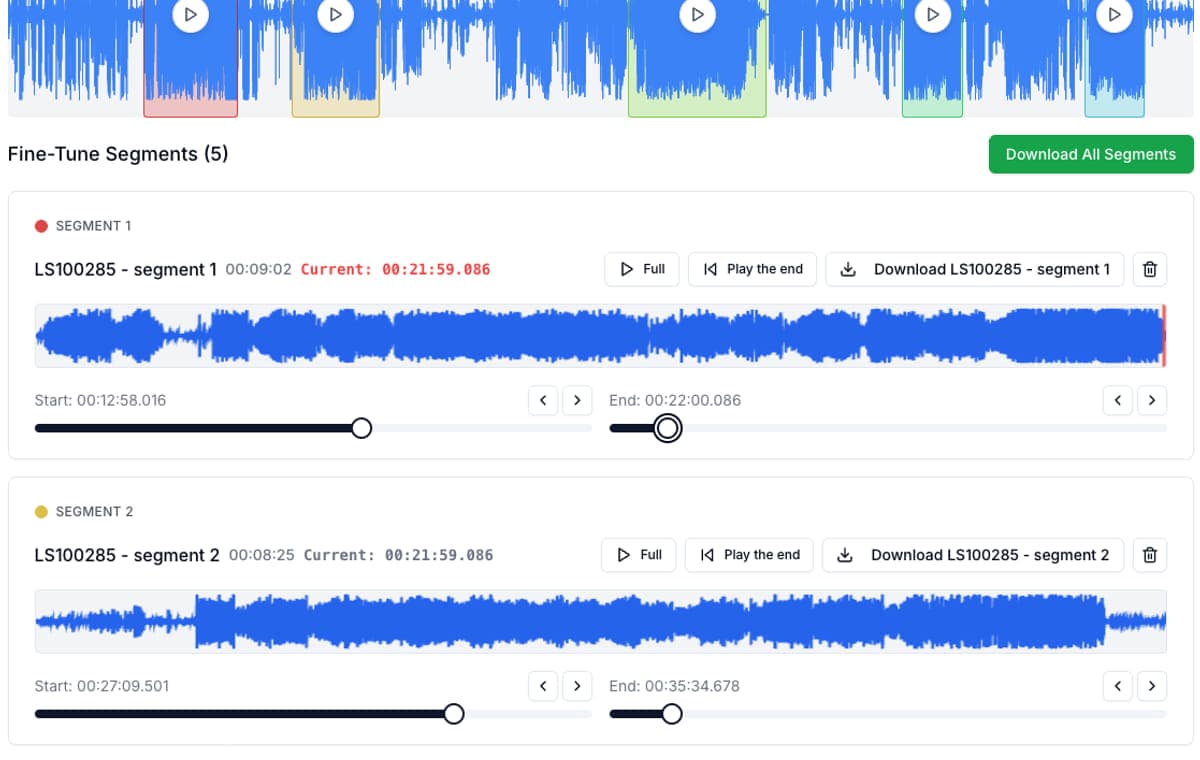
Mark every boundary, check each one with instant preview, then download all tracks at once.
An MP3 splitter has one job: turn one MP3 into several, cut exactly where you want. The differences show up in how many cuts you can make per pass, whether you can hear each boundary before exporting, and where your file goes while you work. Single-cut tools force a loop of cut, export, and re-upload. Server-based tools make you wait for uploads and leave your recording on someone else's machine.
AudioMultiCut makes all cuts in one session and processes everything locally in your browser. Open the MP3, drag out every segment or run Auto-Cut to detect the silences between tracks, fine-tune boundaries with instant preview, and export. Long files are fine: processing speed depends on your device, not a server queue.
One MP3, three selected tracks
Yes. AudioMultiCut is free with no ads, no watermark, no account, and no upload. All processing happens in your browser.
Yes. Auto-Cut detects silences between songs or sections and proposes the split points. You can adjust any boundary before exporting.
MP3 exports are re-encoded, which is fine for sharing and playback. Choose WAV export if you need lossless clips. Your original file is never modified.
23,812shares