
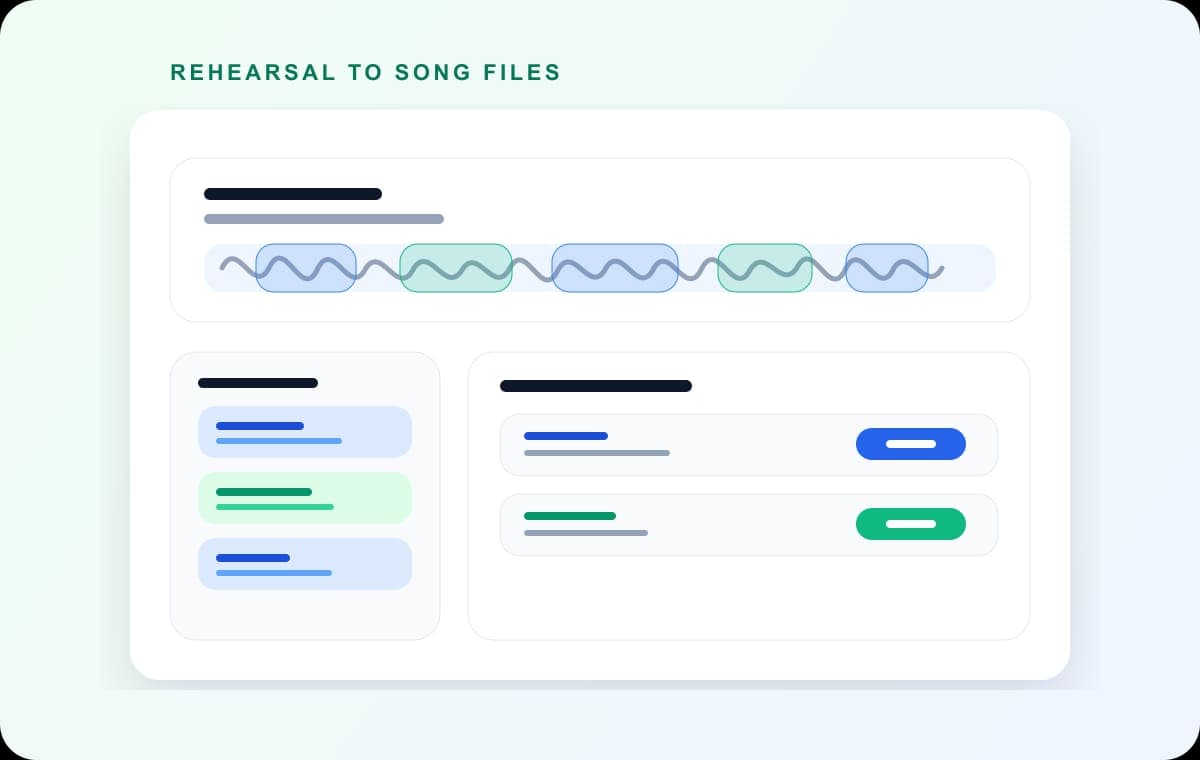
Rehearsal MP3s
Split one shared rehearsal MP3 into song files that band members can review separately.
Split MP3 Online
Divide MP3 files into multiple tracks instantly. Free, browser-based, no installation required. Auto-detect segments or manually select.
Upload audio
Drop an MP3 and move straight into the full cutter to split songs, chapters, rehearsals, or clipped highlights.
Quick answer
AudioMultiCut is best when one MP3 needs to become several usable tracks. Drop the MP3 in the browser, mark songs or chapters on the waveform, preview the edges, and export the selected clips without installing audio software.
Use the MP3 splitter when your source file is already an MP3 and the final clips need to stay easy to share, message, archive, or play on almost any device.
Split one shared rehearsal MP3 into song files that band members can review separately.
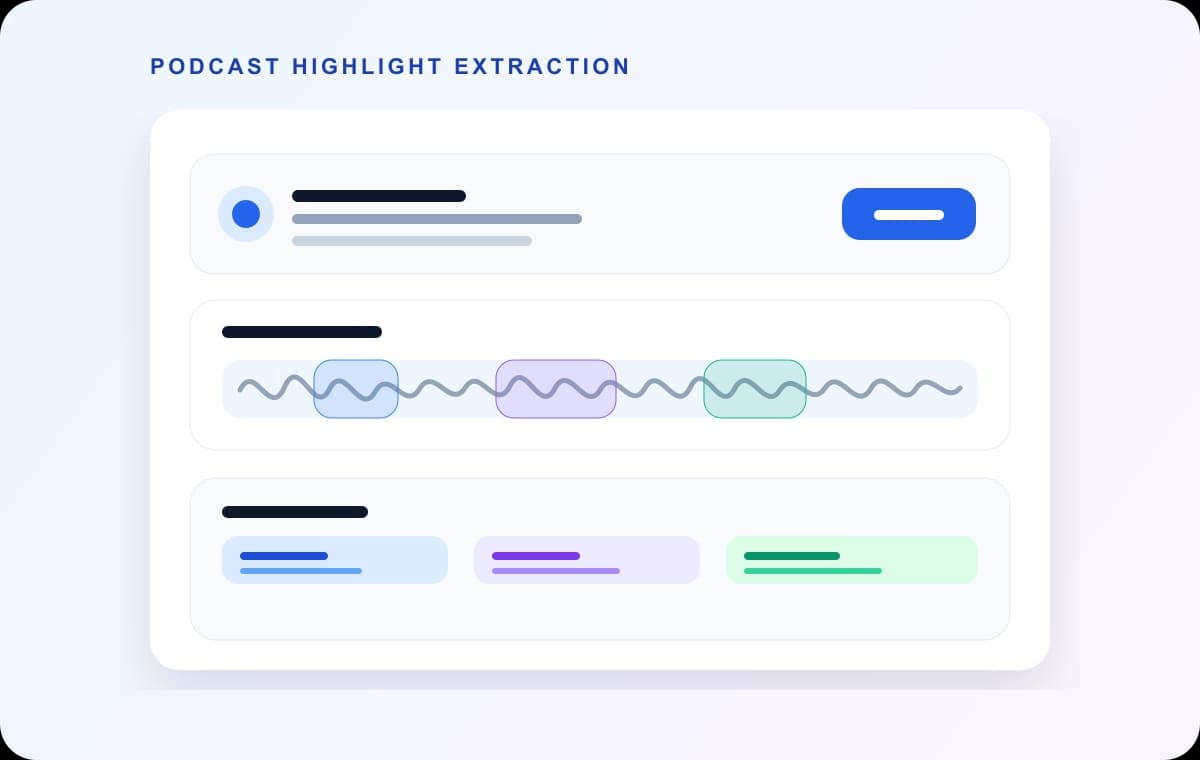
Extract short MP3 clips from an episode for review, notes, or social publishing.
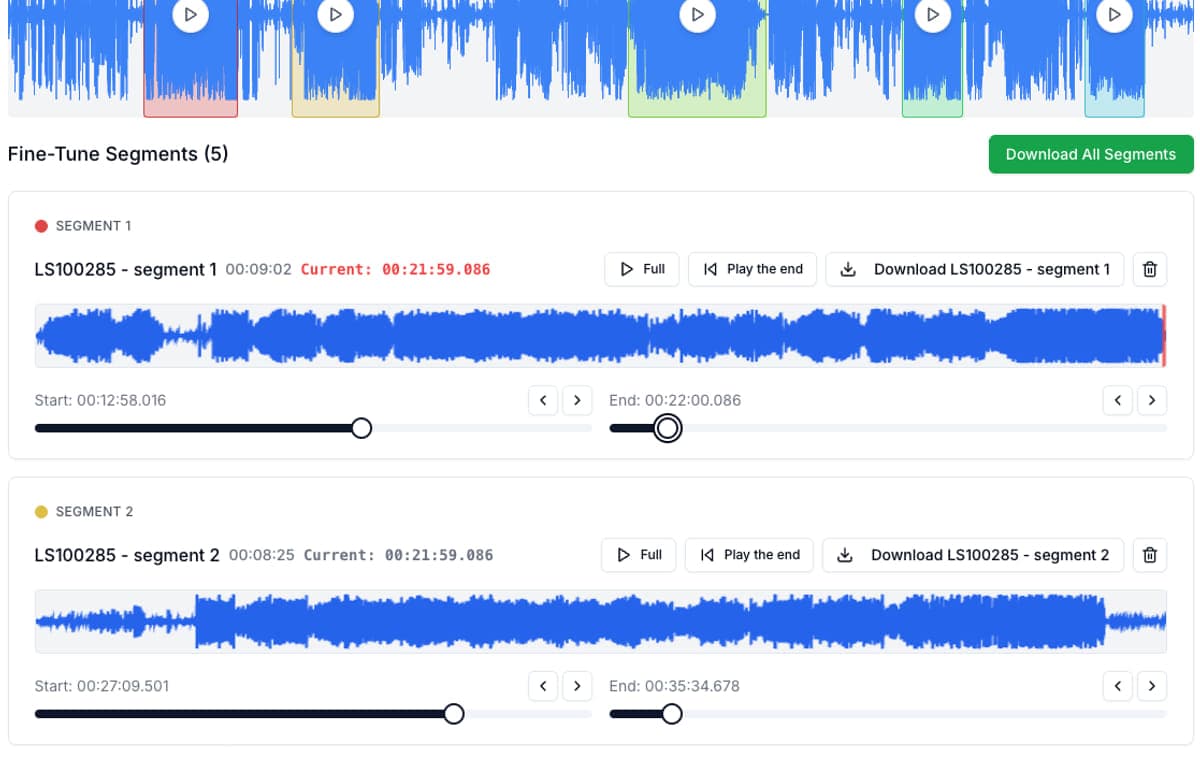
Name and review each segment before exporting individual MP3 files from the same source.
AudioMultiCut makes splitting MP3 files incredibly simple:
Visit AudioMultiCut and drop your MP3 file into the upload area. The file is instantly decoded and analyzed in your browser.
For MP3 files over 8 minutes, use auto-detect to find natural breaks automatically. For precise control, manually select segments by clicking and dragging on the waveform.
Auto-detected segments:
Adjust the start and end times for each segment. Play back segments to hear exactly where the cuts fall. AudioMultiCut plays the first and last second as you adjust boundaries.
Export segments as individual MP3 files or batch download all at once. Choose your quality and bitrate. Encoding is optimized for speed - a 60-minute file exports in minutes.
Both formats have advantages. Choose based on your needs:
Best for: sharing, playback, streaming, most everyday uses
Best for: editing, archiving, professional work, critical listening
AudioMultiCut re-encodes MP3 exports, which is usually fine for sharing and playback. If you need lossless clips, choose WAV export instead. The original uploaded MP3 is never modified.
Both. Download one selected segment when you need a single clip, or use batch export to download every selected section from the same MP3.
No. The editor works locally in your browser, so the MP3 does not need to be uploaded to AudioMultiCut servers just to split it.
General guide for splitting any audio format, not just MP3.
Learn how automatic segment detection works with intelligent algorithms.
Split songs, live sets, and music recordings into useful sections.
Trim and cut audio files directly in your browser with no installation.
23,812shares