
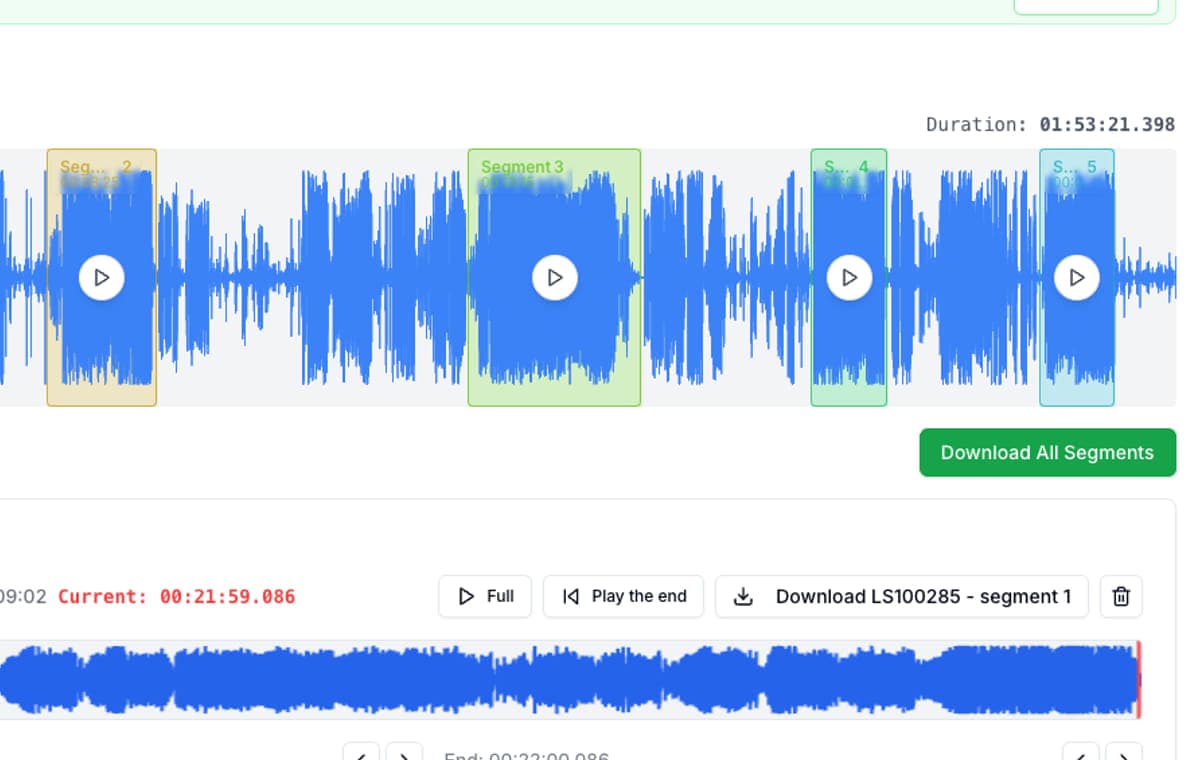
AI voice tools have made it easy to turn a script into spoken audio. ElevenLabs, Speechify, Murf, PlayAI, LOVO, WellSaid, and similar creator or business voice tools can all create voiceovers quickly. The next problem is more practical: the generated file is often not yet shaped for the actual edit.
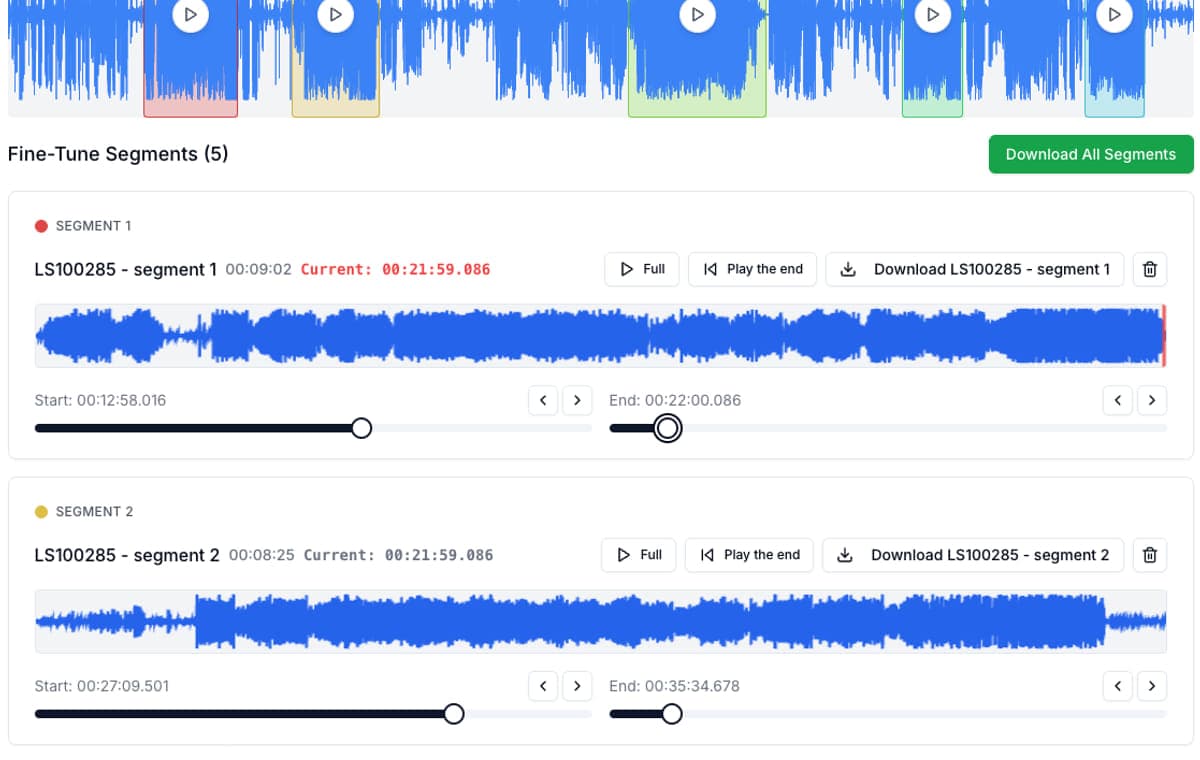
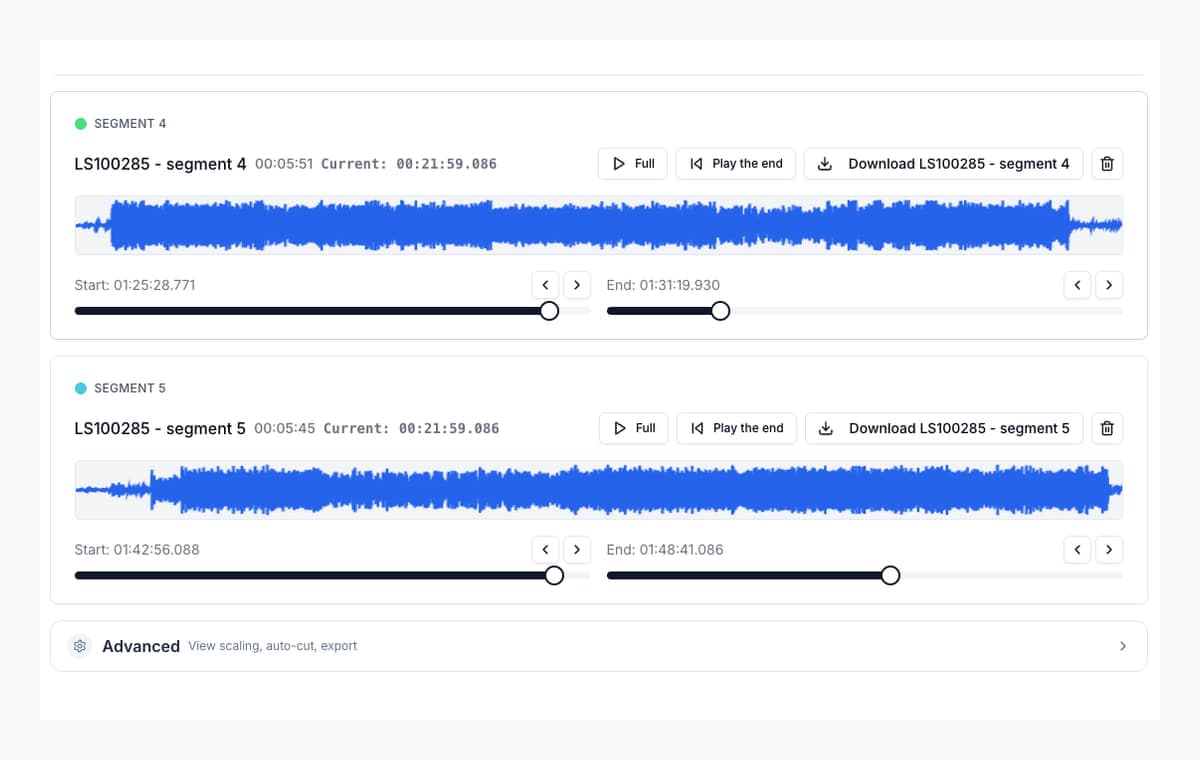
A video editor may need one sentence per timeline clip. A game designer may need one line per asset. A course creator may need each instruction as its own file. A marketer may need five alternate reads of the same call to action. AudioMultiCut fits after generation: export the audio from the text-to-speech tool, split it in the browser, preview the edges, optionally detect spoken words with local browser-based Whisper AI on supported devices, and download only the clips you need.
Five common AI voice generators this workflow fits
| Platform | Typical generated file | Where AudioMultiCut fits |
|---|---|---|
| ElevenLabs | Expressive narration, dialogue, ads, audiobooks, character reads, and synthetic voiceovers. | Split a longer generated read into sentence clips, dialogue lines, pickups, or alternate takes for the edit. |
| Speechify | Voiceovers, read-aloud content, dubbing assets, podcast-style audio, and cloned-voice drafts. | Turn one generated voice file into short social clips, course modules, or per-section audio assets. |
| Murf | Studio voiceovers, training content, explainer narration, product videos, and voice-agent audio. | Cut final narration into scene-by-scene files, remove unwanted lead-in silence, and export clean MP3 or WAV clips. |
| PlayAI / PlayHT | AI voiceover, podcast dialogue, multilingual narration, gaming placeholders, and studio-generated speech. | Separate multi-voice output into usable lines, preview boundaries, and keep production filenames ordered. |
| LOVO / Genny | Marketing, training, social, podcast, audiobook, e-learning, and corporate voiceover projects. | Split generated reads into scene clips, module sections, social variants, or per-line production files. |
This list is deliberately focused on web and studio products that creators, marketers, educators, and teams use directly, not developer speech services. Enterprise voice tools like WellSaid fit the same workflow when they export local audio files.
What to split after generating voice
| Production need | Good split unit | Export tip |
|---|---|---|
| Video narration | One sentence or scene beat | Name clips by scene number so they sort correctly in the video editor. |
| Game or app dialogue | One line or response | Export WAV if the file will go into an asset pipeline or middleware tool. |
| Ads and landing-page tests | One headline, hook, or CTA | Keep variants in separate clips so the edit can swap them quickly. |
| Courses and tutorials | One instruction or step | Use shorter clips when learners need replayable moments. |
| Podcast-style synthetic audio | One topic block | Use MP3 for compact review files and WAV when another editor will process them. |
The simple workflow: write, generate, split, place
First, prepare the script in your voice tool. Keep natural punctuation and line breaks because those usually influence pacing. Second, generate the read and export the audio. Third, upload that file to AudioMultiCut and mark the exact lines, sentences, or sections you want to keep.
Finally, export the clips in the format your downstream tool expects. For video review and quick sharing, MP3 is usually enough. For game audio, DAW work, or a production asset pipeline, WAV is usually the safer choice.
Why generated speech still needs cutting
Generated audio often sounds clean, but it still arrives as a file. The delivery may include too much silence before the first word, a pause that works in isolation but not in the timeline, or several script lines bundled together when the editor needs separate assets.
That is why the post-generation step matters. You are not fixing the voice model. You are shaping the generated performance into files that match the real workflow: one line for a character, one sentence for a video beat, one product claim for an ad test, or one instruction for a course.
Cut by sentence, line, word pickup, or variant
Sentence-level cutting is the default for narration because each clip can be placed independently in a timeline. Line-level cutting is better for games, apps, and character dialogue. Word-level pickups matter when one phrase needs to replace a mistake, but they require tighter listening and cleaner boundaries.
If you generate several variants in one pass, keep them together during review and split them only after choosing the best reads. That makes it easier to compare pacing and tone before exporting final clips.
- Use sentence clips for video narration and social edits.
- Use line clips for character dialogue, app prompts, and game placeholders.
- Use short phrase clips for pickups, button sounds, taglines, and CTAs.
- Use topic clips for longer podcast-style or course narration.
Use the source script and optional word detection
If the voice came from text-to-speech, you usually have the script already. Keep it open while splitting. It helps you name clips, catch missing words, and decide where one sentence should become two separate production assets.
On supported computers and browsers, AudioMultiCut can also run a small local Whisper model in the browser to find spoken words and approximate word timings. The words can appear with the waveform and inside segment cards, which makes it easier to see what each cut contains.
Treat this as a helpful editing layer, not a guaranteed transcript. Local browser AI depends on your device, browser, operating system, and file. It can take time to prepare, miss words, place timings imperfectly, or be unavailable on some setups.
Privacy and file handling
For normal cutting, previewing, and export, AudioMultiCut processes the audio locally in your browser. That is useful when the voiceover is part of a client campaign, unreleased course, product launch, or internal prototype.
If you use local word detection, your browser may download and cache the Whisper model files and locally cache detected words for that file, but the transcription work is intended to run in the browser rather than on AudioMultiCut servers.
The practical rule is simple: generate in the voice platform, download the audio, then split locally before sending only the final clips into the next tool.
FAQ
Can AudioMultiCut split ElevenLabs voiceovers?
Yes. Download the ElevenLabs audio file, open it in AudioMultiCut, create clips on the waveform, fine-tune the boundaries, and export each segment as MP3 or WAV.
Can it split AI voice audio by words automatically?
On supported devices and browsers, AudioMultiCut can optionally use a local browser-based Whisper model to detect spoken words and rough word timings. You can use those words to create cuts from transcript selections and see which words fall inside each segment. It can miss words or be unavailable on some devices, so always preview the boundaries before exporting.
Which AI voice generator files work?
Any local audio file your browser can decode should work, including common MP3, WAV, M4A, OGG, FLAC, AAC, OPUS, and WEBM exports from AI voice tools.
Is AudioMultiCut affiliated with ElevenLabs, Speechify, Murf, PlayAI, or LOVO?
No. AudioMultiCut is an independent audio editing tool. The platform names here describe common source workflows where users generate audio elsewhere and then split the downloaded file.
Should I export AI voice clips as MP3 or WAV?
Use MP3 for review, sharing, web content, and lightweight video workflows. Use WAV when the clips are headed into a DAW, game asset pipeline, post-production session, or another editing step.
Sources
Official product and documentation pages checked on June 20, 2026.
More audio workflows
Choose chunk lengths that balance accuracy, speed, and review effort
Best Audio Chunk Sizes for Transcription (Whisper, Google, AWS)
How to choose practical segment lengths before transcription so uploads are easier, retries are smaller, and timestamp review stays manageable.
Turn one long meeting recording into focused clips people can replay, forward, and act on
How to Cut Meeting Recordings Into Shareable Clips and Follow-Ups
A practical workflow for turning standups, client calls, interviews, trainings, and leadership meetings into clear audio clips people can actually use.
Use the right tool at the right stage
How to Combine AudioMultiCut Tools Without Making the Edit Messy
A practical workflow for using the cutter, remove-parts editors, normalizer, audiogram maker, video tools, and spectrogram editor together without losing track of the job.
Related pages and tools
Cut generated voice audio into production-ready clips
Export the voiceover from your AI voice generator, load it into AudioMultiCut, mark the sentences or lines you need, optionally use local word detection on supported devices, and download clean MP3 or WAV clips.