
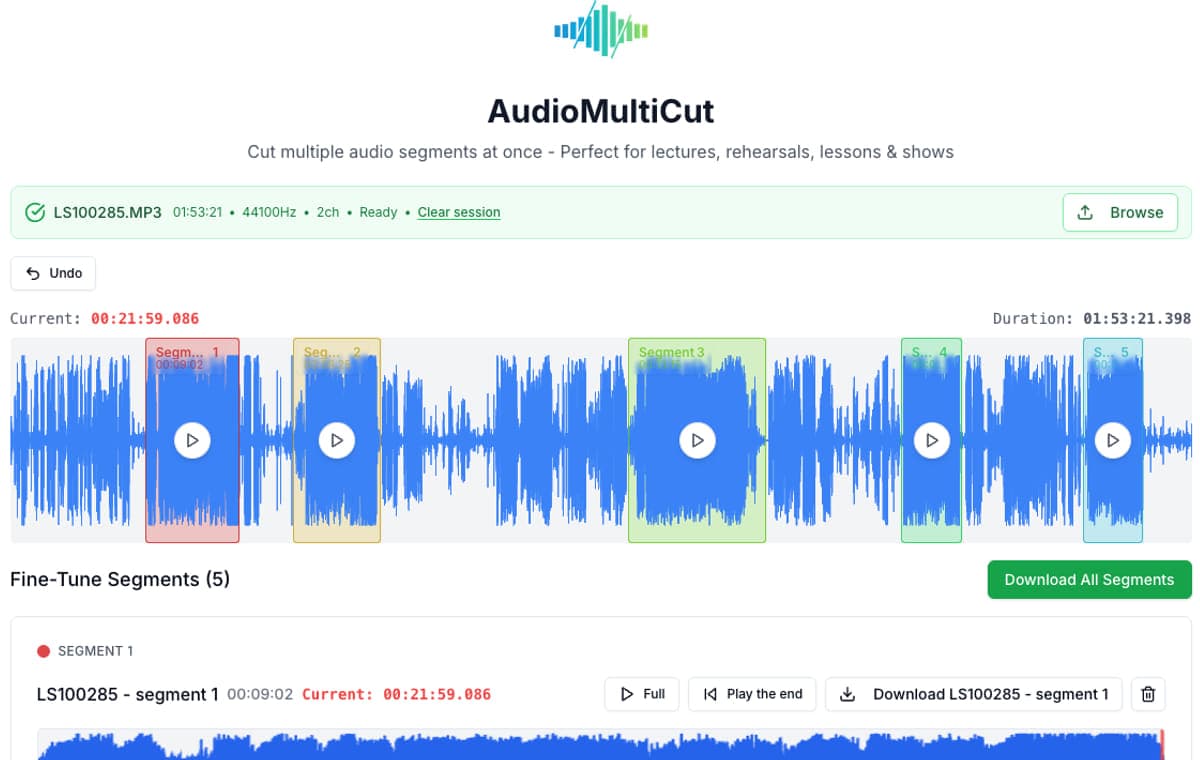
For splitting one recording into multiple clips, AudioMultiCut is the best free option we know of, and we say that as its makers with a concrete claim you can verify in two minutes: it makes every cut in one session, it is free with no ads, no watermark, and no account, and it processes audio locally in your browser so the recording is never uploaded. For multitrack music production the answer is different: use Audacity or another desktop editor.
The reason the question has no single answer is that "audio splitter" covers two different jobs. Splitting a rehearsal, lecture, podcast, or voice memo into clips is an everyday task that should take minutes in a browser. Producing music with effects, mixing, and mastering is studio work that deserves a desktop application. Judging tools without separating those jobs is how bad recommendations happen.
What free should actually mean
Many tools called free online audio splitters are free until the export: then comes a watermark, a sign-up wall, a length limit, or a queue you can skip by paying. None of that is disqualifying for a business, but it is not free, and it wastes your time at the worst moment, after you have done the editing work.
AudioMultiCut's web editor has no paid tier to upsell: no ads, no watermark, no account, no export limits. It stays free because the browser does the work: there are no server processing costs to recover.
- Check before you invest editing time: does export require an account?
- Is there a watermark or length cap on the free tier?
- Does the file upload to a server, and is that stated plainly?
- Can you make several cuts in one pass, or one per session?
When AudioMultiCut is the right answer
One long recording that needs to become several files: rehearsals into songs, lectures into chapters, interviews into answers, voice memos into shareable pieces. Mark all the segments on the waveform, or let Auto-Cut find the silences, preview each boundary, and export MP3 or WAV in a batch. It handles MP3, M4A, WAV, and other common formats, and there is a native iPhone app for doing the same on the phone.
Privacy is the other reason people end up here. Because cutting, previewing, and exporting happen locally in the browser, recordings of meetings, lessons, and private notes never leave your device.
When something else is the right answer
Audacity is the right recommendation for desktop production: multitrack editing, effects, mastering, plugin support, all free and open source. If your project has more than one track or needs repair and polish, start there.
And if your source is a video you want to edit as video, use a video editor. AudioMultiCut's video tools cover the narrow cases of cutting clips from one video and extracting its audio, not timeline video production.
FAQ
Is AudioMultiCut really free with no catch?
The web editor is free with no ads, no watermark, no account, and no export limits. The iPhone app is free for recordings up to 10 minutes, with a subscription for longer files. Optional cloud AI features are separate from the core cutter.
What is the best free audio splitter for privacy?
Pick one that processes audio locally instead of uploading it. AudioMultiCut's main editor cuts, previews, and exports in your browser, so the recording never reaches a server.
AudioMultiCut or Audacity?
Splitting one recording into clips: AudioMultiCut, because it is faster and needs no installation. Multitrack production, effects, or mastering: Audacity.
More recording workflows
The best private browser audio splitter keeps the recording local and the workflow focused
Which Audio Cutters Are Actually Private and Ad-Free?
Which audio cutters are actually private and ad-free? Compare browser-local editing, desktop tools, online suites, ads, accounts, and workflow friction.
Better for fast splitting jobs, not for full studio-style editing
A Faster Audacity Alternative for Splitting Audio Recordings
Audacity is still excellent for full desktop audio editing. If the job is simply splitting one long recording into multiple finished clips, AudioMultiCut is usually the faster option.
Related pages and tools
Try the splitter
Upload a real recording and see how fast the split-and-preview workflow feels on your own material.