
Choose TTS Lines for a script you want to generate and revise line by line, ElevenLabs Studio for a larger generated narration project, Descript for edits driven by recorded words, and AudioMultiCut for turning an existing recording into separate clips. Start with the input you already have. A cutter cannot generate a voice, and a voice generator is unnecessary when the take is already recorded.
The shortlist below follows four different jobs rather than naming one universal winner. The useful question is what your video editor should receive: a continuous narration, separate lines, or an edited performance with unwanted speech removed.
Choose a voiceover tool by its starting point
| Tool | Start with | Best fit in this workflow | Check first |
|---|---|---|---|
| TTS Lines | A written script | Generate and replace individual narration lines | Model download, pronunciation, and device memory |
| ElevenLabs Studio | A script or narration project | Organize generated narration into chapters | Generation access and available export settings |
| Descript | Recorded speech | Edit the media by editing its transcript | Transcript accuracy around each edit |
| AudioMultiCut | An existing audio file | Mark multiple ranges and export separate files | Cut boundaries and the destination format |
TTS Lines: generate the lines you still need
TTS Lines turns a script into editable lines with a main voice and per-line speaker choices. Its local voice model downloads before generation; individual MP3 clips and a joined recording support different handoffs. Use it when a small wording change should require a new version of that line rather than a fresh full narration.
A local model still needs memory and processing time. Listen to proper names and abbreviations before exporting the whole script. TTS Lines is linked from AudioMultiCut as a companion for making the voiceover before cutting an existing file.
ElevenLabs Studio: organize generated narration
ElevenLabs Studio documents paragraph generation, voice settings, and chapter-based projects. Its export workflow supports a chapter or full project, including individual chapter files for a multi-chapter export. That fits narration you want to organize and regenerate within a larger project.
Check your plan's generation and output settings before producing a long script. A chapter export is not the same deliverable as an MP3 for every sentence. Decide how small the reusable pieces must be before arranging the project.
Descript: edit a spoken performance through its words
Descript links the transcript to imported media: deleting or moving text changes the corresponding audio or video. It fits a recorded explanation that needs a paragraph removed or a sentence moved, especially when finding the words is easier than navigating the waveform.
Correct the transcript where it matters and listen at each join. Removing text is a structural edit; it does not guarantee a natural breath or a clean musical background. Use a waveform check for the final edges even when the text edit looks right.
AudioMultiCut: split audio you already have
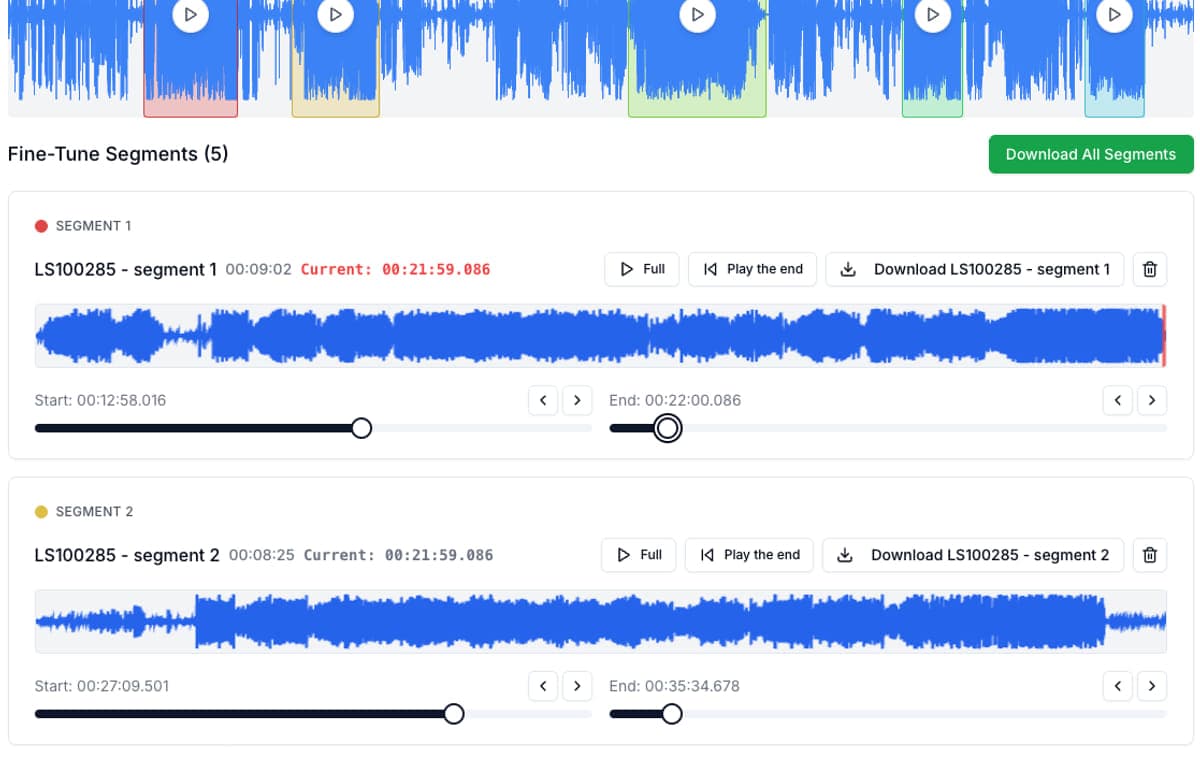
Open the completed voiceover in AudioMultiCut, select several useful ranges, preview their edges, and export the clips. Normal cutting and export happen in the browser. This fits a recording supplied by a narrator or a generator when the next editor needs separate takes, scenes, or alternatives.
It does not synthesize a replacement sentence or clone the speaker. Keep the source file and use clear names. For example, 01-intro-v2 and 02-product-name-pickup are sample filenames, not automatic content recognition.
Check the handoff before you make every clip
Export one representative line and import it into the destination video or audio project. Listen for clipped consonants, unnecessary silence, and the end of the last word. Then confirm the order and filenames before preparing the full set.
If you change the narration timing later, revisit any captions or edit decisions based on the old version. Separate files make a replacement manageable, but they do not update a different app's timeline automatically.
FAQ
Which tool should I use if the voiceover is already recorded?
Use AudioMultiCut for several separate clips, or Descript when you want to rearrange the performance through its transcript. A speech generator is unnecessary unless you need new speech.
Does AudioMultiCut generate an AI voice from text?
No. Its normal splitter starts from an existing audio file. TTS Lines and ElevenLabs Studio address script-to-speech creation.
Sources
Published by AudioMultiCut, which is included in this shortlist. Selections reflect documented task fit, not a scored ranking or a hands-on speed or quality benchmark. Official sources and AudioMultiCut behavior checked October 19, 2026; check each provider's current access and export terms before committing a project.
More audio workflows
After the voice is generated, make it usable in the real edit
How to Split ElevenLabs and AI Voice Generator Audio Into Clips
A practical workflow for cutting AI-generated voiceovers from ElevenLabs, Speechify, Murf, PlayAI, LOVO, and other voice-generator tools into sentences, lines, words, and production-ready clips.
Separate making the audio from reviewing the card
Top Tools for Making Language-Learning Audio Flashcards
Choose AudioMultiCut, Anki, Audacity, or TTS Lines for lesson clips, audio cards, waveform edits, and generated examples, with a reusable card template.
Podcast transcription for finding and cutting the quote you need
How to Transcribe a Podcast Recording and Cut Audio Clips
Transcribe a podcast recording locally, scan a word-timed transcript, and turn selected quotes into audio clips without uploading the source audio.
Related pages and tools
Have the finished audio already?
Open the recording, mark the lines or takes you need, and preview the exported edges.