
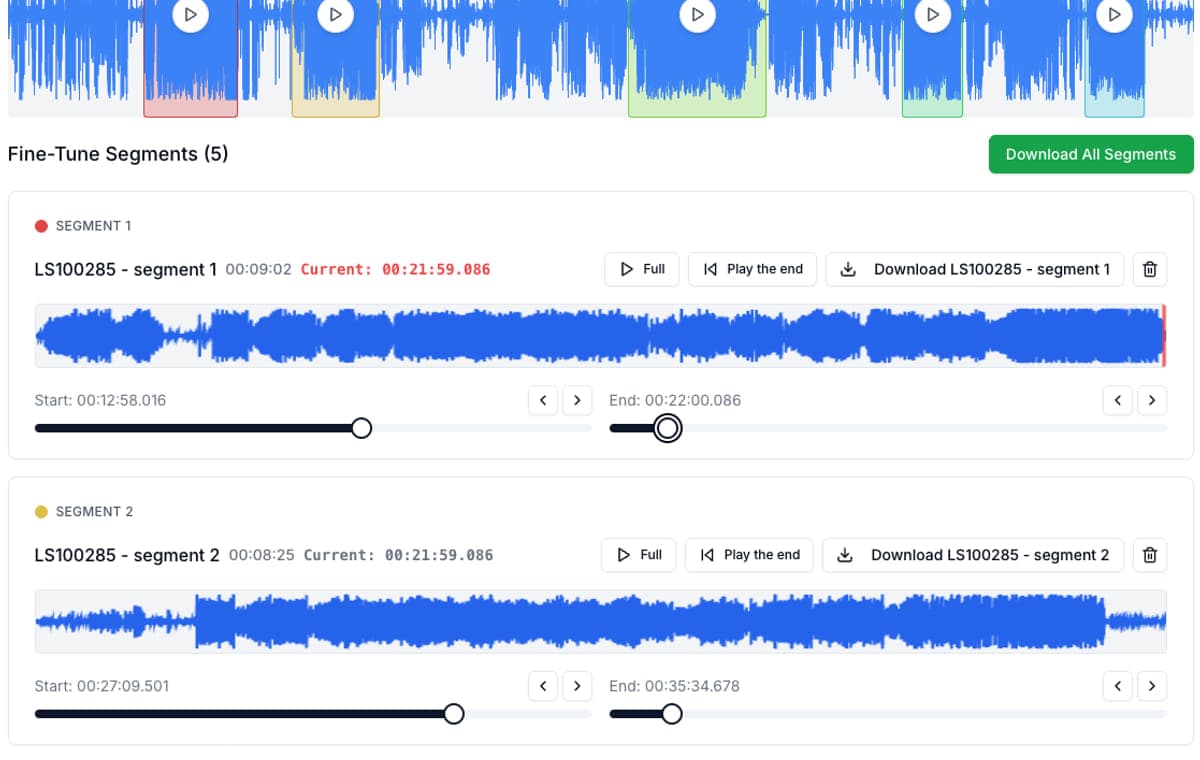
Choose AudioMultiCut when one long room recording needs to become separate song files. Choose Audacity when the recording needs detailed desktop audio work as well as splitting. Choose GarageBand when you want to build a multitrack arrangement, add parts, or work on a song project. The right choice depends on what must leave the editor.
This comparison is specifically about a rehearsal captured as one mixed recording. It is not a sound-quality test. Splitting that recording does not separate the instruments or repair a clipped microphone, and a more elaborate editor is not automatically useful when the band only needs last night's takes.
Match the editor to the rehearsal job
| Job | AudioMultiCut | Audacity | GarageBand for iPhone |
|---|---|---|---|
| Turn one room recording into song files | A focused multi-segment and export workflow | Labels, selections, and audio export tools | Edit regions within a song project and share the result |
| Find quiet breaks | Auto-Cut, then boundary review | Label Sounds offers threshold and silence controls | Choose and edit regions in the arrangement |
| Continue producing the song | Prepare clips for another editor | Desktop effects and detailed audio editing | Tracks, instruments, loops, and arrangement |
| Deliver takes to a band chat | iPhone batch sharing; optional paired Telegram delivery | Export audio, then send it through your chosen destination | Share a song or project using Apple's export workflow |
A workflow comparison checked October 16, 2026. Export commands and capabilities can vary by app version; no timing benchmark was run.
Start by deciding what the band should receive
For separate takes, name the output before you edit: perhaps 01-opening-take, 02-second-song, and 03-ending-retry. Those are example filenames. The point is to make each attachment understandable in a chat without asking everyone to scrub a long recording.
AudioMultiCut keeps that job close to the recording. Open or record the source, use Auto-Cut as a first pass, listen at every edge, and export the useful sections. Its iPhone app can also deliver completed rehearsal songs to a paired Telegram group. Use that only after choosing the destination and enabling the sharing option.
Audacity gives you more control over desktop audio work
Audacity's current Label Sounds documentation describes finding passages separated by quiet gaps, with controls for threshold, minimum silence, and label interval. That is a real alternative to manually marking every take. Its manual also documents effects including noise reduction, compression, and spectral tools for more detailed work.
Those controls are useful when a rough recording needs repair before you share it. Check the export workflow for your installed version, especially if following an older Export Multiple tutorial. Choose Audacity for the editing controls you actually need, rather than assuming every desktop workflow takes the same steps across releases.
GarageBand fits the next arrangement, not just the archive
GarageBand for iPhone works with tracks and song sections, and Apple's guide explains sharing songs and projects. It fits a rehearsal idea that you want to develop: add a part, rearrange the structure, or keep working with an instrument and a timeline.
If the deliverable is simply a separate file for every rehearsal take, decide whether building a song project helps. If you intend to overdub, the project structure earns its place. If you only need clips for a chat, a dedicated splitter keeps the task smaller. Keep the original source either way.
Listen before you blame the splitter
Room noise may hide the quiet gaps. A long rest inside a song may look like the end of a take. All silence-based first passes need review; none of these choices turns a mixed phone recording into separate microphone tracks.
Start with one representative take and its surrounding silence. Check the entrance, the last note, and the remaining tail. If the clip is already useful, export it. Move to a fuller editor when you can name the extra work, such as removing a noise, balancing tracks, or adding another instrument.
FAQ
Can Audacity find the gaps between rehearsal songs?
Yes. Its Label Sounds analyzer documents controls for identifying sound regions separated by silence. Review the detected regions and the export tools in your installed version.
Should I use GarageBand just to send rehearsal clips?
Use it if you also want to arrange, overdub, or continue a song project. A dedicated splitter is a more direct fit when the only output is several files from one recording.
Does cutting the rehearsal separate vocals and instruments?
No. Cutting creates time ranges from the existing mix. Instrument separation is a different process.
Sources
Workflow comparison based on AudioMultiCut's implementation and official Audacity and Apple documentation checked October 16, 2026. No competitor hands-on benchmark or restoration-quality test was performed.
More audio workflows
Record on one iPhone and deliver completed songs to the band chat
Automatically Share iPhone Rehearsal Songs to Telegram
Connect AudioMultiCut on iPhone to a Telegram group, enable completed-song sharing, and understand Wi-Fi queues, delays, and privacy.
Keep the decisions, the words, and the performance for different reasons
Band Practice Notes vs a Transcript: What to Keep
Compare rehearsal notes, verbatim transcripts, and audio clips. Learn what AudioMultiCut's optional cloud notes add and what still needs listening.
Turn one rehearsal file into useful song files without the usual cleanup pain
How to Split Band Rehearsal Recordings Into Individual Songs
A practical workflow for taking one long rehearsal recording and turning it into clean song files your band can actually review and share.
Related pages and tools
Try the split on one rehearsal take
Open a local recording, mark the songs, and listen to the cut boundaries before exporting.