
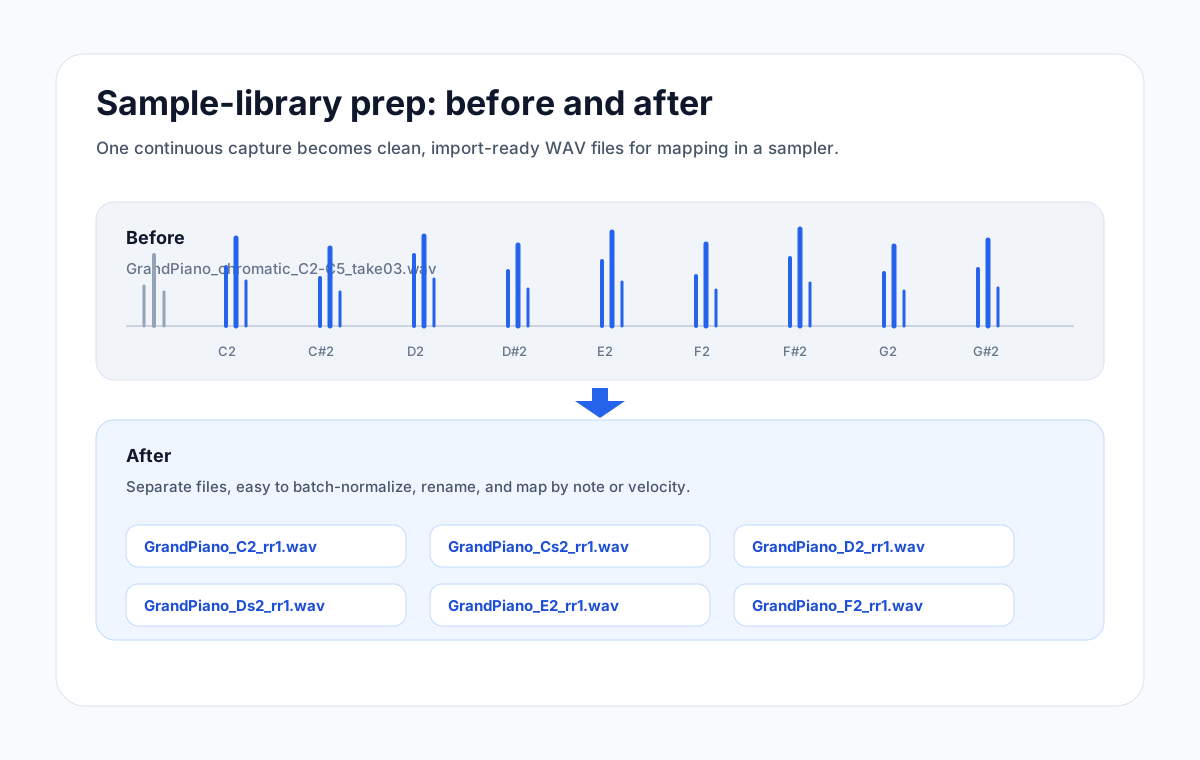
To prepare audio for Suno, cut short, clean clips from your long recording first, then upload the best one. With AudioMultiCut you mark every candidate riff, vocal phrase or loop in one pass, export them all as WAV files, and pick the strongest clip to upload.
Suno's help center lists upload lengths of up to 60 seconds on the free plan and up to 8 minutes on Pro and Premier (article updated May 2025, check the current page before you plan around it). A shorter, focused clip usually gives Suno a clearer idea to build on than a long jam with several ideas in it.
AudioMultiCut does not separate stems. If you need the vocal or the drums on their own, run the track through a stem splitter first, then use AudioMultiCut to cut the stem into usable pieces.
What to cut for different Suno uploads
| Source material | What to cut | Typical clip length | Tip |
|---|---|---|---|
| Guitar or piano jam | One riff or chord progression per clip | 8-30 seconds | Start on the downbeat and end after a full bar so the idea loops cleanly. |
| Vocal idea or humming | One melody phrase per clip | 5-20 seconds | Leave a short breath before and after; clipped consonants sound unnatural. |
| Drum or beat recording | One groove per clip | 4-16 bars | Cut on the kick so the tempo reads clearly. |
| Field recording or texture | The cleanest stretch without handling noise | 10-60 seconds | Skip parts with wind or bumps; Suno will reproduce them. |
| Separated stem (after a stem splitter) | The section you want to reuse | 10-60 seconds | Check the start and end for bleed from other instruments. |
Clip lengths are practical starting points, not Suno rules. Suno's own limits are the upload maximums listed on its help center.
Why cut first instead of uploading the whole file
A long rehearsal or jam often has five or ten ideas in it. Uploading the whole thing hits the length limit, and even when it fits, Suno has to guess which part matters. Cutting first lets you choose the idea, and cutting several candidates at once lets you compare them before you spend a generation.
Doing that one clip at a time in a basic cutter means loading the file, trimming, exporting and starting again for every idea. In AudioMultiCut you mark all the candidates on one waveform and export them together.
Steps: cut several Suno candidates in one pass
The whole workflow runs in the browser. The audio is decoded locally and is not uploaded to AudioMultiCut servers.
- Open audiomulticut.com and load the long recording (MP3, WAV, M4A, FLAC and most browser-supported formats work).
- Mark each candidate on the waveform. For a recording with pauses between ideas, run Auto-Cut with the Samples preset to get a first pass, then adjust the edges.
- For loop material recorded to a fixed tempo, use equal chunks by seconds or by count instead of silence detection.
- Preview every clip. Trim the start to the first note and the end to the last full bar or phrase.
- Name the clips so you can find them later, for example riff_A_92bpm or hum_chorus_idea.
- Export as WAV to keep full quality for the upload. Download all clips at once.
- In Suno, upload the strongest clip and build from it. Keep the others for later versions.
Other ways to do it
A desktop editor such as Audacity can do the same job with labels and Export Multiple. It is more work to set up, but it is free and works offline.
If you are comfortable with the command line, ffmpeg can cut one clip at a time without re-encoding, for example: ffmpeg -ss 00:01:12 -to 00:01:40 -i jam.wav -c copy riff_A.wav. For many clips, an editor with a waveform is faster because you can hear the edges.
On iPhone, the AudioMultiCut app can record, split and share clips on the phone, which is handy when the idea is a voice memo.
Troubleshooting
Auto-Cut finds too many or too few clips: loud room noise between ideas hides the silence. Raise the silence threshold or mark the clips by hand on the waveform.
The clip sounds cut off in Suno: extend the end to the next full bar or the end of the breath, then export again.
The upload is rejected as too long: check the current limit for your plan on Suno's help center and shorten the clip.
FAQ
How long can an audio upload to Suno be?
Suno's help center lists up to 60 seconds on the free plan and up to 8 minutes on Pro and Premier (article updated May 2025). Limits can change, so check the current help page before planning a long upload.
Can AudioMultiCut separate vocals or instruments for Suno?
No. AudioMultiCut cuts audio in time, it does not separate stems. Use a stem splitter first if you need an isolated vocal or instrument, then cut the stem into clips in AudioMultiCut.
Which format should I export for Suno?
WAV keeps full quality and is a safe choice for uploads. MP3 files are smaller if you need to save space.
Do I need the rights to the audio I upload?
Yes. Suno's upload flow asks you to confirm that you own the material. Cut and upload your own recordings or audio you have the rights to use.
Is my recording uploaded when I cut it in AudioMultiCut?
No. The website decodes and cuts the audio locally in your browser. The file is not uploaded to AudioMultiCut servers.
Sources
Suno help center pages checked on September 30, 2026.
More sample prep guides
A faster prep workflow for musicians building playable sample instruments
Preparing Sample-Library Audio for Kontakt, HALion, Falcon, Decent Sampler, and More
A practical workflow for cutting long sample-chain recordings into clean files before mapping them in Kontakt, HALion, Falcon, Decent Sampler, Logic Sampler, Ableton Sampler, SFZ tools, MPC keygroups, and other sampler ecosystems.
Get a clean first pass from Auto-Cut, then polish the edges before exporting
How Auto-Cut Works in AudioMultiCut and How to Get Clean Results
A practical guide to the Auto-Cut beta in AudioMultiCut: which preset to pick, how the silence-based detection actually decides where to split, and the final touches to do before you export.
The simplest split jobs should be the fastest
How to Split an Audio File Into Two Parts, or Any Number of Equal Parts
Split audio in half, into thirds, or into exact timed chunks in your browser. No server upload, ads, account, or watermark.
Related pages and tools
Cut your Suno candidates in one pass
Load the long recording, mark every riff, phrase or loop you might want, and export them all as WAV files.