
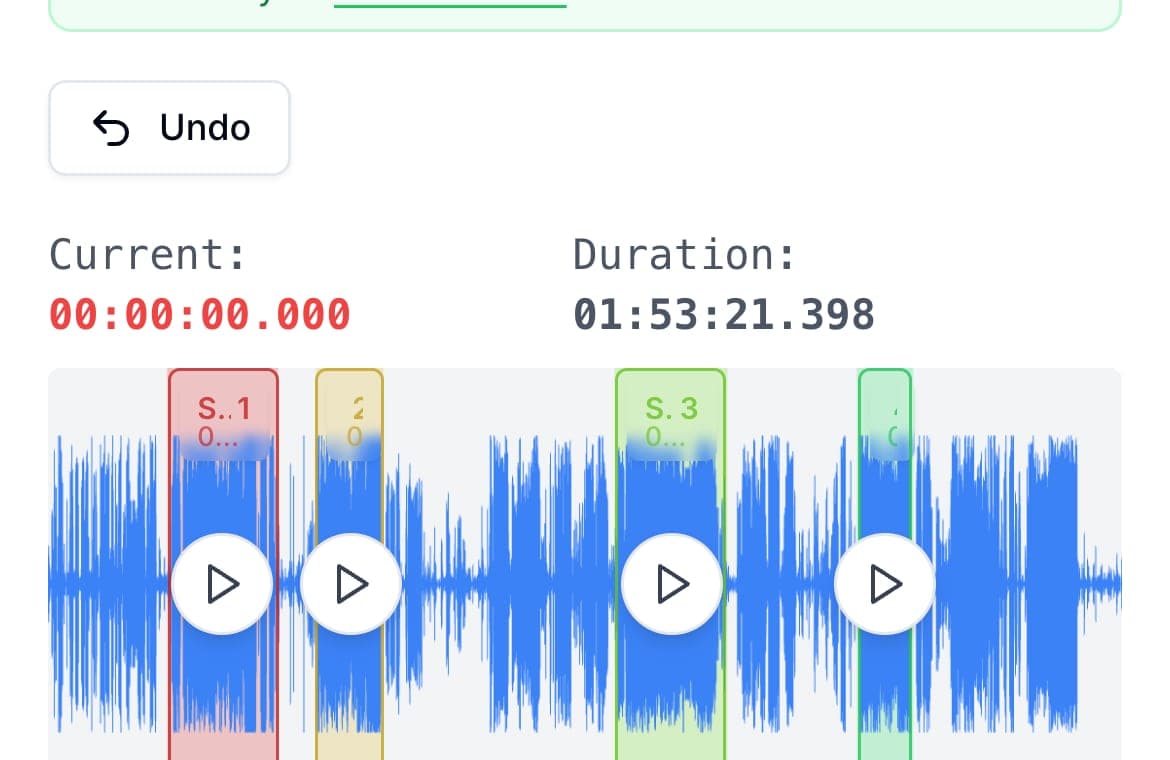
To cut a WhatsApp voice message, first share or save the audio file. Upload it on the Split Audio for WhatsApp page to create consecutive MP3 clips automatically, each under 10 MB, then download and send them back to the chat. You can adjust the cuts first if needed. The result is an audio attachment, not a new voice-note bubble.
This is useful when one message contains several points and you only want to pass on one or two. The browser editor cuts locally without uploading the audio to AudioMultiCut servers. Sharing options inside WhatsApp vary by device and version, so keep the original message until the exported clip plays correctly.
Video transcript
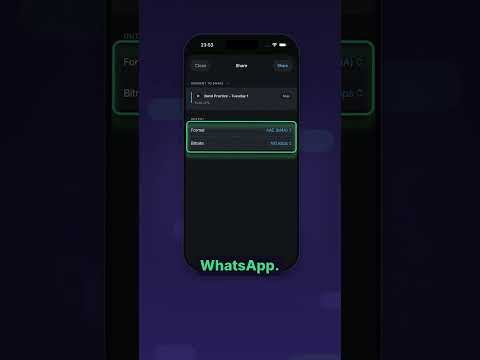
How do you cut a WhatsApp voice message? WhatsApp can't trim one... so you take the audio out, cut it in AudioMultiCut, and send the clip back. Step one. Get the voice note out. Use Forward or Share to save it to Files, or send it straight to AudioMultiCut on iPhone. On WhatsApp Web or Desktop, download the message. Keep the original until your new clip plays. Step two. Cut it. Open the file, and the waveform shows you where the talking is. Drag a segment around the part you want... preview both edges... and adjust until it's right. Need several pieces? Mark them all, and export every segment in one pass. In the browser, the audio is cut on your device. Nothing is uploaded. Step three. Send it back. Export MP3, check that it plays, and attach it in the chat. On iPhone, you can share several clips at once, to WhatsApp, Messages, Telegram, or AirDrop. One thing to know... it arrives as an audio file, not a new voice-note bubble. It still plays right in the chat. AudioMultiCut. Free in your browser, at audiomulticut.com

Step 1: Get the voice note out of WhatsApp
Use the available Forward or Share action to get the audio into Files, email, or AudioMultiCut on iPhone. On WhatsApp Web or Desktop, download the message if the download action is available. The exact menu can differ between WhatsApp versions and devices.
Some voice notes use Opus audio. A browser may not decode every file; try another supported browser or share the audio into the iPhone app. Do not delete the original before checking the cut file.
Step 2: Cut it
Upload the file on the Split Audio for WhatsApp page. The full recording is divided into consecutive MP3 clips automatically, ready to download. Each exported audio file is checked to stay under 10 MB. For a specific excerpt, adjust or remove the prepared segments before downloading.
Step 3: Send it back
Export MP3, check that the file plays, then attach it in the chat. The edited file appears as an audio attachment rather than a native push-to-talk voice note bubble.
On iPhone, the app shares exported clips straight to WhatsApp, Messages, Telegram, AirDrop, or Files from the share sheet, including several files at once.
FAQ
Can I trim a voice message inside WhatsApp?
No. WhatsApp lets you re-record but not edit. You need to take the audio out, cut it, and send the result, which is what this guide covers.
Will the cut audio still be a voice note bubble?
No. Re-sent audio appears as an audio file attachment, not a push-to-talk bubble. It still plays inline in the chat.
Is the voice message uploaded when I cut it?
The AudioMultiCut browser editor cuts, previews, and exports locally without uploading the source audio to AudioMultiCut servers. Optional cloud AI features are separate and require you to start an upload.
More recording workflows
Turn one oversized voice recording into short clips that send quickly and stay understandable
How to Split Audio for WhatsApp and Telegram Size Limits
A practical workflow for cutting long voice notes, interviews, and updates into smaller clips that are easier to send in WhatsApp and Telegram.
The format your phone records should be the format your cutter accepts
How to Split M4A Files and Voice Memos Into Separate Clips
M4A is what iPhones record, and most cutters handle it badly. Here is how to split M4A recordings in the browser or right on your phone, free and private.
A real iPhone workflow beats a repeat upload loop
Best iPhone Audio Splitter App for Long Recordings vs Online Cutters
Online cutters are fine for one quick trim. The AudioMultiCut iPhone app is better when you keep coming back to long recordings, saved projects, merging, and sharing.
Long messages get heard when they arrive in pieces
How to Send a Long Voice Memo in Parts
Recording too big to send? Split it into parts in your phone browser on Android or in the iPhone app, then share all the parts at once.
Related pages and tools
Cut a voice message
Upload a real recording and see how fast the split-and-preview workflow feels on your own material.