
Open the Record tab in AudioMultiCut and capture audio there. With Auto Segments on, the app marks estimated sections as it listens for breaks. When you tap Done, it saves the recording and prepares a Split project with cuts you can review. You can also share the untouched original from the finished recording.
The recording is ready to work with after the app finishes preparing it. It does not automatically send a file to anyone. You choose Share for the whole recording, or Split to adjust and export separate clips before sharing them.
Start in the Record tab
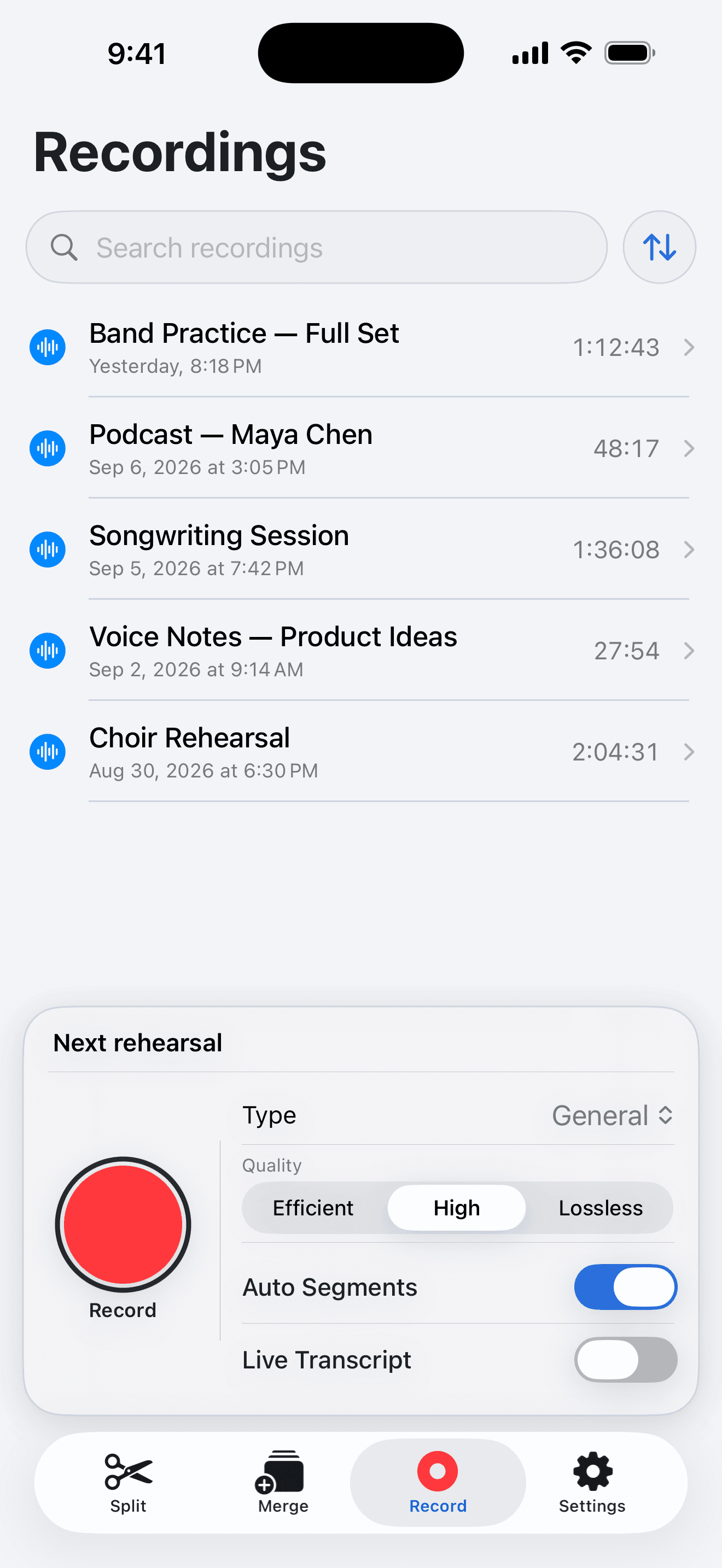
Open AudioMultiCut on iPhone and tap Record. Give the recording a useful name, choose its type and quality, and allow microphone access when iOS asks. Turn on Auto Segments if you want the app to find likely sections during capture, then tap the red Record button.
For a rehearsal, leave the phone where it can hear the room consistently. For an interview or spoken note, keep the microphone close enough to hear the words clearly. You can pause and continue the recording without starting a new project.
What split while recording means
Auto Segments analyzes the growing recording and shows estimated sections on the live waveform. Those marks are a head start, not final exported files. The section count can change when the app prepares the completed recording, so check the cuts before sending them.
Live Transcript is a separate, optional switch for supported speech recording. It is not needed for Auto Segments or sharing. Leave it off if you only want the audio and suggested cuts.
Tap Done and choose the next action
Tap Done when the recording ends. Wait while AudioMultiCut saves the file and prepares its sections. Open the finished recording in the recording library. Its two main actions are Split and Share.
Tap Share to send the untouched original through the iPhone share sheet. That action is free even for a long recording. Tap Split when you want separate files. The saved project opens with the suggested sections ready to inspect; if Auto Segments found no useful breaks, you can make the cuts yourself.
Review, export, and send the clips
Play each section, check the first and last word or note, and move any boundary that landed too early or late. Name the clips so the recipient can tell them apart. Then export the pieces you want and choose a destination such as Messages, WhatsApp, Telegram, AirDrop, or Files.
Recording and sharing the original are free. Editing and listening are available at any length, but clip exports above the app's current free limit need export access. The app shows that limit and the available purchase options before you pay.
FAQ
Does AudioMultiCut share automatically when I stop recording?
No. After you tap Done and the file is prepared, open the saved recording and tap Share for the original, or tap Split to review and export clips. You choose the recipient in the iPhone share sheet.
Are the clips finished while I am still recording?
No. Auto Segments shows estimated sections during recording. The app prepares the completed recording and its final sections after you tap Done. Review the cuts before exporting clips.
Can I record without automatic splitting?
Yes. Turn Auto Segments off in the Record tab. You can share the full finished recording or create cuts later in Split.
Sources
Recording controls, live estimates, finish flow, Split and Share actions, and the export boundary were checked against the AudioMultiCut iOS implementation on September 13, 2026.
More recording workflows
Long recording in, useful clips out
How to Split Long Recordings on iPhone with AudioMultiCut
A step-by-step iPhone workflow for splitting Voice Memos, rehearsals, lectures, meetings, and live recordings into clean MP3 or WAV clips.
Long messages get heard when they arrive in pieces
How to Send a Long Voice Memo in Parts
Recording too big to send? Split it into parts in your phone browser on Android or in the iPhone app, then share all the parts at once.
Get a clean first pass from Auto-Cut, then polish the edges before exporting
How Auto-Cut Works in AudioMultiCut and How to Get Clean Results
A practical guide to the Auto-Cut beta in AudioMultiCut: which preset to pick, how the silence-based detection actually decides where to split, and the final touches to do before you export.
Related pages and tools
Try it with your next recording
Open the Record tab, turn on Auto Segments if you want suggested cuts, and make a short test recording. When it finishes, choose Share for the original or Split to review clips.