
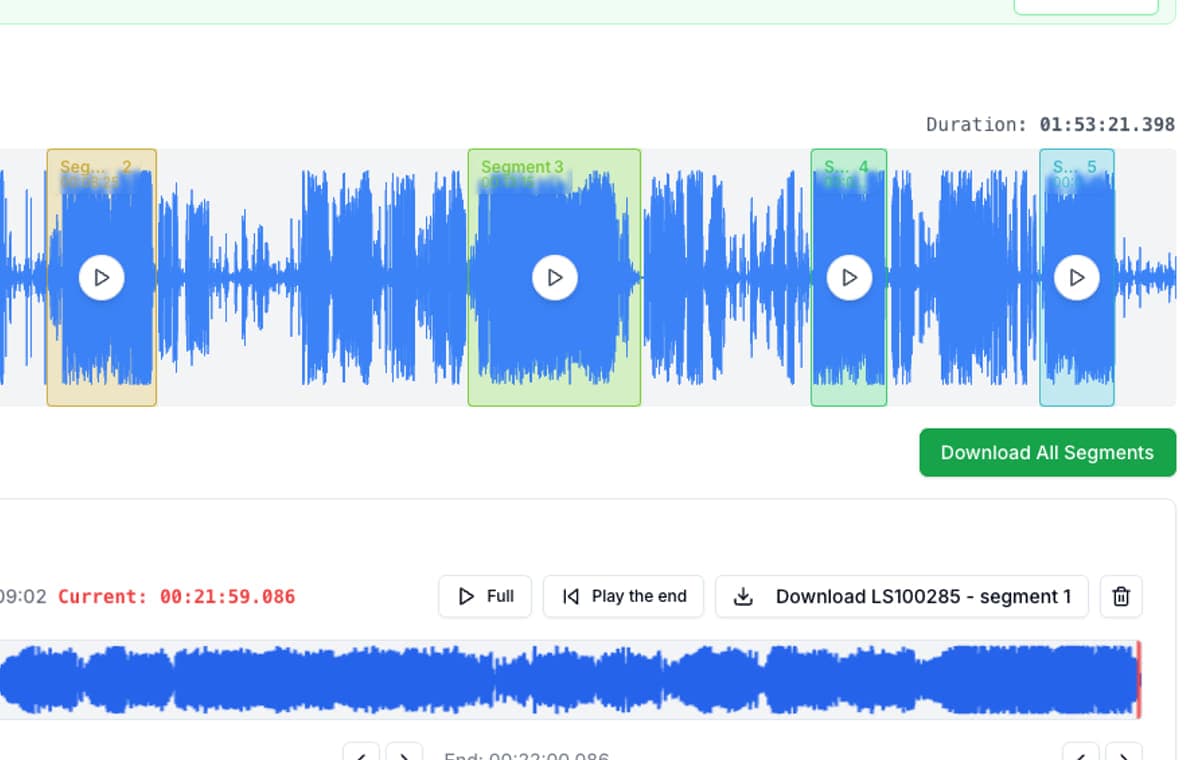
To split a DJ mix into tracks, place a cut at each track change using the times from your tracklist, then export each section as its own file. Silence detection does not help much here, because a mix blends one song into the next with no gap. In AudioMultiCut you mark every change on one waveform and export all tracks at once.
Live sets are different. Bands usually stop between songs, so the gaps are applause or talking rather than silence. AudioMultiCut's Live Show preset is tuned for that and gives you a first pass to adjust.
Which method fits your recording
| Recording | Best method | Notes |
|---|---|---|
| Beatmatched DJ mix | Mark track changes by hand from the tracklist times | Put the cut where the new track becomes the main sound, often at a phrase start. |
| Live band set | Auto-Cut with the Live Show preset, then adjust | Decide whether applause stays at the end of each song or gets trimmed. |
| Radio show or podcast with music | Mark by hand | Talk-overs mean there is no clean gap to detect. |
| Mix with a CUE sheet | A CUE-aware tool such as mp3splt | If you have a CUE file, a tool that reads it can split without any marking. |
Steps: split a DJ mix from a tracklist
Everything runs in the browser. The audio is decoded locally and is not uploaded to AudioMultiCut servers.
- Get the tracklist with start times. DJ software, streaming platforms and mix sites often provide one.
- Open audiomulticut.com and load the mix.
- Jump to each start time and place a cut. Listen around the cut and nudge it to the first beat of the phrase where the new track takes over.
- Name each segment with its number, artist and title so the files sort in order.
- Export as WAV or MP3 and download all tracks at once.
Steps: split a live set
- Load the recording and run Auto-Cut with the Live Show preset.
- Check the segment count against the setlist and fix any song that was split in two or merged with the next.
- Decide how much applause to keep at the end of each song and trim the edges.
- Name the songs and export them together.
A note on rights
Splitting your own mix or your own band's gig for personal use or archive is the common case. Publishing individual tracks from a mix of other artists' music is a different matter and usually needs permission from the rights holders.
FAQ
Can a tool split a DJ mix automatically?
Not reliably by silence, because there are no gaps. Use the tracklist times to mark each change, or a CUE sheet with a tool that reads CUE files.
Where should the cut go between two blended tracks?
Usually where the incoming track becomes the main sound, on the first beat of a phrase. Listen a few seconds either side before you settle on it.
Does Auto-Cut work for live concerts?
Often, yes. The Live Show preset looks for the longer breaks between songs. Check the result against the setlist and adjust the edges.
Is the mix uploaded when I split it?
No. The website cuts the audio locally in your browser. The file is not uploaded to AudioMultiCut servers.
Sources
mp3splt documentation checked on October 1, 2026.
More recording workflows
Turn one rehearsal file into useful song files without the usual cleanup pain
How to Split Band Rehearsal Recordings Into Individual Songs
A practical workflow for taking one long rehearsal recording and turning it into clean song files your band can actually review and share.
Get a clean first pass from Auto-Cut, then polish the edges before exporting
How Auto-Cut Works in AudioMultiCut and How to Get Clean Results
A practical guide to the Auto-Cut beta in AudioMultiCut: which preset to pick, how the silence-based detection actually decides where to split, and the final touches to do before you export.
Built for long files
How to Split a 2-Hour Recording Into Clips
Long recordings are where most audio tools give up. How to turn a two-hour rehearsal, lecture, or interview into usable clips in one browser session.
Related pages and tools
Split your mix into tracks
Load the recording, mark each track change from your tracklist times and export every track together.