
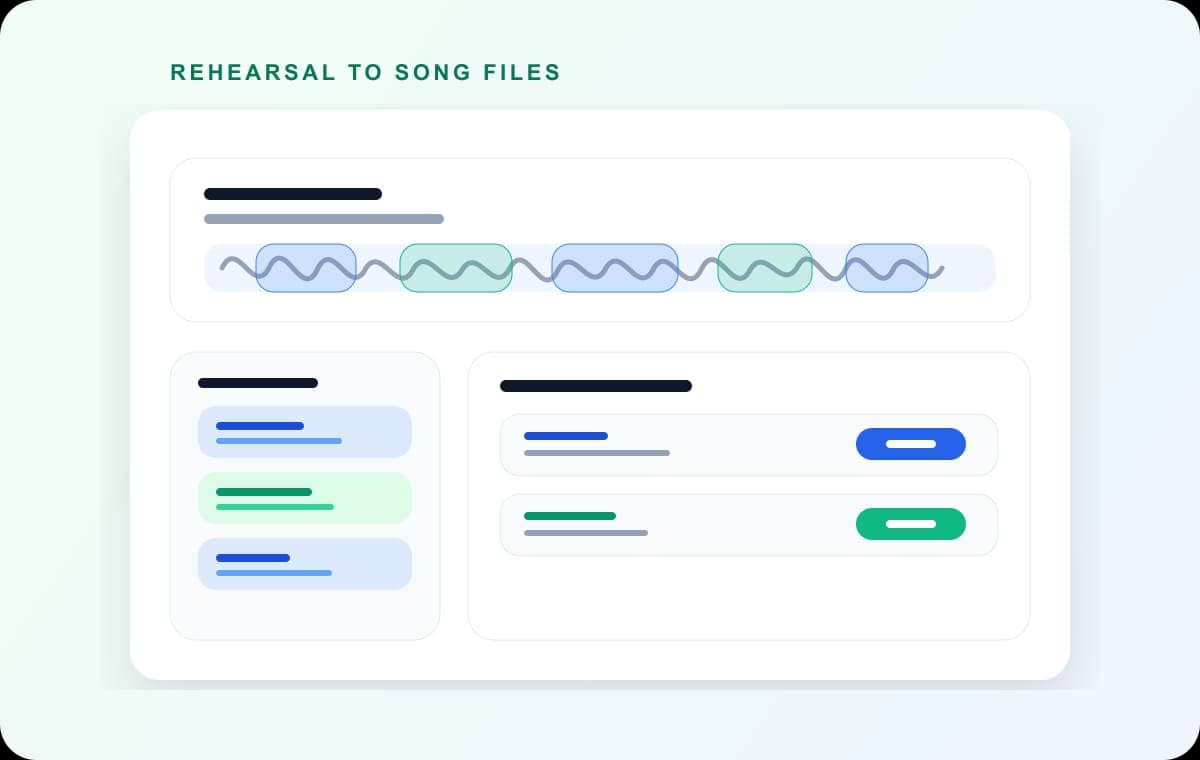
To split a digitized record or tape into tracks, cut the long recording at the gaps between songs and export each song as its own file. In AudioMultiCut, Auto-Cut places a cut at each gap, you check the edges by ear, and every track exports at once.
The catch with vinyl and cassette is that the gaps are rarely silent. Surface noise and tape hiss sit under everything, so a tool looking for true silence can miss a break. The fix is to treat quiet as silence, or to mark the few missed breaks by hand.
Common problems and fixes
| Problem | Why it happens | Fix |
|---|---|---|
| Auto-Cut misses a break | Crackle or hiss fills the gap | Raise the silence threshold, or add that cut by hand on the waveform. |
| A song is split in two | A quiet passage inside the song looks like a gap | Remove the extra cut so the song is one segment again. |
| Songs crossfade with no gap | Live albums and DJ-style sides run songs together | Mark those breaks by hand using the track times on the sleeve. |
| Click at the start of a track | The cut lands on a crackle | Move the edge a fraction later, or clean clicks with a spectrogram tool before splitting. |
Steps: split one side into tracks
Everything runs in the browser. The audio is decoded locally and is not uploaded to AudioMultiCut servers.
- Record the side at full quality (WAV) with your turntable or tape deck software, and trim any lead-in noise before the first song if you like.
- Open audiomulticut.com and load the file.
- Run Auto-Cut with the Rehearsal Songs or Smart preset. Both look for longer gaps, which matches the spaces between songs.
- Compare the number of segments with the track list on the sleeve. Add or remove cuts until they match.
- Name each segment with its track number and title, for example 01 - Song Title.
- Export as WAV for an archive copy, or MP3 for your phone, and download all tracks at once.
After splitting: tags and artwork
AudioMultiCut names the files but does not write album tags or cover art. A free tagger such as MusicBrainz Picard can match the files to the album and fill in artist, album, track numbers and artwork.
Other ways to do it
Audacity is the classic tool for digitizing records: Analyze > Label Sounds can find the gaps, and Export Audio with the multiple files option saves each labeled track. It also has click removal and noise reduction, which AudioMultiCut does not focus on.
Command line tools such as mp3splt can split by silence or by a CUE sheet, which suits large batches if you are comfortable in a terminal.
AudioMultiCut is the quicker option when you already have the recording and want to see every break on one waveform and export all tracks in one go.
FAQ
How do I split a vinyl recording into tracks automatically?
Use a tool that cuts at the gaps between songs. In AudioMultiCut, run Auto-Cut with the Rehearsal Songs or Smart preset, then check the count against the sleeve and fix any missed break by hand.
Why does auto-split miss some song breaks on vinyl?
Surface noise fills the gap, so it is not true silence. Raise the silence threshold or add the missing cut by hand.
Should I save the tracks as WAV or MP3?
Keep a WAV copy as your archive, since you only want to digitize a record once. Make MP3 copies for phones and players if you need smaller files.
Does AudioMultiCut add album tags?
No. It names the files you export. Use a tagger such as MusicBrainz Picard to add artist, album, track numbers and artwork.
Sources
Audacity and mp3splt documentation checked on October 1, 2026.
More recording workflows
Three common audio jobs, one browser tab
Everyday Audio Editing: Splitting Albums, Trimming Tracks, and Making Ringtones in One Tool
A practical walkthrough of three things most people eventually need to do with audio files and how to handle all of them without installing anything.
Get a clean first pass from Auto-Cut, then polish the edges before exporting
How Auto-Cut Works in AudioMultiCut and How to Get Clean Results
A practical guide to the Auto-Cut beta in AudioMultiCut: which preset to pick, how the silence-based detection actually decides where to split, and the final touches to do before you export.
Find the noise, select less than you think
How to Remove Clicks and Hum With a Spectrogram Editor
A practical guide to finding clicks, hum lines, bumps, and small noises on a spectrogram and brushing only the problem area.
Related pages and tools
Split your record side into tracks
Load the digitized side, let Auto-Cut find the gaps between songs, check each edge and export all the tracks together.