
Telegram accepts larger files than most messaging apps, so a long recording usually sends without complaint. The problem arrives on the other end: a 40-minute voice message shows up as one long bar, the listener has no way to see what is where, and scrubbing on a phone is guesswork. Splitting the recording into named parts before sending fixes the listening problem, and Telegram's own interface then presents the parts in order.
For a quick split, send the file to @SplitWithAudioMultiCutBot and choose Smart split, Rehearsal songs, or equal chunks. For exact waveform control, use the iPhone app or open audiomulticut.com in a browser, mark the sections, export, and send the files into the chat together.
The quickest option stays inside Telegram
Open @SplitWithAudioMultiCutBot, send the audio, and choose a split mode. The bot returns the clips in the same chat without making you save the file and open another editor. It is best for files up to 20 MB and 30 minutes when a useful first pass matters more than exact boundaries.
Use the full editor when you need to see the waveform, move a cut precisely, rename several clips, or work with a larger recording.
Getting the audio out of Telegram
If the long recording is a Telegram voice message someone sent you, save it first: tap the message's share or save option and send it to Files on iPhone, or to your downloads on Android and desktop. Telegram voice messages are OGG/Opus files; AudioMultiCut accepts them, and Chrome or Edge decode them most reliably in the browser. The iPhone app takes them through the share sheet.
If the recording came from somewhere else, a lecture, a rehearsal, a meeting, skip straight to splitting it.
Splitting and sending back
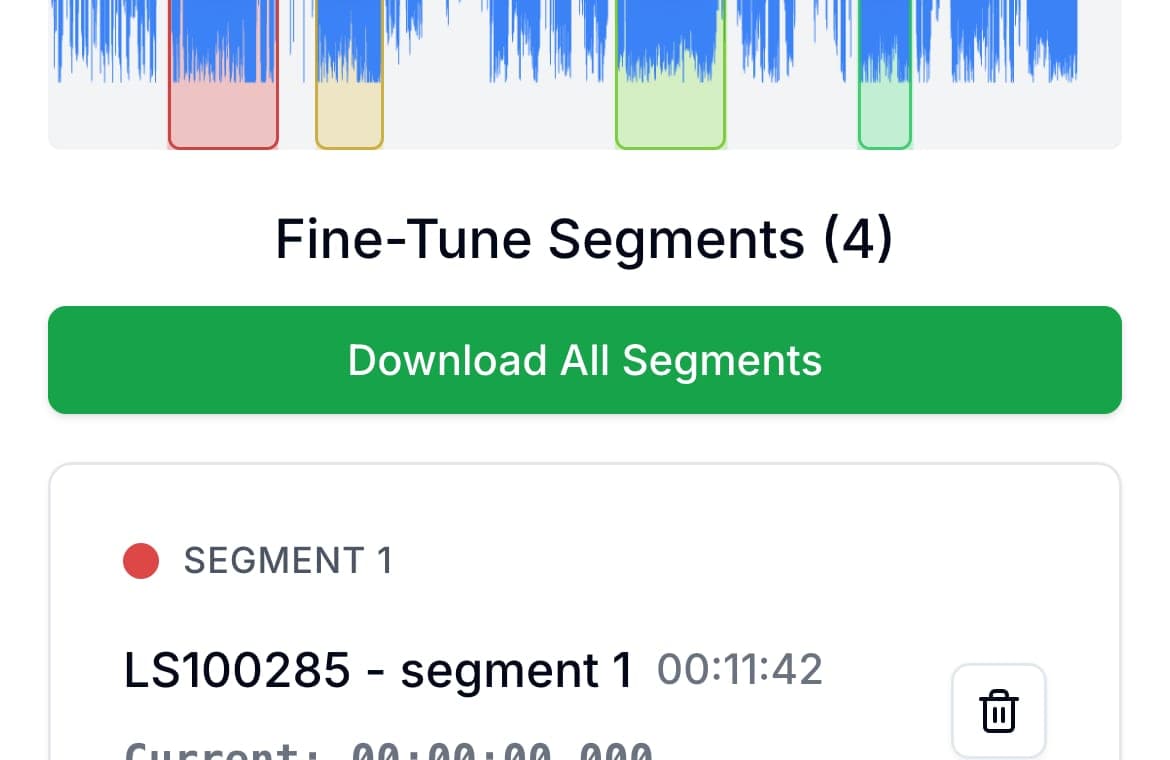
Open the file, mark a segment per topic or song, and preview each boundary before exporting. Name the exports for what they contain, because Telegram shows filenames on audio attachments and the names become your table of contents in the chat. Then send the files into the conversation in one batch; they arrive as a group of playable audio messages in order.
Exported MP3s appear in Telegram as music-style audio attachments with a scrubber and filename, which for long content is easier on the listener than the push-to-talk voice bubble.
On iPhone
The AudioMultiCut app covers the whole loop on the phone: share the recording in, split it, batch-export, and hand the files to Telegram through the share sheet in one action. Free for recordings up to 10 minutes; AudioMultiCut Unlimited covers longer ones.
FAQ
Can I trim a voice message inside Telegram?
No. Telegram records and sends voice messages but has no editor for them. Save the message, cut it in AudioMultiCut, and send the result back.
Will the parts arrive as voice bubbles?
No, exported files arrive as audio attachments with a scrubber and filename. For long content that is easier to navigate than a voice bubble.
Does Telegram have a voice message length limit?
Recording in-app can run very long, and file attachments have a size cap that Telegram shows if you hit it. On Telegram the blocker is rarely length. The harder problem is one long bar of audio nobody can navigate, and splitting solves that.
More recording workflows
From voice message to shareable clips
How to Cut a WhatsApp Voice Message
Save the voice note, cut or trim the part you need in your browser or the iPhone app, and send it back to the chat as an MP3. Free, and nothing is uploaded.
The upload error has a two-minute fix
How to Send Long Audio on Discord
Discord's upload cap cuts off long recordings fast. Split the audio into parts under the limit and post them in order instead.
Editing should be as private as the messenger
How to Send a Long Voice Message on Signal
Signal keeps messages private but gives you no way to edit a long voice note. Cut it locally, so the audio stays as private as the chat, then send the parts.
The whole message, a few files at a time
How to Send a Long Voice Message on Messenger
Messenger cuts voice recordings short and rejects big audio files. Split the recording on your phone and send the parts so the whole message gets through.
Sent as files, the parts stay in the thread
How to Send Long Audio in iMessage
iMessage audio messages were built for seconds, not lectures. Send long recordings as split files instead, straight from your iPhone.
Long messages get heard when they arrive in pieces
How to Send a Long Voice Memo in Parts
Recording too big to send? Split it into parts in your phone browser on Android or in the iPhone app, then share all the parts at once.
Related pages and tools
Split audio for Telegram
Upload a real recording and see how fast the split-and-preview workflow feels on your own material.